

When Rajesh’s Son Couldn’t Open His Schoolwork
Last Tuesday, Rajesh from Indore bought an Apna PC for his 10-year-old son Arjun. The computer arrived with everything pre-loaded: Zorin OS, LibreOffice, Scratch for coding, and Apni Prerna for monitoring. Everything worked perfectly for two weeks. Then one morning, Arjun clicked something he shouldn’t have, and suddenly the computer wouldn’t start properly. Rajesh panicked. His son had homework due that day. He didn’t know what to do, so he called his cousin in Delhi who said, “Just reset it.” But how?
If you’re a parent in a tier-2 or tier-3 city and you’ve bought an Apna PC for your child, you might face a similar situation. Your computer might freeze, run slowly, or show strange errors. The good news is that resetting your Apna PC isn’t as scary as it sounds. This guide will walk you through exactly what to do when something goes wrong.
Understanding Your Apna PC Before Problems Happen
Your Apna PC comes with 8GB of RAM and a 128GB SSD. It runs Zorin OS, which is a safe, student-friendly operating system. The computer has Apni Prerna built in so you can do day-to-day parent supervision of what your child does online. LibreOffice is pre-loaded for documents and spreadsheets. Scratch helps your child learn the basics of coding.
Understanding these components helps you know what’ll stay safe during a reset. Your files might disappear, but the core system stays protected. That’s why knowing how to reset matters for every parent.
Signs Your Apna PC Needs a Reset
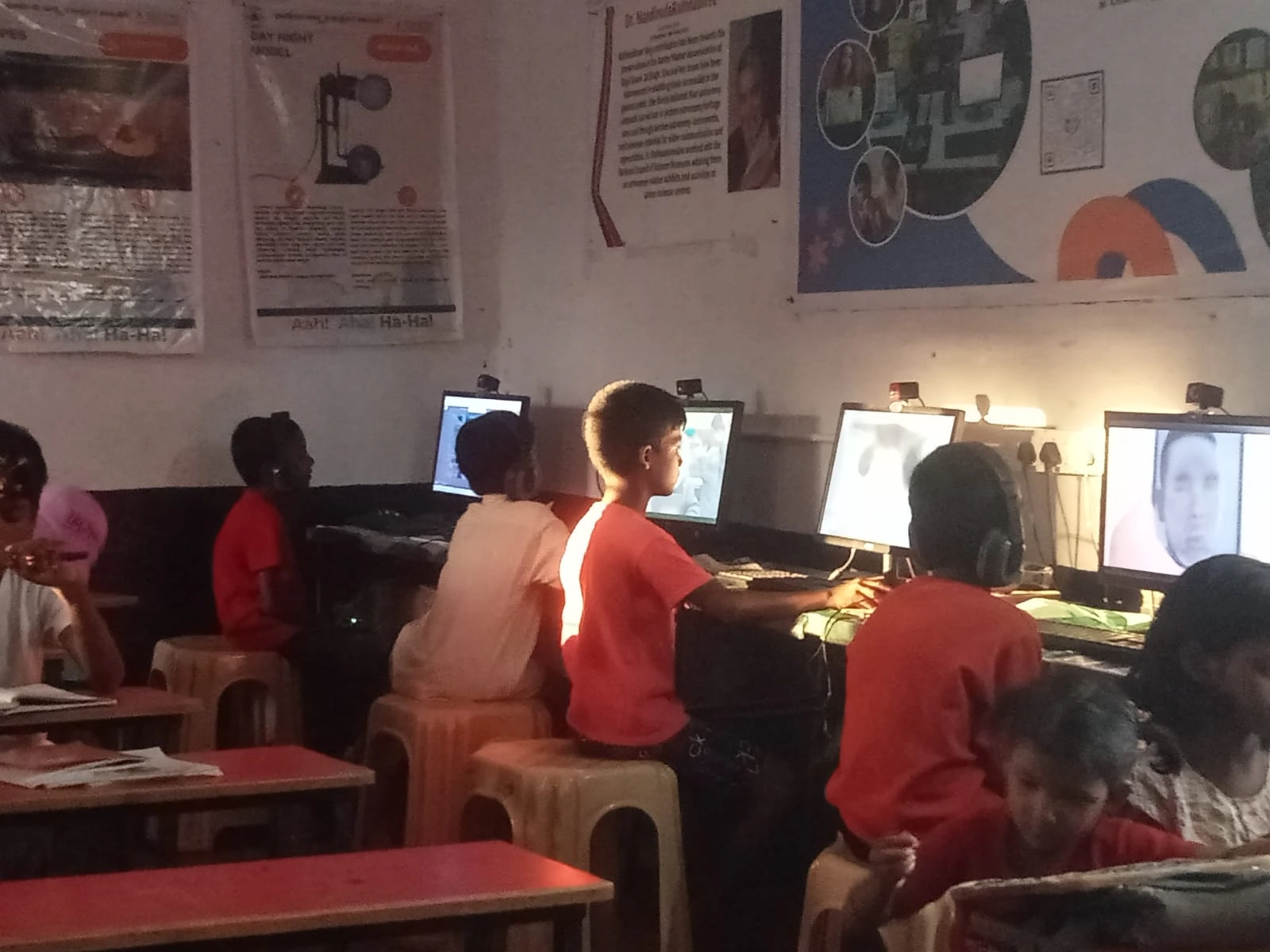
Your computer might need a reset if:
- It won’t start up – You press the power button, but nothing happens, or it gets stuck on the loading screen.
- It’s running very slowly – Even simple tasks like opening LibreOffice take forever.
- Programs keep crashing – Scratch closes unexpectedly, or your child can’t access schoolwork.
- There are strange error messages – Pop-ups appear that you don’t recognise
- Your child accidentally deleted important files – You need to restore the system to factory settings.
Before you reset, try turning the computer off completely and waiting 30 seconds. Then turn it back on. Sometimes this simple step fixes the problem.
How to Backup Your Files First
Before any reset, you should save your child’s important files. Connect an external USB drive or use cloud storage if you have it. Copy your son or daughter’s school projects, documents, and any photos they’ve saved.
Open the file manager on your Apna PC. Look for folders like “Documents,” “Downloads,” and “Desktop.” Copy these to your USB drive. This takes 10 minutes but saves you from losing homework and memories. After you’ve backed up everything, you’re ready to reset.
Step-by-Step Reset Instructions for Apna PC
Here’s exactly what you do:
- Step 1: Click the menu button (three horizontal lines) in the top-left corner of your screen
- Step 2: Look for “Settings” or “System Settings” and click it
- Step 3: Find the option that says “Reset” or “Factory Reset” – it might be under “About” or “Advanced”
- Step 4: Click “Reset to Factory Settings” and confirm when asked
- Step 5: Your computer will restart and take 15-20 minutes to complete the reset
- Step 6: When it finishes, you’ll see the setup screen again, just like when you first opened the box
Don’t turn off the computer during this process. Let it finish even if it seems to be taking a long time.
After Your Reset: Getting Back to Normal
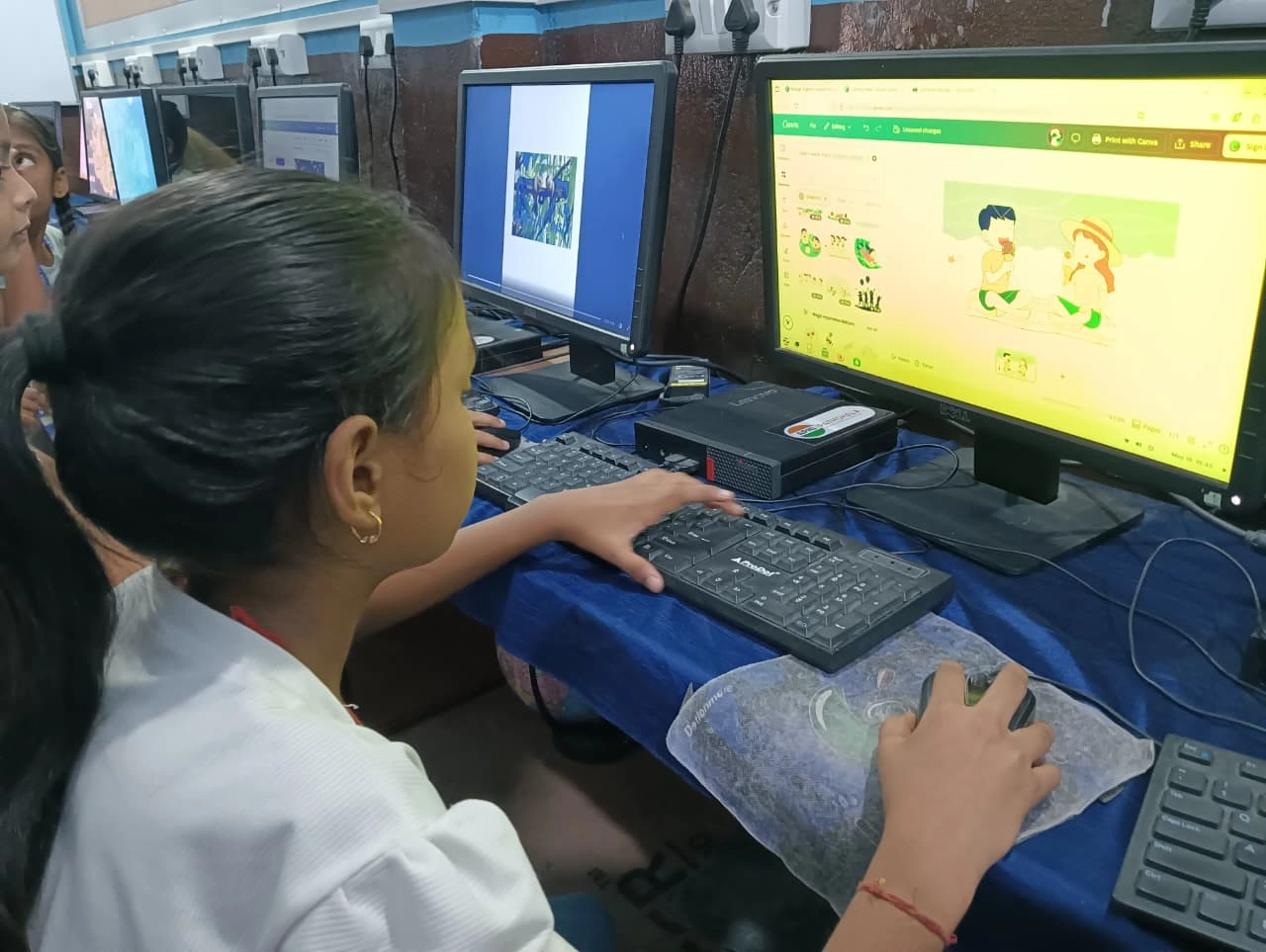
Once the reset is complete, your Apna PC will be like new. Zorin OS, LibreOffice, Scratch, and Apni Prerna will all be there again. You’ll need to set up your parent account again to teach internet safety features through Apni Prerna.
Restore your backed-up files from your USB drive. Copy them back into the Documents or Downloads folders. Your child can now use the computer again, and everything should run smoothly.
Preventing Problems in the Future
You can stop many problems before they start. First, teach your child not to download files from websites you don’t recognise. Second, set up parental controls through Apni Prerna so your child can’t accidentally install programs that cause trouble.
Third, restart the computer once a week. This clears temporary files and keeps things running fast. Fourth, keep the computer in a cool, dry place. Heat and dust can cause slowdowns over time. Fifth, use the Education in India resources and check the Ministry of Education website for approved educational software.
When to Call Apna PC Support
If you’ve tried these steps and your computer still won’t work, it’s time to contact Apna PC Support. You’re not alone in facing technical issues. The support team knows exactly how to help because they work with parents and students every day across tier 2 and tier 3 cities.
Have your computer’s serial number ready. Tell them exactly what happened before the problem started. Describe any error messages you saw. The more details you give, the faster they can solve your problem.
Knowing how to reset your Apna PC gives you confidence as a parent. You’re not helpless when something goes wrong – you have the tools to fix it. Your child can get back to learning, whether it’s coding in Scratch, typing homework in LibreOffice, or studying with the resources Apni Prerna provides. Visit apnapc.com to learn more.