


To read Apna PC usage reports, look at which apps your child used, for how long and when, then compare weekly trends rather than single days. The reports come from the Apni Prerna monitoring system and help you see whether computer time is going to learning or distraction, so you can guide your child calmly.
For example, a parent whose child has been “studying” for hours may simply wonder how much was real work. The reports replace that guesswork with clear information.
What are Apna PC usage reports?
Apna PC usage reports are activity logs built into the computer through Apni Prerna. They show which applications your child uses, how long they spend on each and when they are most active.
The reports are about understanding patterns, not spying. You can see whether time goes to LibreOffice for homework, Scratch for coding or to distractions. This helps you support better habits instead of punishing poor ones. Apna PC is sold by Apni Pathshala for Rs.30,000.
What do the key sections of the report show?
Each section tells a different part of the story about how your child uses the computer:
- Daily activity timeline: which applications were open, hour by hour, so you can see whether study happened in the morning or late at night.
- Application usage duration: total time per program. Time in LibreOffice and Scratch shows learning, while browser time can mean research or distraction.
- Focus sessions: uninterrupted study periods. Longer sessions usually mean deeper work, and short scattered ones may mean distraction.
- Weekly patterns: study habits compared across days, so you can spot a productive Monday and a wasted Friday.
- Offline time: when the computer was not in use, which helps you see the whole daily routine.
How do you read the numbers without confusion?
Look at what the time was spent on, not just the total. A long day on the computer is not automatically wasted time if most of it was in educational software.
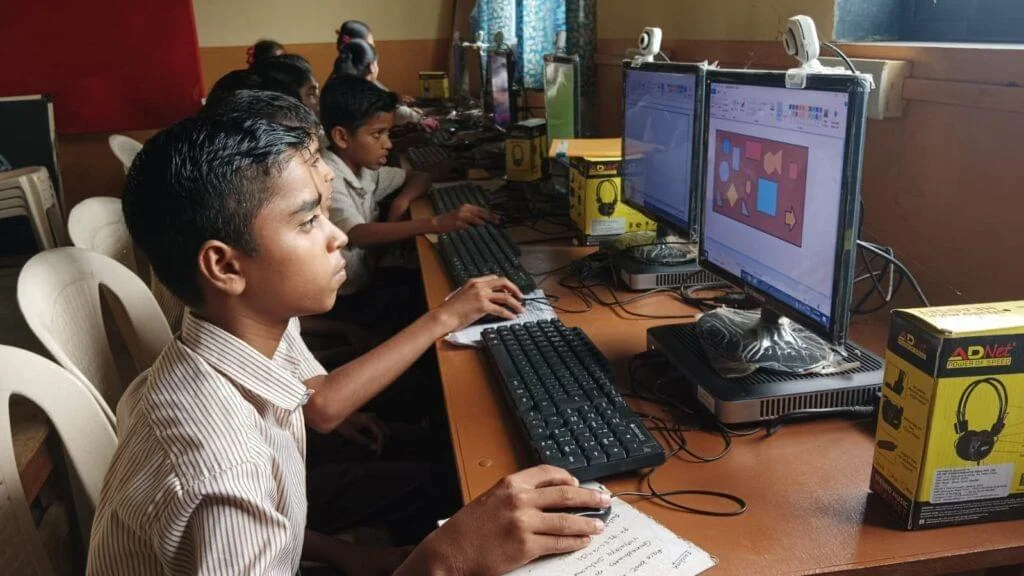
Compare weeks and months to see patterns. Focus time may improve after setting screen time limits and healthy habits, or some times of day may show better concentration.
Check the balance between kinds of apps. If educational software takes 60 per cent of the time and games 40 per cent, that is reasonable. If it is the other way round, it is time for a conversation.
How can reports lead to better conversations with your child?
Reports shift the talk from blame to curiosity. Instead of “You are always on that computer,” you can say “I see you spent a long time on Scratch yesterday. What did you build?”
Look at the reports together and ask about the focus sessions. You may find your child is learning more than you thought, or you may find real problems to solve together. Children who know their usage is visible often make better choices on their own.
Use the data to celebrate wins. If focus time grows from 40 minutes to 90 minutes over a month, that progress deserves recognition. For more ideas, read how Apni Prerna reports help conversations with teachers.
How do you connect usage data to learning outcomes?
Put usage data beside grades and project quality. You are looking for a real link between how time is spent and how your child is doing.
If your child spends time in LibreOffice but grades do not improve, they may need help with study techniques. If Scratch use is high and coding skills are growing, the time is well spent. Our guide on how to judge digital learning progress helps here.
Combine school reports with usage data for a complete picture. The education system in India overview and the Ministry of Education website are useful background on how schooling is changing.
What mistakes do parents make when reading reports?
The most common mistake is judging a single day. One bad day can come from illness, extra homework or tiredness, so weekly and monthly trends matter more.
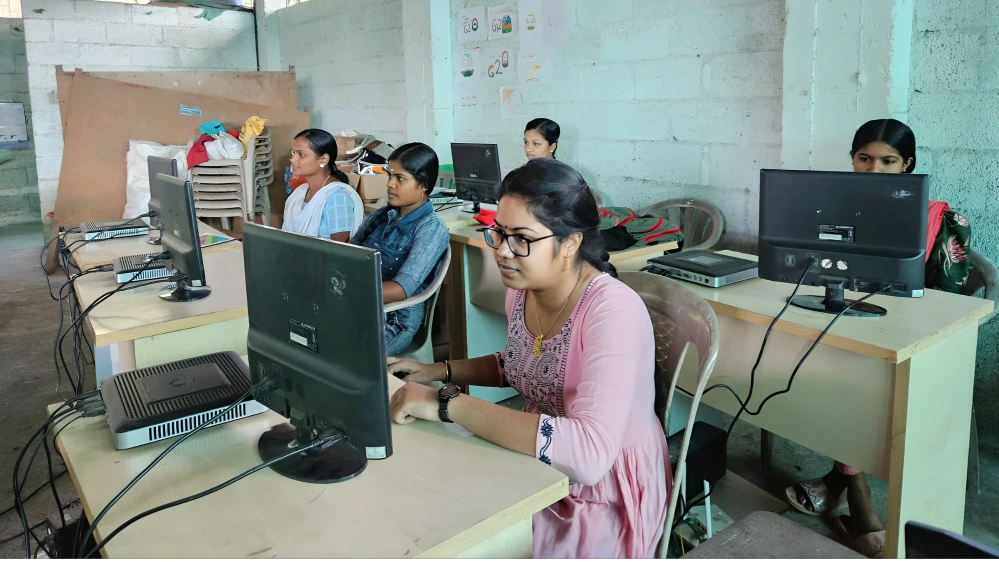
Do not assume all computer time is wasted. The question is how well your child uses the computer. With 8GB RAM and a 128GB SSD, Apna PC runs educational software smoothly, so the device itself supports learning.
Do not use reports as a weapon. If every high gaming number brings punishment, children learn to hide activity instead of improving it.
How do you set realistic goals from your reports?
Agree on small, specific goals with your child, such as adding 15 minutes of daily focus time or cutting 30 minutes of gaming per week.
Track progress in the reports. Celebrate when targets are met, and problem-solve together when they are missed. Your child may need a quieter study space, better time management or simply your presence during study time. Habits take weeks and months to build, not days.
Frequently Asked Questions
How often should I check my child’s usage reports?
A weekly review works well for most families. Daily checks can feel like constant watching and lead you to overreact to one bad day. A weekly look, ideally with your child, shows real trends and gives you a calm moment to talk about progress.
Should my child know that I see their usage reports?
Yes, openness works best. When your child knows the reports exist and you review them together, monitoring builds trust instead of fear. Hidden checking tends to make children secretive, while shared review encourages them to take responsibility for their own habits.
What should I do if reports show a lot of gaming?
Start with a calm conversation, not punishment. Ask what your child enjoys and agree on clear limits together. Then set one small goal for the next week and check the report again. Steady, shared goals change habits more reliably than sudden bans.
Apna PC comes pre-loaded with Zorin OS, LibreOffice and Scratch, and your role is to guide how they are used. Visit Apna PC to learn more.