

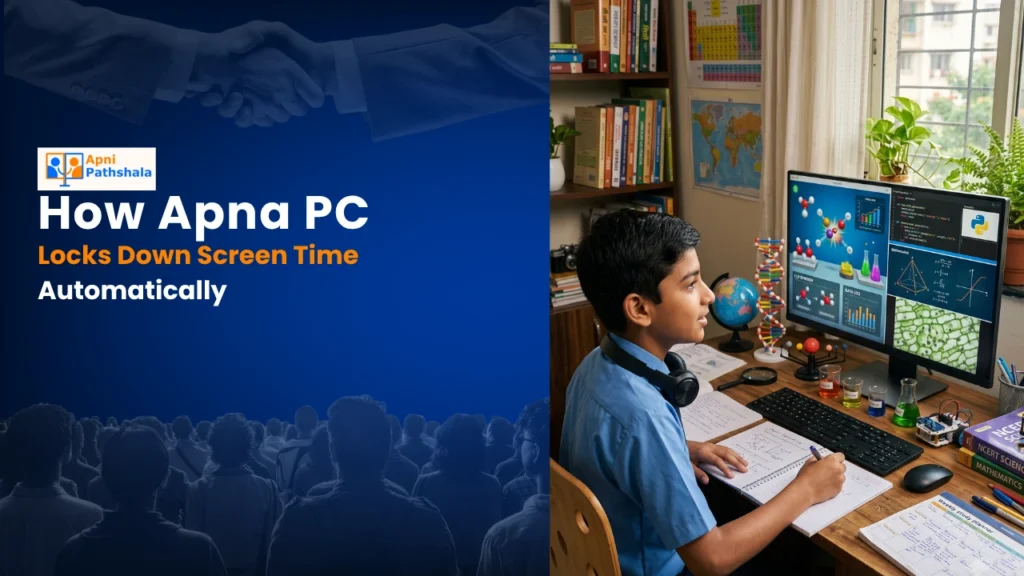
Priya’s Screen Time Battle: Why One Bangalore Mom Chose Apna PC
Priya sat at her kitchen table in Whitefield, Bangalore, staring at her 10-year-old son Arjun’s screen time report. Seven hours on YouTube. Four hours on games. The school laptop she’d bought him last year had become a distraction machine, not a learning tool. She’d tried app timers, parental controls, even taking the device away; nothing stuck. Then she discovered Apna PC, an educational computer designed specifically for Indian families who want screen time management without the constant battles.
If you’re a parent in Tier 2 or Tier 3 cities like Indore, Nagpur, or Lucknow, you know the struggle. Your child needs a computer for school projects and online classes. But the moment you hand over a regular laptop or PC, they’re scrolling, gaming, and wasting hours. You need a solution that actually works. That’s where Apna PC steps in with automatic screen time management built right into the system.
How Apna PC Locks Down Screen Time Automatically
Apna PC isn’t just another personal computer. It runs Zorin OS, a Linux-based system that’s completely different from Windows or Mac. More importantly, it comes pre-loaded with Apni Prerna, a student monitoring system that lets you set screen time limits without your child finding workarounds.
Here’s how it works. When you set a screen time limit in Apni Prerna, the computer literally locks down at that time. Your child can’t bypass it with hidden apps, restart tricks, or factory resets. The system enforces the limit at the operating system level. If you set two hours of study time, the computer shuts down after two hours. No negotiations.
You get complete control over:
- Daily screen time limits that reset each morning
- Specific study hours when the computer is available for educational work
- App restrictions so only approved software runs
- Real-time monitoring through the Apni Prerna dashboard on your phone
Unlike smartphone parental controls that kids constantly try to crack, Apna PC’s system is built into the foundation of the operating system itself. Your child can’t disable it or find hidden settings to work around it.
Screen Time Management That Fits Your Family’s Routine
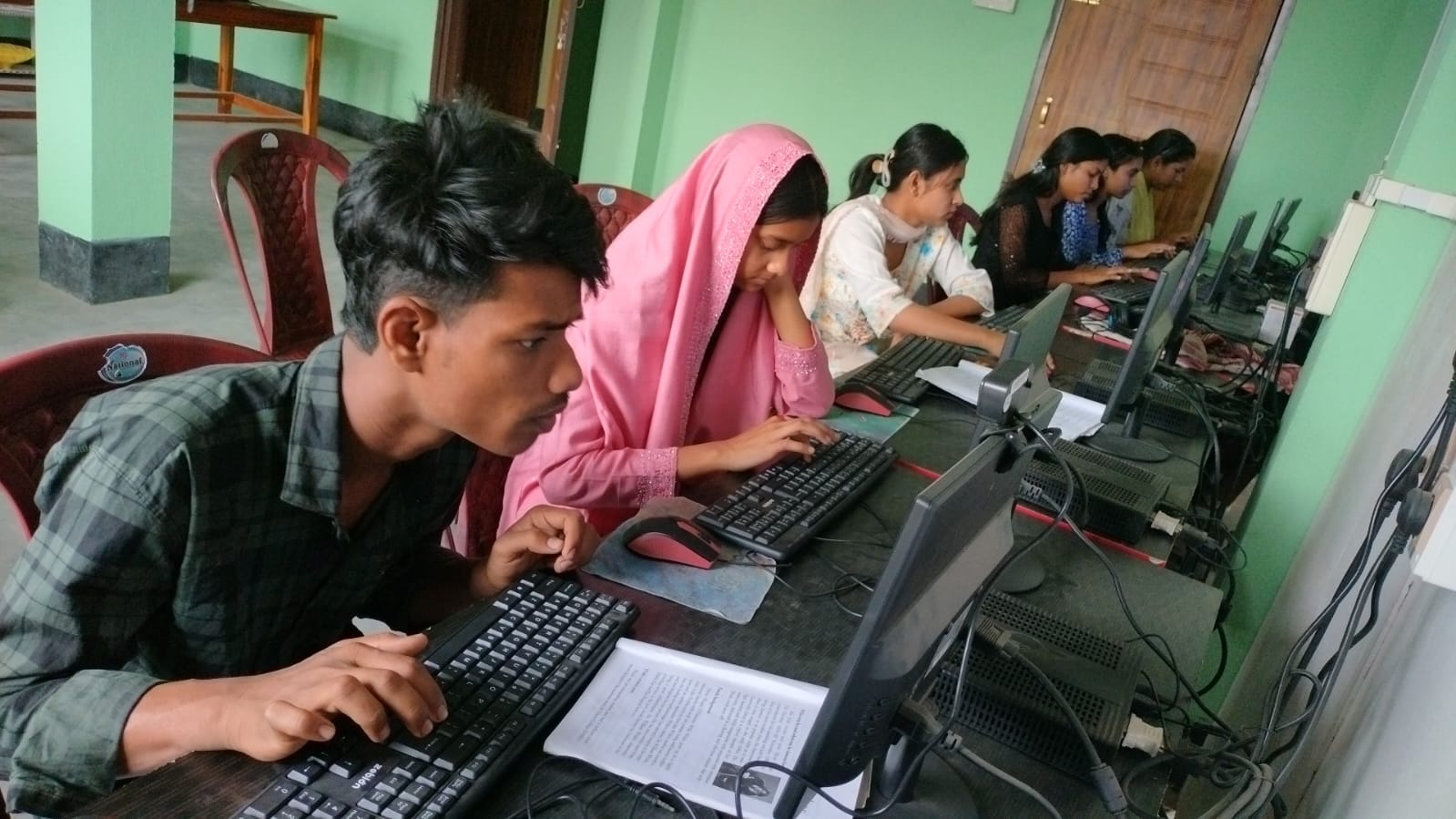
Every family’s schedule is different. Your daughter might have online classes from 9 AM to 11 AM, then math practice from 3 PM to 4 PM. Apna PC lets you create custom time slots for each activity. The computer knows when to allow access and when to lock down.
Arjun’s mom Priya set up three time blocks: morning for online classes, afternoon for homework, and evening for one hour of creative projects using Scratch (which comes pre-loaded). Outside these windows, the computer simply doesn’t turn on. No temptation. No willpower needed from Arjun.
The best part? You can adjust these limits anytime through your phone. If your child has an extra assignment or a special project, you can extend screen time for that day without changing the entire system. It’s flexible, but you hold the flexibility, not your child.
What Makes Apna PC Different From Regular Computers
You might wonder why you can’t just buy a regular laptop and install parental control software. The answer lies in what Apna PC doesn’t have: games, entertainment apps, and the endless scroll of distraction.
Apna PC comes with no games built in. Instead, you get LibreOffice for documents, Scratch for coding, and educational tools that actually support learning. The 8GB RAM and 128GB SSD are powerful enough for all school work, video calls, and research. They’re not powerful enough to run the games and apps that waste your child’s time.
At Rs. 30,000 (excluding shipping and GST), Apna PC is positioned as an educational investment, not an entertainment device. It’s backed by Apni Pathshala, an organisation focused on digital literacy for Indian students.
Setting Up Your Distraction-Free Learning Environment
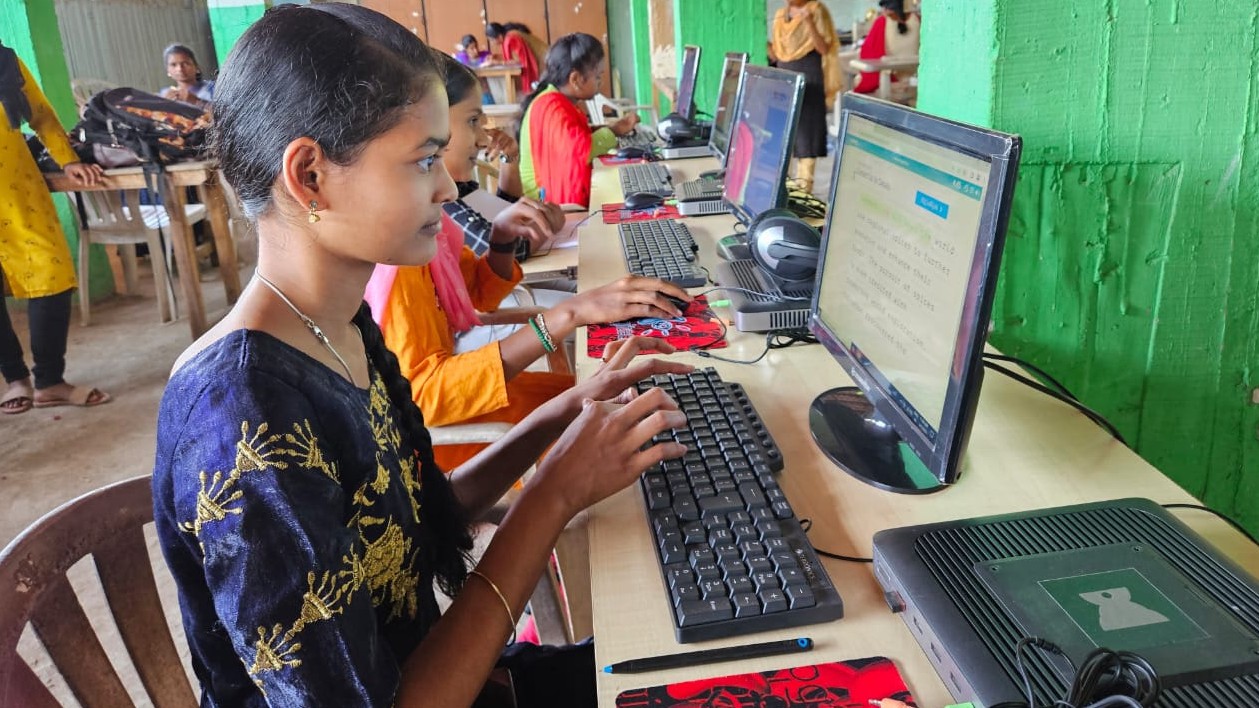
Installation is straightforward. Apna PC arrives with Zorin OS, Apni Prerna, LibreOffice, and Scratch already installed. You don’t need to be tech-savvy to set it up. The Apni Prerna dashboard walks you through creating user profiles for each child, setting screen time limits, and choosing which applications they can access. Check out this guide on distraction-free learning setup for more details.
You create a parent account with a strong password. Your child gets a student account with locked-down permissions. From your phone or another device, you can monitor what your child’s doing, how much time they’ve spent, and adjust settings as needed.
Many families in cities like Jaipur and Pune have reported that within two weeks of using Apna PC, their children’s study habits improved dramatically. Kids stopped asking for “just five more minutes” because they understood the screen time was a system rule, not a parent’s arbitrary decision.
Why Screen Time Management Matters Right Now
The Digital India initiative has brought computers into every classroom and home. But without proper boundaries, digital tools become digital distractions. Your child needs access to technology for their future. But they also need protection from the addictive design of entertainment apps and websites.
Apna PC gives you both. Your child learns to use technology responsibly while you sleep better knowing their screen time is actually limited. Effective screen time management means you’re not relying on willpower or constant monitoring. The system handles it for you.
Priya’s story is becoming common across Indian cities. Parents are tired of the screen time battle. They want a computer that’s genuinely educational. They want automatic limits that actually work. They want their child to develop healthy digital habits from the start. Apna PC delivers exactly that.
Your child’s digital future doesn’t have to be a constant struggle. With Apna PC’s automatic screen time management, you can give them the tools they need while protecting them from endless distraction. Visit apnapc.com to learn more.