


Rahul’s WiFi Crisis: A Story Many Students Know
Rahul sat in his room in Indore, staring at his laptop screen. The clock showed 11:47 PM. His online exam started in 13 minutes. His WiFi icon showed a red X. His stomach twisted. He’d studied for weeks. He’d prepared every answer. But right now, none of that mattered. His internet was dead.
If you’re a student in a Tier 2 or Tier 3 city, you’ve lived this moment. WiFi troubleshooting isn’t just about getting online. It’s about your education, your future, your opportunities. When your connection fails during an important class or exam, panic sets in fast. But here’s the truth: most WiFi problems are fixable in minutes if you know what to do.
Let’s walk through the WiFi troubleshooting steps that actually work. You don’t need a technician. You don’t need to spend money. You need to know where to look and what to try first.
Step 1: Check If the Basics Are Working
Before you panic like Rahul, check three simple things. First, look at your router. Is it plugged in? Is the power light on? Many people forget this basic check when they’re stressed.
Second, restart your device. Close your laptop or phone completely. Wait 10 seconds. Turn it back on. This fixes 30% of WiFi problems instantly. Your device sometimes gets confused about the connection. A restart clears this confusion.
Third, check if other devices can connect. Ask your family member to try their phone on the WiFi. If their phone works but your laptop doesn’t, the problem is with your device, not the WiFi. If nothing connects, the problem is with your router or internet provider.
Step 2: Restart Your Router the Right Way
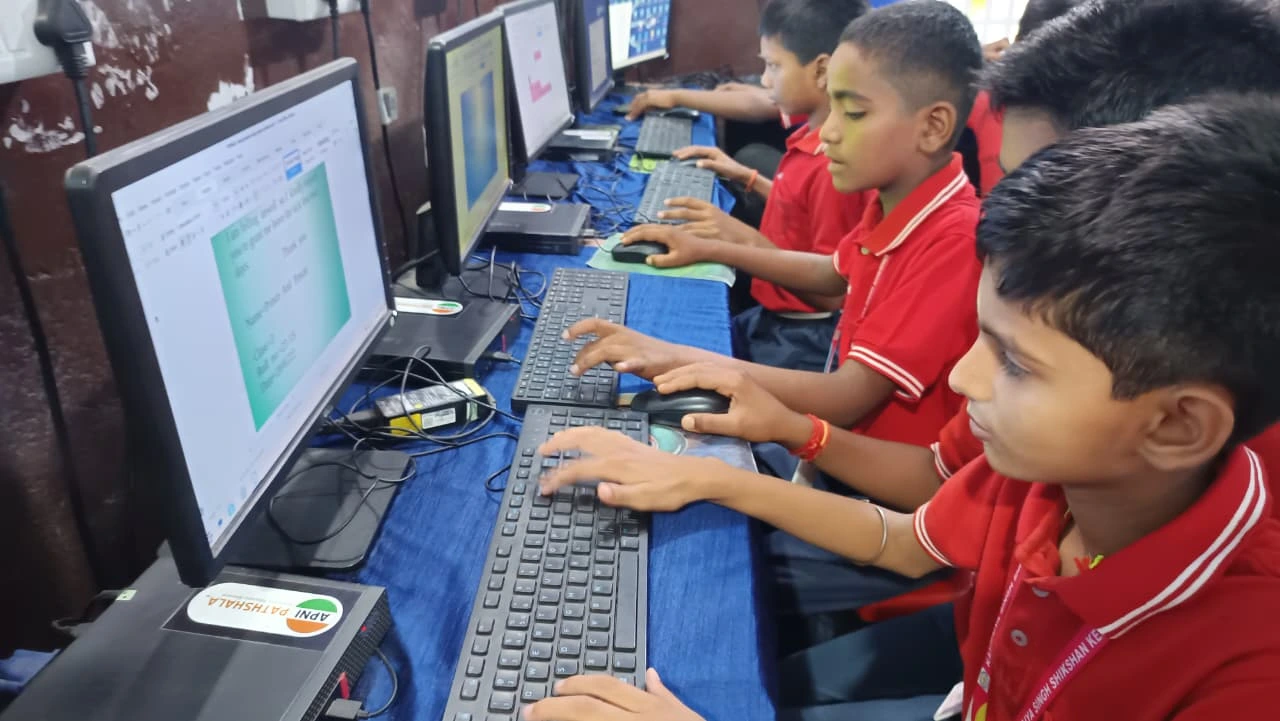
Your router is like the heart of your home network. When it gets tired, everything stops working. Restarting it is the most powerful technique you have.
Here’s exactly what to do. Find your router. It’s usually a box with antennas or lights. Press and hold the power button for 10 seconds. Wait 30 seconds for it to power down completely. Then press the power button again. Wait 2-3 minutes for it to restart fully.
During this restart, your router clears its memory and refreshes its connection to your internet provider. This solves most cases. Your speed will feel faster. Your connection will be more stable.
Step 3: Move Closer to Your Router
WiFi signals get weaker the farther you go. If you’re studying in a room far from your router, your signal might be too weak. Try moving closer and see if your connection improves.
Physical obstacles also block WiFi signals. Walls, metal objects, and even water (like in aquariums or water tanks) weaken your signal. Microwaves and cordless phones also interfere. This tip is simple but often forgotten.
Position your router in a central, elevated location. Keep it away from walls and metal objects. Your internet problems will be reduced significantly.
Step 4: Forget Your WiFi Network and Reconnect
Sometimes your device remembers incorrect WiFi settings. This causes internet problems that a fresh connection can solve quickly.
On Windows: Go to Settings > Network and Internet > WiFi > Manage known networks. Find your WiFi name. Click “Forget”. Then reconnect by entering your password again.
On Mac: Go to System Preferences > Network > WiFi > Advanced. Select your WiFi network and click the minus button. Reconnect with your password.
On Android and iPhone: Go to Settings > WiFi. Press and hold your network name. Select “Forget network”. Reconnect with your password.
Step 5: Check Your WiFi Password and Security
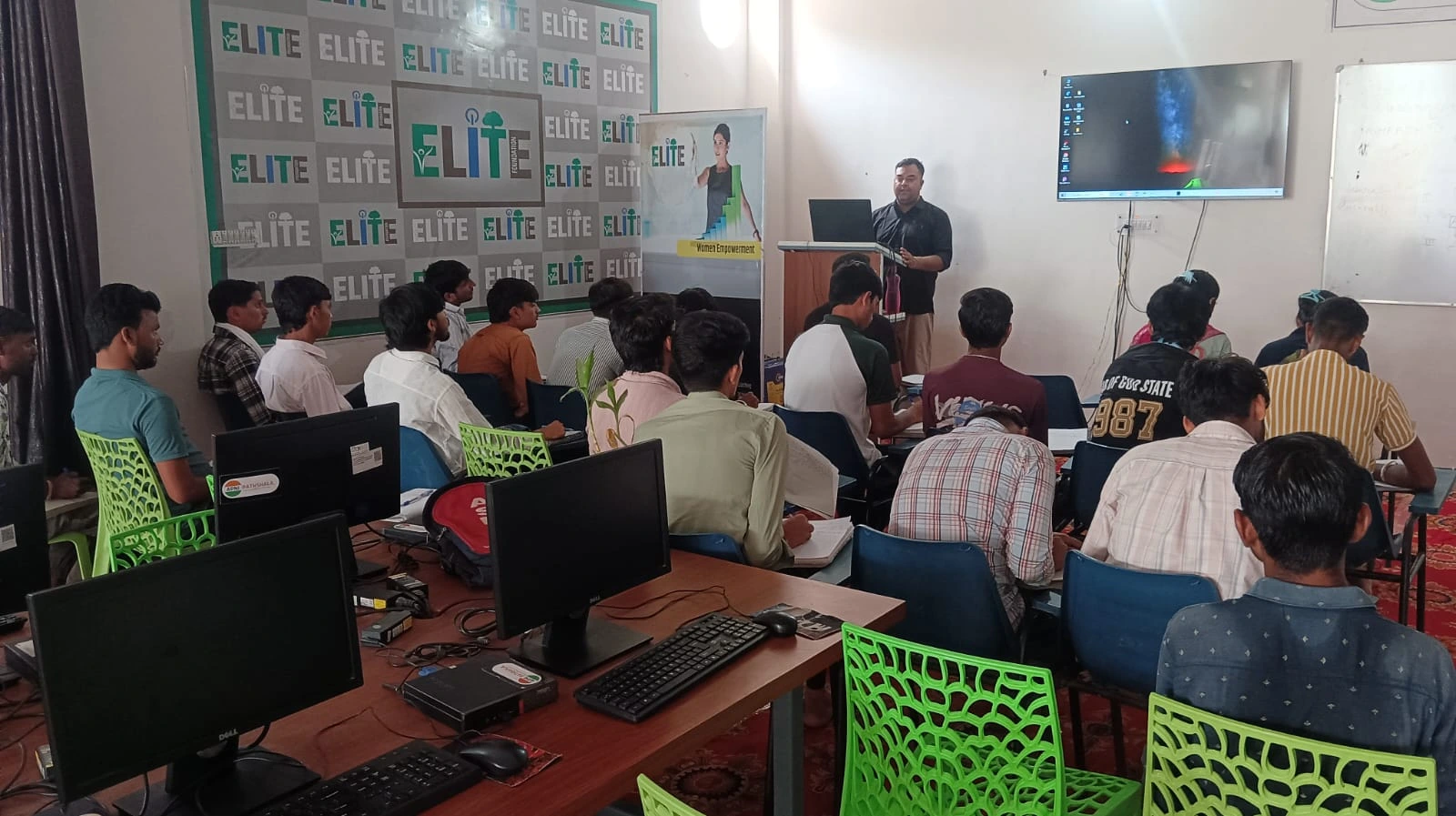
Weak passwords or security settings cause internet problems. Your neighbours might be using your WiFi without permission, which can slow everything down.
Log in to your router. The address is usually printed on the router itself (something like 192.168.1.1). Enter your admin username and password. Look for WiFi security settings. Make sure you’re using WPA3 or WPA2 encryption, not the older WEP.
Change your WiFi password to something strong. Use a mix of uppercase, lowercase, numbers, and symbols. This keeps unauthorised users off your network and can improve your connection speed.
Step 6: Update Your Network Drivers
Your computer’s network drivers are like the bridge between your device and WiFi. Outdated drivers cause internet problems that a quick update can fix. These computer troubleshooting steps work on any student PC, including Apna PC.
On Windows: Right-click the Start button. Select Device Manager. Find Network adapters. Right-click your WiFi adapter and select “Update driver”. Choose “Search automatically for updated driver software”.
On Mac: Go to System Preferences > Software Update. Install any available updates. Mac usually handles driver updates automatically.
When WiFi Troubleshooting Isn’t Enough
Sometimes your efforts won’t work. Your internet provider might be having issues. Contact them and explain your problem. Ask for a technician visit if needed.
For students in areas with unreliable internet, an offline-capable computer is crucial. The Apni Pathshala initiative created Apna PC for exactly this reason. It comes preloaded with Zorin OS, LibreOffice, and Scratch. You can learn coding, complete assignments, and study even without internet. When you do connect, you can upload your work. This computer costs just Rs.30,000 (shipping and GST excluded). It’s designed for students like you.
If you’re facing constant internet problems, see how students stay productive on a computer without internet. You’ll find strategies that work in real life.
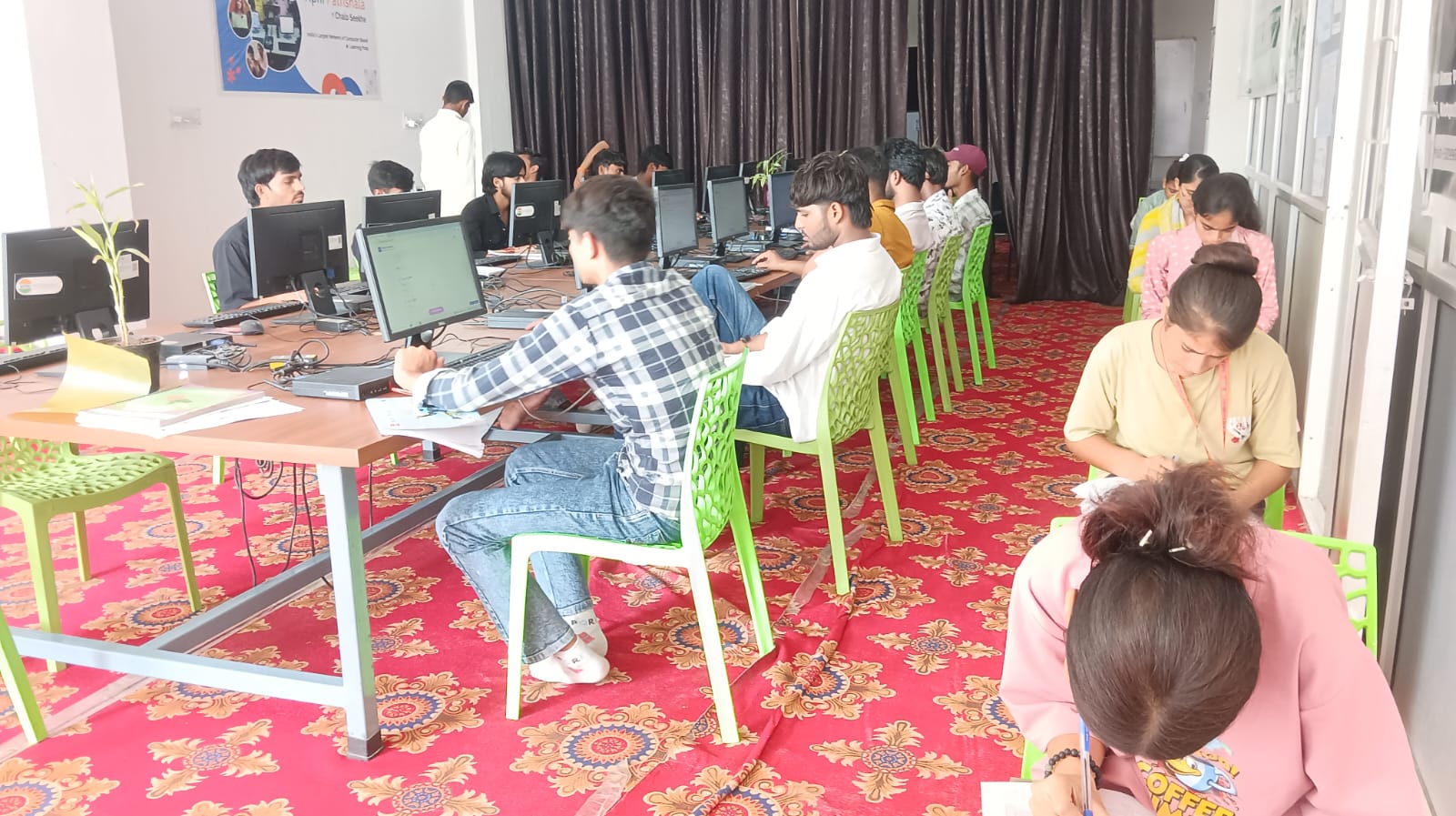
Quick WiFi Troubleshooting Checklist for Exams
- Check if the router is powered on and working.
- Restart your device completely.
- Test other devices to identify the problem.
- Restart your router (wait 30 seconds)
- Move closer to the router.
- Forget the network and reconnect with the password.
- Check WiFi security settings and password strength.
- Update network drivers on your computer
- Contact your internet provider if nothing works.
Learn More About Internet and Computer Issues
WiFi troubleshooting is just one part of staying connected as a student. The Ministry of Education recognises that internet access is critical for learning. UNESCO education research shows that students with reliable computers and internet learn better.
If you’re worried about cybersecurity while troubleshooting your network, visit CERT-In for official safety guidelines.
Rahul eventually fixed his WiFi by restarting his router. He took his exam on time and scored well. You can do the same. Use these WiFi troubleshooting steps the next time your connection fails. Visit apnapc.com to learn more.