


When Priya’s Computer Stopped Working After an Update
Priya’s mother sat in their Indore living room, watching her 14-year-old daughter stare at a frozen screen. The Apna PC had been running smoothly for months, helping Priya complete her online classes on the DIKSHA digital learning platform and practice coding in Scratch. Then came the software update notification. Priya clicked “Install Now” like she always did, but this time the computer didn’t restart properly. The screen went black. Nothing happened for 20 minutes. Her mother panicked, wondering if the device was broken, if they’d wasted their money, if Priya would miss her school submission deadline.
If this sounds familiar, you’re not alone. A software update failure on your student’s computer can feel like a crisis, but it’s usually fixable. The key is knowing what’s actually happening, what you can do right now, and when to reach out for help. A failed update affects both your computer security and system performance, so understanding how to handle it matters more than you think.
How to Know If Your Software Update Actually Failed
Not every frozen screen means the update failed. Your student’s computer might just be taking longer than expected. Here’s what to look for to tell the difference.
- The screen is completely black with no movement for 30+ minutes. Normal updates show a progress bar or spinning icon. Silence and darkness usually mean something went wrong.
- You see error messages like “Update Failed” or “Installation Error Code.” These are clear signs the update didn’t complete properly.
- The computer restarts repeatedly in a loop. If it keeps starting up and shutting down without reaching the desktop, the installation process is stuck.
- The keyboard and mouse don’t respond at all. Try moving the mouse or pressing Caps Lock. If nothing happens for several minutes, it’s likely a failed installation, not just a slow process.
- Fan noise is loud and constant, but nothing appears on screen. This means the computer is working hard but can’t display anything to you.
If you see any of these signs, the installation has probably failed. Don’t panic. Most failures are recoverable without losing your child’s schoolwork or files.
Step-by-Step: What to Do Right Now
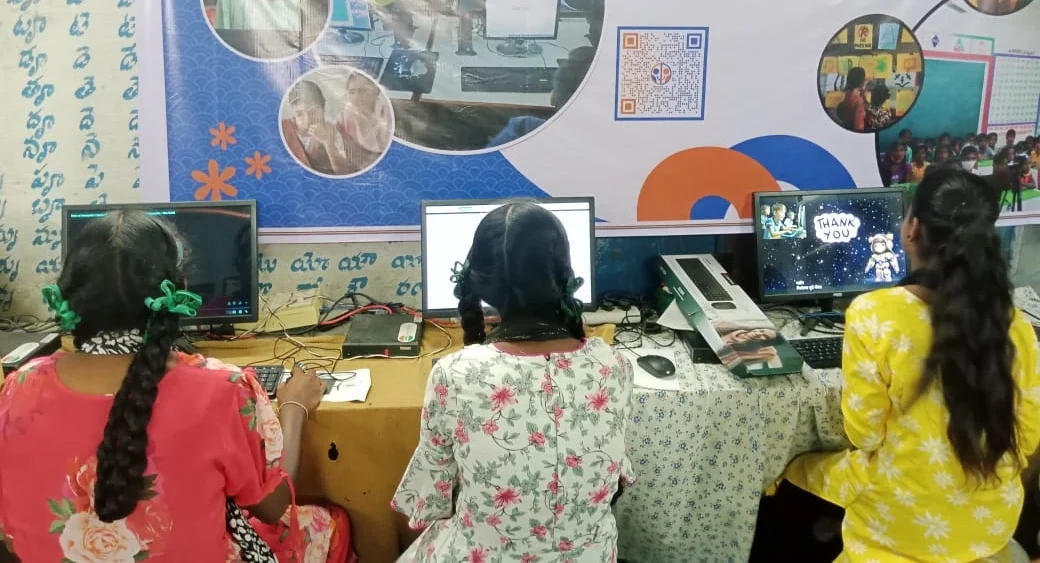
The first thing you should do is force restart your computer safely. This isn’t the same as just pulling the power cord, which can cause real damage.
- Hold down the power button for 10 seconds. Keep holding it until the screen goes completely black and the computer powers off entirely.
- Wait 30 seconds. This gives the system time to fully shut down.
- Press the power button once to turn it back on. Watch what happens. Does it boot normally? Does it try the installation again? Does it show an error?
If the computer boots back to the normal desktop, the installation may have actually completed even though it looked frozen. Check your system settings to confirm. If it tries again or shows an error, move to the next step.
Try booting into Safe Mode, which starts your computer with only the most basic programs running. On Zorin OS (the system pre-loaded on Apna PC), restart the computer and hold Shift while it boots. Safe Mode can sometimes help you undo a problematic installation or at least see what’s happening.
If Safe Mode works, you have options. You can try restarting normally again, or you can check if there’s a way to roll back the update through system settings. If Safe Mode doesn’t work either, it’s time to contact support.
Why a Failed Software Update Matters for Computer Security
You might think a failed update is just an inconvenience, but it actually affects your child’s safety online. Updates include security patches that protect against viruses, hackers, and data theft.
When an installation fails and doesn’t complete, your computer stays vulnerable to the very threats those patches were supposed to block. The Digital India initiative has moved more school portals and government services online, which makes current security updates even more important for families. Your student might be browsing educational websites or submitting assignments through cloud platforms, and a computer without current patches is at higher risk.
A failed software update also means your system performance suffers. The process may have partially installed new files or changed settings, leaving your computer in an unstable state. You might notice slower performance, programs crashing unexpectedly, or internet connectivity issues. These problems make it harder for your student to focus on studies and complete assignments on time.
When Should You Contact Apni Pathshala Support
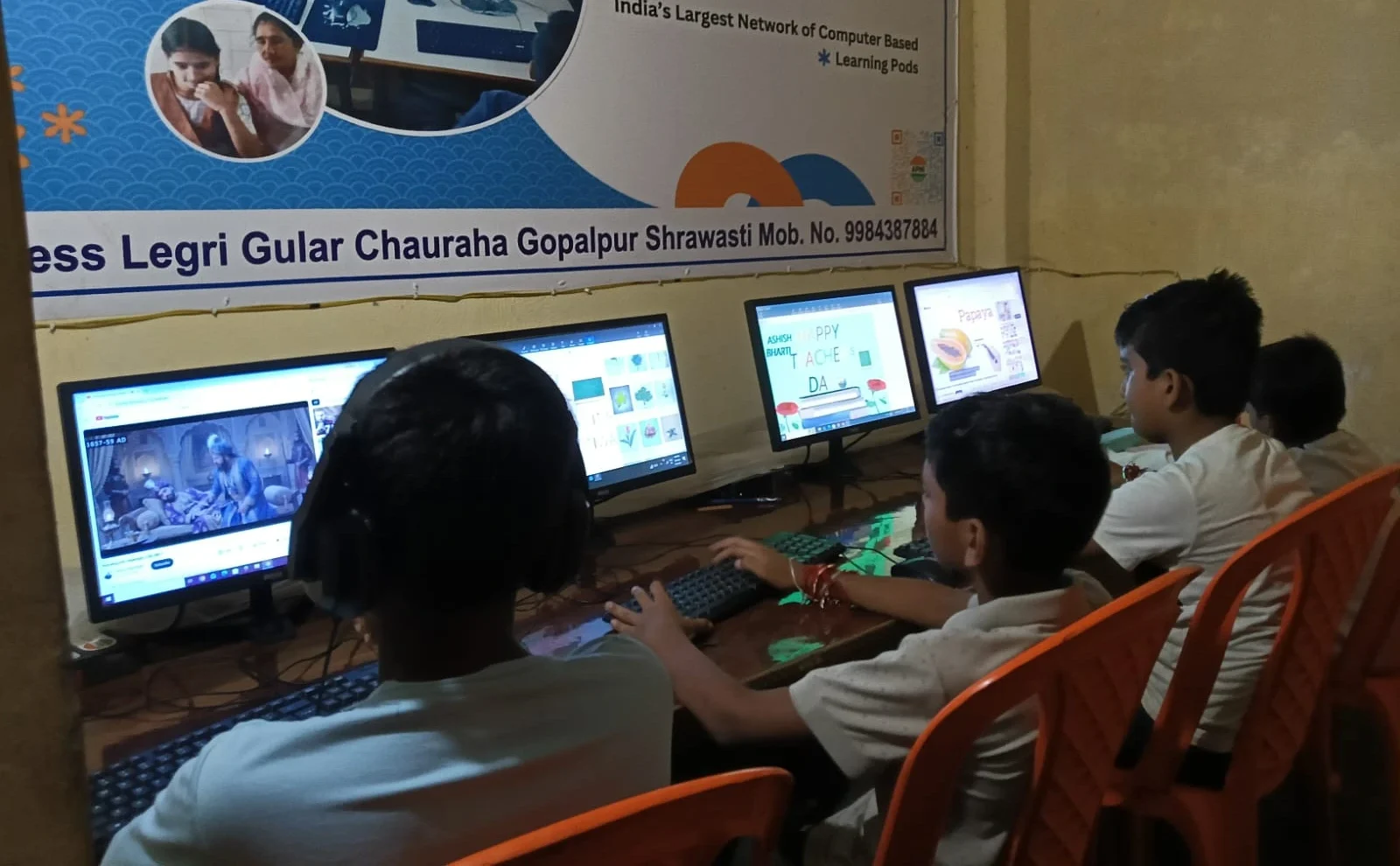
If you’ve tried restarting and Safe Mode doesn’t help, it’s time to reach out. The team at Apni Pathshala provides support and guidance for Apna PC users, and they understand how frustrating failed installations can be.
Contact support if you see persistent error messages, if your computer won’t boot at all, or if you’re not confident trying these steps yourself. Have ready: the exact error message you’re seeing, how long the installation has been stuck, and what your student was doing when it happened. This information helps the support team solve your problem faster.
The Apni Pathshala community can also help you understand what went wrong and how to prevent similar issues in the future. Many parents in tier 2 and tier 3 cities have faced the same problem, and the community shares practical solutions. Global research on education from UNESCO consistently shows that reliable access to working technology is one of the biggest factors in whether students stay consistent with digital learning.
Simple Steps to Prevent Failed Updates
Once your computer is working again, take steps to avoid this problem next time. Always make sure your computer is plugged into power before starting an installation. If the battery dies mid-way, files can get corrupted and the whole process fails.
Give updates time to complete without interruption. Tell your student not to close programs, restart the computer, or unplug anything while files are installing. It can take 15 to 45 minutes depending on the size. A progress bar or status message means it’s working, even if it seems slow.
Keep your computer’s storage space clear. If your SSD is almost full, updates can fail because there’s not enough room to install new files. Regularly delete old files and temporary downloads to maintain system performance.
Schedule installations during times when your student doesn’t need the computer urgently. Late evening or weekends are better than right before school starts or a submission deadline. This way, if something goes wrong, there’s time to fix it without affecting schoolwork.
Building Confidence in Your Student
A failed installation can shake your student’s confidence in using technology. They might worry they did something wrong or broke the computer. Take time to explain that updates sometimes fail even on expensive computers, and it’s a normal part of using technology.
Use this as a teaching moment about building computer practice confidence. Show your student how you troubleshot the problem step by step. Explain that handling technical issues is a skill worth learning, just like any subject in school.
A software update failure is stressful, but it’s usually solvable with patience and the right steps. Start with a force restart, try Safe Mode, and reach out to Apni Pathshala support if you need help. Your computer security and system performance depend on keeping installations current, so don’t ignore the problem. Visit apnapc.com to learn more.