


Ravi’s Homework Crisis: Why Browser Tabs Matter
Ravi is a Class 9 student in Indore. Last Tuesday, his mother found him hunched over the family laptop at 11 PM, still working on a history project due the next morning. The screen showed 23 open browser tabs. His computer was crawling. He’d lost track of which tab had the Wikipedia article about the Mughal Empire, which had his notes, and which was just an ad that wouldn’t close. His mother asked him to shut down and start fresh, but by then, 45 minutes had vanished. Sound familiar? This is the real cost of poor tab management for students like your child.
Managing browser tabs is a practical skill that directly impacts your child’s productivity, focus, and even your computer’s health. Whether your son or daughter is researching for a science project, writing an essay, or completing online assignments, knowing how to organise, save, and close tabs can save hours every week. Let’s walk through exactly how to do it.
Why Too Many Browser Tabs Slow Your Child’s Work Down
Every open tab uses your computer’s RAM and processing power. If your child has 20 tabs open while doing homework, the system gets bogged down. Pages load slower. The browser freezes. Your child gets frustrated and loses focus. This is especially true on older computers or budget devices with too little RAM.
Beyond the technical side, too many tabs create mental clutter. Your child’s brain gets overwhelmed trying to remember what each tab is for. They click back and forth, wasting time. They might even forget to save important information before accidentally closing a tab. The result? Incomplete homework, lost research, and wasted hours.
A web browser is built to handle multiple tabs, but 30 tabs at once isn’t a good idea. Most education experts suggest keeping no more than 5-7 tabs open at any given time during focused work.
Step 1: Plan Your Tabs Before You Start
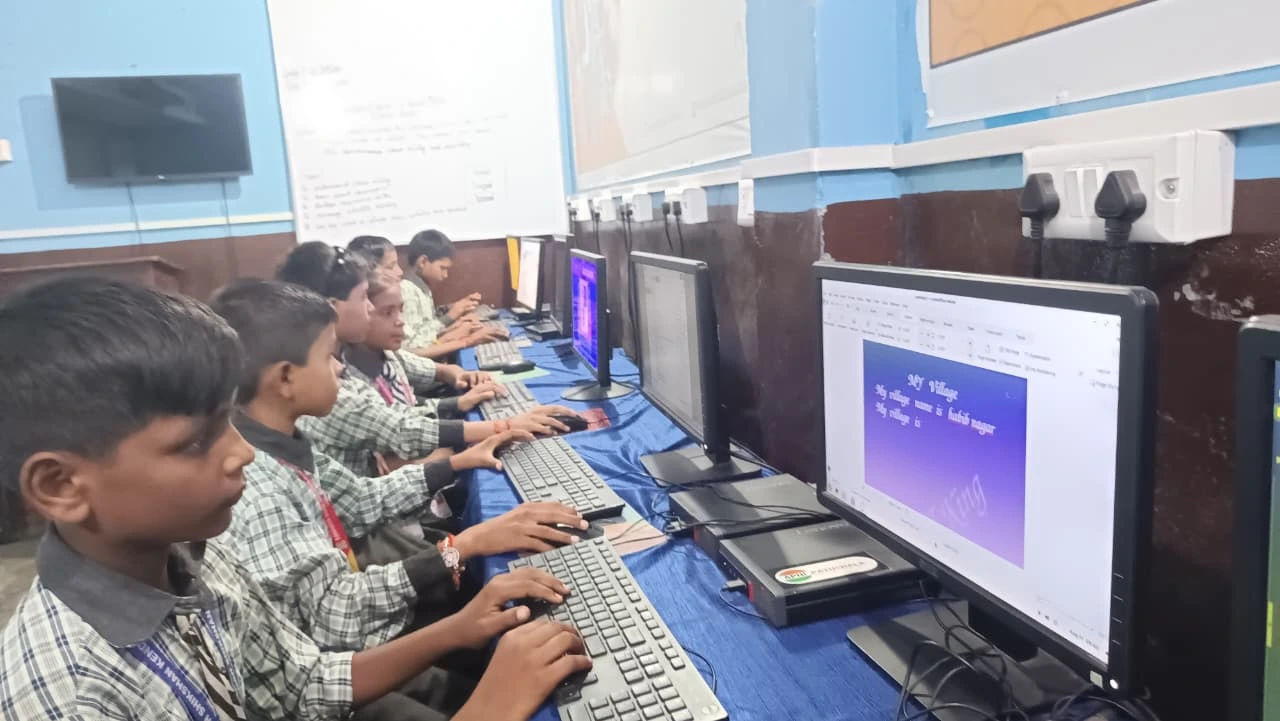
Before your child opens the laptop, they should plan what they’ll need. Ask them: “What websites do I actually need for this homework?” For a math assignment, it might be just the school portal and one reference site. For a research project, it might be 3-4 sources. Write these down first.
This simple habit cuts down on random browsing and accidental tab openings. Your child stays focused and knows exactly where to go and when to close each tab.
Step 2: Use Bookmarks Instead of Keeping Tabs Open Forever
Here’s the key mistake most students make: they keep a tab open “just in case” they need it again later. This is wrong. If your child finds a useful research website, they should bookmark it, not leave it open. Bookmarks are like storing the address in a notebook. They take up almost no computer resources.
Most browsers let you bookmark in seconds. In Firefox, press Ctrl+D. Give it a clear name like “History Project – Mughal Empire” so your child can find it instantly next week. Bookmarks stay organised in folders. Open tabs clutter the screen.
Teach your child this rule: “If I’m not using this tab right now, I bookmark it and close it.”
Step 3: Save Your Sources and Notes Properly
Many students keep tabs open because they’re afraid of losing information. The real solution is to save properly. Your child should copy important quotes, links, and facts into a document as they research. This creates a backup of their research, so they don’t need to keep the tab open.
They can use LibreOffice Writer (built into Apna PC computers). As they find useful information, they paste it with the source link. Later, if they need to verify something, they have the link saved in their document—no need for 15 open tabs.
To organise research files, consider converting school files to PDF for better organisation and easier sharing with teachers.
Step 4: Close Tabs You’re Not Using Right Now
This sounds obvious, but most students don’t do it. After finishing with a website, close the tab. Don’t let it sit there “just in case.” At the start of each study session, your child should close everything from yesterday and begin fresh.
A good rule: “One homework task, one set of tabs. When the task is done, close all tabs for that task.”
Step 5: Group Related Tabs When You Really Need More
Sometimes your child genuinely needs several tabs at once, like when writing an essay with assignment instructions, three research sources, and a dictionary. Firefox lets you right-click a tab and group related tabs together. This keeps the browser looking less chaotic.
But remember: tab groups are for organised work, not an excuse to keep 30 tabs open.
Step 6: Check System Performance and Know When to Restart
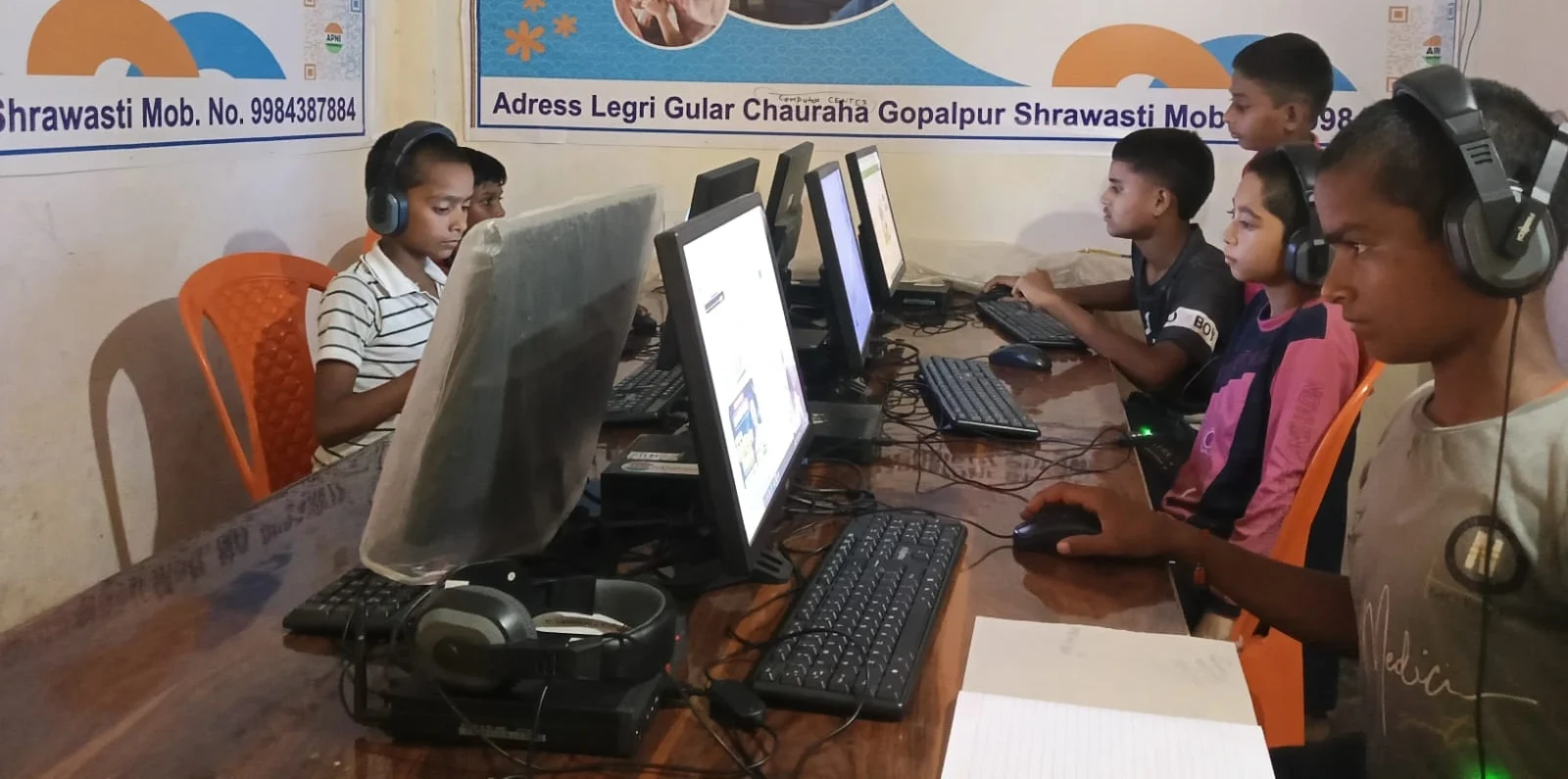
If your child’s computer is running slowly, one of the first things to check is open tabs. Have them close unnecessary tabs and see if performance improves. Most times, it will. If the computer still feels sluggish, it’s time to restart the browser or even the computer.
An Apna PC comes with 8GB of RAM, which is solid for student work, but even that can feel slow if your child has 40 tabs, three other apps, and a video playing in the background.
If the slowdowns don’t go away after closing tabs, don’t ignore them. Sudden slowness can sometimes point to malware or unwanted software. India’s national cyber security agency, CERT-In, publishes advisories and guidance that parents can follow to keep home computers safe.
Step 7: Use Your Computer’s Monitoring Tools
Apna PC runs on Zorin OS, which comes with a built-in tool called System Monitor. Open it from the applications menu, and your child can see which apps use the most resources. When they see the browser using 60% of RAM, they understand why closing tabs matters.
Making This a Family Habit
Tab management is a skill, not a rule-model good behaviour yourself. When your child sees you closing tabs and organising bookmarks, they’ll learn without being told twice.
Schools supported by Apni Pathshala are teaching digital skills to students across India, but habits need to start at home too.
Digital Skills That Carry Into the Future
When your child learns to manage browser tabs, they’re learning to manage their digital workspace. They’re learning focus, organisation, and problem-solving. As India pushes forward with the Digital India initiative, these habits carry forward into college and careers.
If you’re investing in a computer for your child’s education, make sure it’s built for learning. An Apna PC comes with 8GB RAM and a 128GB SSD, designed to handle student workloads without the slowdowns that frustrate young learners. It also comes with Apni Prerna, which helps parents monitor and guide their child’s digital activity.
Start small. Teach your child to keep no more than 5-7 tabs open during homework, bookmark instead of hoard tabs, and save research properly. Watch their productivity improve and their frustration drop.
Your child’s ability to work with browser tabs efficiently will impact their grades, their focus, and their relationship with technology. Start today by sitting down together and cleaning up the browser window. Visit apnapc.com to learn more.