

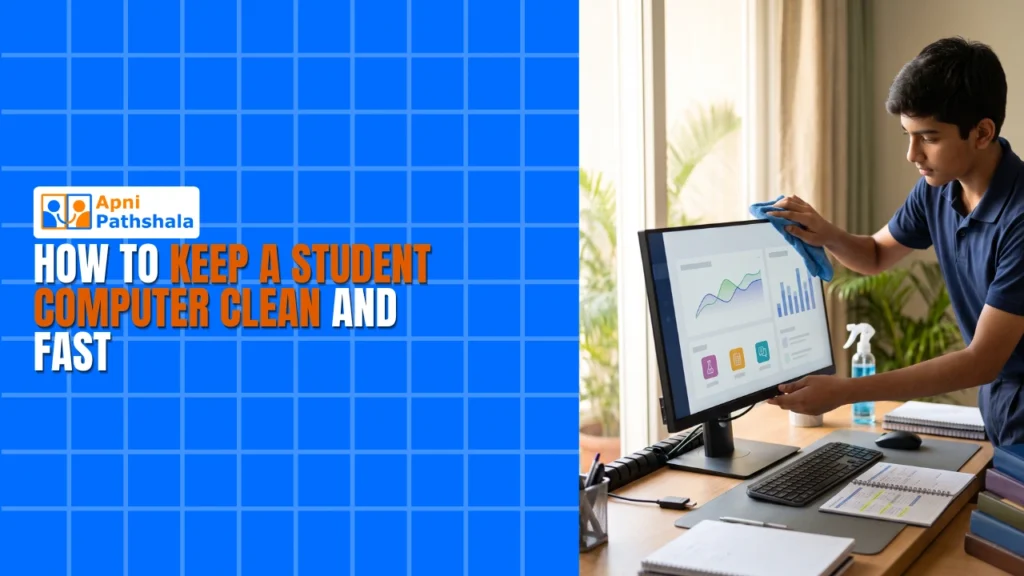
Rajesh’s Daughter Lost Her Entire Project
Rajesh from Indore bought his daughter Priya a second-hand laptop three years ago. She was in Class 8 then, working on her science project about renewable energy. One afternoon, the computer just stopped. Files wouldn’t open. The screen froze mid-save. Priya had spent two weeks on that project, and it was gone. Rajesh didn’t know how to keep a clean student computer or maintain it properly. That day, he realised that owning a computer isn’t enough. You need to keep it running fast and clean.
If you’re a parent in Tier 2 or Tier 3 cities, you’ve probably felt this worry too. Your child’s computer slows down after a few months. Files go missing. The screen gets sluggish. You don’t know what’s wrong. The truth is simple: a clean student computer is a fast student computer. It’s also a safe one. Let’s talk about how you can keep your child’s computer in top shape without spending money on repairs every month.
Why a Clean Student Computer Gets Slow and Messy
Your computer collects junk like a room collects dust. Every time your child downloads a file, installs software, or browses the internet, small pieces of data are left behind. These are called temporary files, cache, and cookies. They don’t disappear on their own.
Malware and viruses also slow things down. When your child clicks on unknown links or downloads files from unsafe websites, harmful programs sneak in. They run in the background, eating up your computer’s memory and slowing it down. Your child might not even know it’s happening.
Storage space matters too. If your hard drive is almost full, your computer can’t work properly. It’s like trying to study in a room packed with boxes. There’s no space to move or think.
Simple Steps to Clean Your Student Computer
Delete Unnecessary Files and Programs
Start by looking at what’s on your computer. Go through your Downloads folder and delete any files you no longer need. Ask your child which programs they actually use. If there are games, old projects, or software they haven’t touched in months, uninstall them. This frees up space and makes your computer faster.
- Check the Downloads folder weekly.
- Uninstall programs from the Control Panel (Windows) or Applications (Mac)
- Delete old project files to external storage.
- Clear the Recycle Bin after deletion.
Run Disk Cleanup and Remove Temporary Files
Your operating system has built-in tools to clean up junk. On Windows, search for “Disk Cleanup” and run it. On Mac, use the Storage settings. These tools find temporary files, cache, and old update files. Let them delete these safely. You’ll be surprised how much space you recover.
Update Your Operating System and Software
Updates aren’t just about new features. They fix security holes that hackers use. When your computer asks you to update, don’t ignore it. Updates also make your computer faster and more stable. Set updates to happen automatically so you don’t forget.
Use Antivirus Protection
Install a reliable antivirus program. Many free options work well in India, like Windows Defender (built into Windows) or Avast. Run a full scan once a month. This catches malware before it causes problems. Teach your child not to click on suspicious links or download files from unknown websites.
Organise Your Files Into Folders
A messy desktop slows down your computer. Create folders for each subject, project, or year. Keep your Desktop clean with only active work. Move old files to external hard drives or cloud storage. This keeps your computer lean and fast.
Keep Your Student Computer Fast with Daily Desktop Care
You don’t need to wait until your computer breaks down to maintain it. Small habits keep things running smoothly. Restart your computer at least once a week. This clears memory and refreshes the system. Don’t keep too many browser tabs open. Each one uses RAM.
Teach your child good computer habits early. Don’t leave the computer running all night. Close programs they’re not using. Save work regularly. These habits protect both the computer and their work.
If you’re buying a new computer for your child, choose one designed for students. Check out our budget student desktop guide to understand which specs matter. The Apna PC is built for Indian students, featuring 8GB RAM and a 128GB SSD. Enough speed and storage for schoolwork without unnecessary extras that slow things down.
Before making any purchase, read our parents checklist before buying a student computer. It helps you ask the right questions and avoid common mistakes.
The Right Computer Makes Clean Student Computer Maintenance Easier

Here’s something many parents don’t realise: the computer you choose affects how much maintenance you’ll need to do. Cheap computers with low RAM and small storage get slow quickly. They run out of space fast and can’t handle multiple programs at once.
The Apna PC from Apni Pathshala costs Rs. 21,000 (shipping and GST excluded) and comes ready for student use. It runs Zorin OS, which is lighter and faster than Windows on older hardware. It includes Apni Prerna for student monitoring, LibreOffice for documents, and Scratch for coding. Everything your child needs is pre-loaded and optimised. You don’t waste time installing bloatware or dealing with unnecessary software.
With 8GB RAM, your child can keep multiple tabs and programs open without lag. The 128GB SSD means fast boot times and smooth performance. More importantly, it means less frustration and more focus on studies.
Understanding personal computer basics helps you make smart choices. As part of the Digital India initiative, affordable computers are becoming more accessible to students in smaller cities.
Your Computer Speed Action Plan This Week
Don’t wait until your computer breaks. This week, spend 30 minutes cleaning. Delete old files. Run Disk Cleanup. Uninstall unused programs. Next week, set up automatic updates and antivirus scans. These small steps save you money and keep your child’s computer ready for studies.
A clean student computer means better grades, less frustration, and more time actually learning. Your child deserves a computer that works smoothly, not one that freezes during important assignments. Visit apnapc.com to learn more.