


Meera’s Story: Why Google Classroom Matters for Your Child
Last month, Meera sat at her kitchen table in Indore, staring at her son’s notebook. His teacher had sent a message on WhatsApp: “Please set up Google Classroom for online assignments.” Meera’s hands trembled slightly. She’d never used Google Classroom before, and her son’s old laptop kept freezing. She didn’t want him to fall behind. If you’re a parent feeling the same worry right now, you’re not alone. Setting up Google Classroom for your student’s home computer is easier than you think, and it’s the first step toward better learning.
What is Google Classroom and Why Your Child Needs It
Google Classroom is a free platform where teachers share assignments, grades, and announcements with students. Your child can submit homework, ask questions, and track deadlines all in one place. It’s not just for big city schools anymore. Schools across tier 2 and tier 3 cities are using it now, especially after online learning became common.
Think of it as a digital classroom notebook. Instead of carrying papers back and forth, everything happens online. Your child won’t lose assignments, and you’ll know exactly what’s due when. Teachers can also provide feedback instantly, which helps your child learn faster.
Step 1: Get the Right Computer for Google Classroom
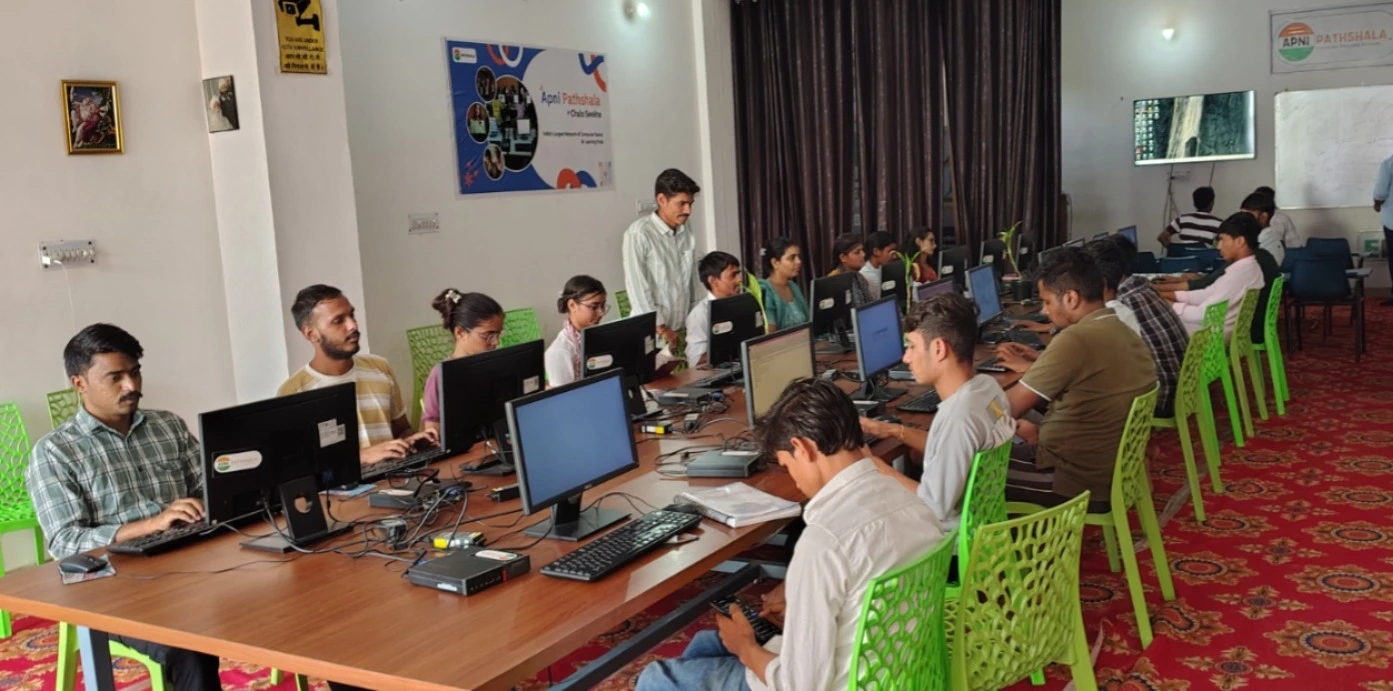
Before you set up Google Classroom on your student’s computer, make sure the device can run it smoothly. You don’t need an expensive laptop. A basic computer with a good processor, enough RAM, and stable internet will work perfectly.
The Apna PC is designed exactly for this. It costs Rs.30,000 (shipping and GST excluded) and comes pre-loaded with everything your child needs. It has 8GB RAM and 128GB SSD storage, which means it runs smoothly even when your child has multiple tabs open. It comes with Zorin OS, a fast, reliable Linux system. You also get LibreOffice for documents, Scratch for coding skills, and Apni Prerna for monitoring your child’s progress.
Step 2: Set Up a Google Account for Your Child
Your child needs a Google Account to set up Google Classroom. Here’s how to create one:
- Open your web browser and go to accounts.google.com
- Click “Create account” and choose “For my child”
- Enter your child’s name, birth date, and gender
- Create a username (something simple like firstname.lastname)
- Set a strong password and write it down somewhere safe
- Add your phone number for account recovery
- Agree to Google’s terms, and you’re done
Don’t use your own Google Account for your child. They need their own account so teachers can see their individual progress. This also keeps their schoolwork separate and organised.
Step 3: Download Google Classroom on Your Child’s Computer
Google Classroom works best through a web browser. On your child’s computer, open any browser like Chrome, Firefox, or even the one that comes with your system.
Go to classroom.google.com and sign in with the Google Account you just created. That’s it. You don’t need to download anything else. The website will open right away.
If you want the desktop experience, you can also download the Google Classroom app from the Chrome Web Store. This makes it easier for your child to find it quickly.
Step 4: Join Your Child’s Class
Your child’s teacher will give a class code. Here’s what your child needs to do:
- Log in to Google Classroom
- Click the “+” button in the top right corner
- Select “Join class”
- Enter the class code the teacher gave
- Click “Join”
Your child can join multiple classes this way. If your school follows the Central Board of Secondary Education (CBSE) or uses platforms like DIKSHA digital learning platform, many teachers are already using Google Classroom alongside these systems.
Step 5: Set Up Notifications and Get Organised
Once your child joins classes, they should turn on notifications so they don’t miss assignments. In Google Classroom settings, your child can choose to get email alerts for new assignments and teacher feedback. This keeps them on track.
Help your child create a desktop folder for school files. When they download materials from Google Classroom, they’ll know exactly where to find them. You can also use Google Docs on desktop to save work automatically.
Why Apna PC is the Best Computer to Set Up Google Classroom
The Apna PC comes ready for your child’s learning journey. You won’t waste time installing software or fighting with slow performance. With 8GB RAM, your child can keep Google Classroom and LibreOffice open for typing assignments without the computer slowing down.
The Apni Prerna monitoring tool helps you stay informed about your child’s computer activity and learning time. It’s not about spying; it’s about supporting your child’s education. You’ll see how much time they’re spending on schoolwork versus games.
At Rs.30,000, you’re getting a computer designed specifically for Indian students. It’s affordable, reliable, and built for educational use. Learn more about how Apni Pathshala is supporting student learning across India.
Final Thoughts: Set Up Google Classroom for Your Student Today
Setting up Google Classroom on your child’s home computer doesn’t have to be stressful. Follow these steps, and your child will be submitting assignments online within an hour. The right computer makes everything easier. Visit apnapc.com to learn more.