


Priya’s Panic: Why Her Son Couldn’t Submit His College Form on a Phone
Priya sat in her small flat in Indore, phone in hand, watching her son Arjun struggle. His college admission deadline was in two hours. The online admission form on his phone screen kept cutting off the corners of his photograph. He’d uploaded it three times. Each time, the form rejected it, saying the image was incomplete. His fingers trembled as he tried to zoom in and check every field. Priya realised then that her family needed a proper computer, not just a phone. This story is happening in thousands of homes across India right now. If your child needs to fill out online admission forms, you need to know what actually works.
What Do Online Admission Forms Really Need?
Online admission forms aren’t just about typing your name. They demand a stable browser, a strong internet connection, scanned documents in the right size, and enough screen space to see every field clearly. Most forms ask for your photograph, school or college marksheet, signature, and sometimes an ID proof, all as JPG or PDF files. You’ll also need a PDF reader to check the final confirmation page before printing.
The Ministry of Education and most Indian universities now run all admissions online. Whether you’re applying to school, college, or for a scholarship, the process is the same. You fill the form, upload documents, pay a fee through UPI or net banking, and get a confirmation number. If you make one mistake, the entire submission fails, and you lose your chance.
Why a Small Phone Screen Causes Real Problems
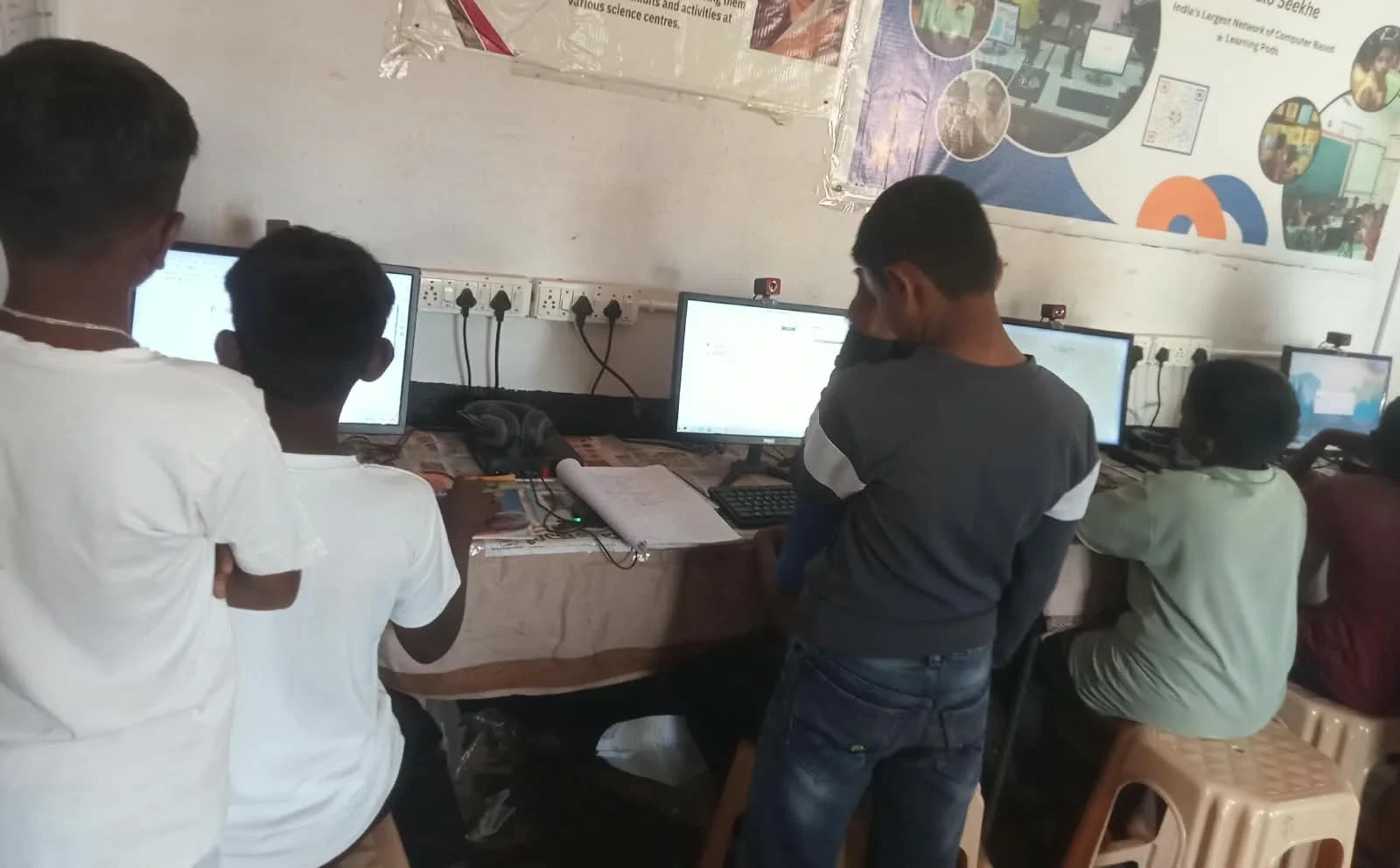
A phone screen is just 5 to 6 inches wide. When you’re filling a form with 20 or 30 fields, you can’t see the whole page at once. Your photograph gets cropped at the edges. The payment gateway buttons become hard to tap. You miss spelling errors in your name or address because you can’t see the full text. One wrong digit in your date of birth, and your entire application is rejected.
A computer screen is 15 to 21 inches. You can see the entire form, all fields, all buttons, and all instructions at once. You can spot mistakes before you submit. You can take a proper screenshot of the confirmation page to save as proof. This is why university and college admission portals work so much better on a desktop.
How to Prepare Your Documents for Online Admission Forms
Before you open the form, gather all your documents and scan them. You’ll need your passport-size photograph (35mm x 45mm), your school or college marksheet, your signature on a white background, and any ID proof the form asks for. Don’t just take a photo with your phone camera. Use a proper scanner or a scanning app that gives you clear, straight images.
Save each file with a simple name like “photo.jpg” or “marksheet.pdf”. Check the file size. Most forms accept files up to 2 or 3 MB. If your file is too large, use an online image compressor or a tool like LibreOffice (which comes free on Apna PC) to reduce it. Keep all files in one folder on your computer so you can find them quickly when you need to upload.
Step-by-Step: How to Fill Online Admission Forms Correctly
Open the form on your computer and read all instructions first. Don’t rush. Fill in your personal details slowly, checking each letter. Your name must match your marksheet exactly. Your date of birth must match your ID proof. One typo can cause your application to be rejected later.
Upload each document one by one. Wait for the upload to complete fully before moving to the next field. After uploading your photograph, click on it to preview it. Make sure the full image is visible and not cut off at the edges. If it looks wrong, delete it and upload again.
Before you submit, scroll through the entire form one more time. Check every field you’ve filled. Make sure all required fields are filled out. Read the terms and conditions checkbox. Only then click the submit button.
Why a Simple Desktop Computer Is Enough
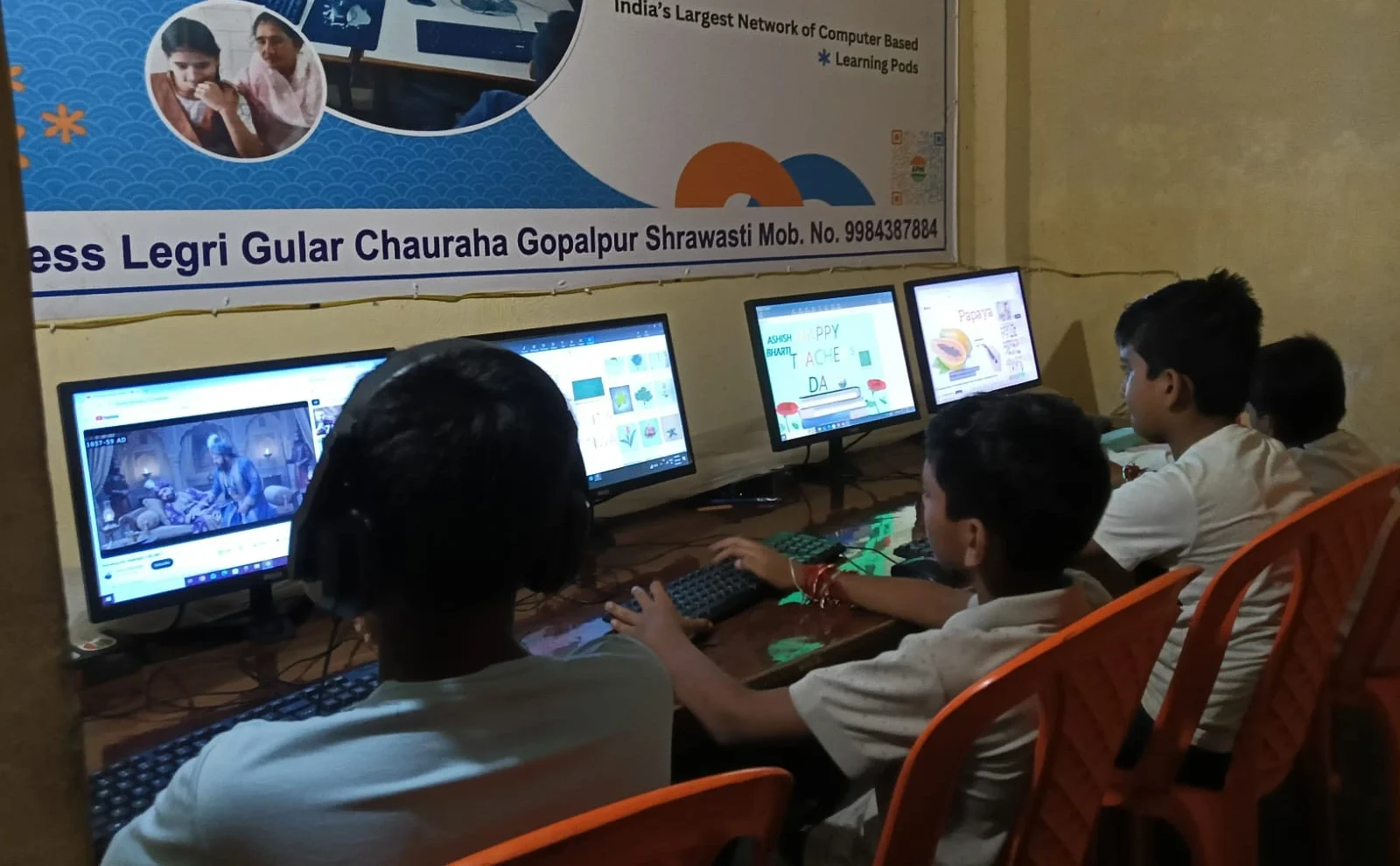
You don’t need an expensive laptop or a fancy gaming computer to fill out online admission forms. You need a reliable desktop that won’t crash, a large screen to see everything clearly, and enough storage to keep your documents safe. A computer with a good processor, at least 8GB of RAM, and 128GB of storage will handle all your form-filling tasks smoothly.
Apna PC, built by Apni Pathshala, is designed exactly for this. It comes with 8GB RAM, 128GB SSD storage, and a large monitor. It comes preloaded with LibreOffice (for editing documents), a PDF reader, and Zorin OS (a stable, easy-to-use system). It also comes with free tools for scanning documents and printing confirmation pages. You can learn more about college application documents on our website.
Free Tools That Come With Your Computer
When you buy a computer just for admissions, you don’t want to spend extra money on software. Apna PC comes with everything you need. LibreOffice lets you open and edit Word documents and PDFs. The built-in image viewer lets you check your photograph before uploading. The print function is simple and reliable, so printing your confirmation page takes just one click.
You also get Zorin OS, which is virus-free and runs smoothly on basic hardware. It won’t slow down or crash during your form submission. Your documents stay safe on the 128GB SSD, and you can back them up to a USB drive or to DigiLocker, the government’s free digital storage service.
One Last Thing: Keep Your Application Number Safe
After you submit your form and pay the fee, write down your application number on paper and keep it somewhere safe. Take a photo of it with your phone too. Some colleges send a confirmation email, but not all. Your application number is your only proof of application. You’ll need it to check your status, download your admit card, or contact the college if there’s a problem.
Your child’s future depends on getting this right the first time. A reliable computer, a clear screen, and a few minutes to fill the form carefully can be the difference between acceptance and rejection. Visit apnapc.com to learn more.