


Rahul’s Problem: Why Your Shared Computer Needs Separate User Accounts
Rahul, a 16-year-old from Indore, shared his family computer with his younger sister and parents. One morning, he opened his laptop to find his entire project folder deleted. His sister had accidentally cleared files while playing a game. His heart sank. He had no backup.
This is exactly why creating separate computer user accounts matters so much for students like you. When multiple people use the same computer, your files, privacy, and schoolwork are at risk. Individual user profiles protect your data and keep your digital space secure.
What Are Computer User Accounts and Why Do Students Need Them
A computer user account is your personal login space on a shared computer. Think of it like having your own locker at school instead of sharing one with others. Each account has its own files, settings, desktop, and passwords. When you create separate user accounts for your family, nobody can accidentally delete your homework or see your personal files.
For students, a separate user profile keeps your study materials protected. Your browser history, downloaded resources, and project files remain private. You can also customise your desktop for studying without your parents or siblings changing your settings.
- Privacy Protection: Your personal files stay hidden from other users
- Data Security: Reduces accidental deletion or modification of important documents
- Personalised Settings: You can arrange your desktop exactly how you want it for better focus
- Parental Monitoring: Parents can track screen time and app usage without accessing your private folders
Step-by-Step Guide to Create Computer User Accounts
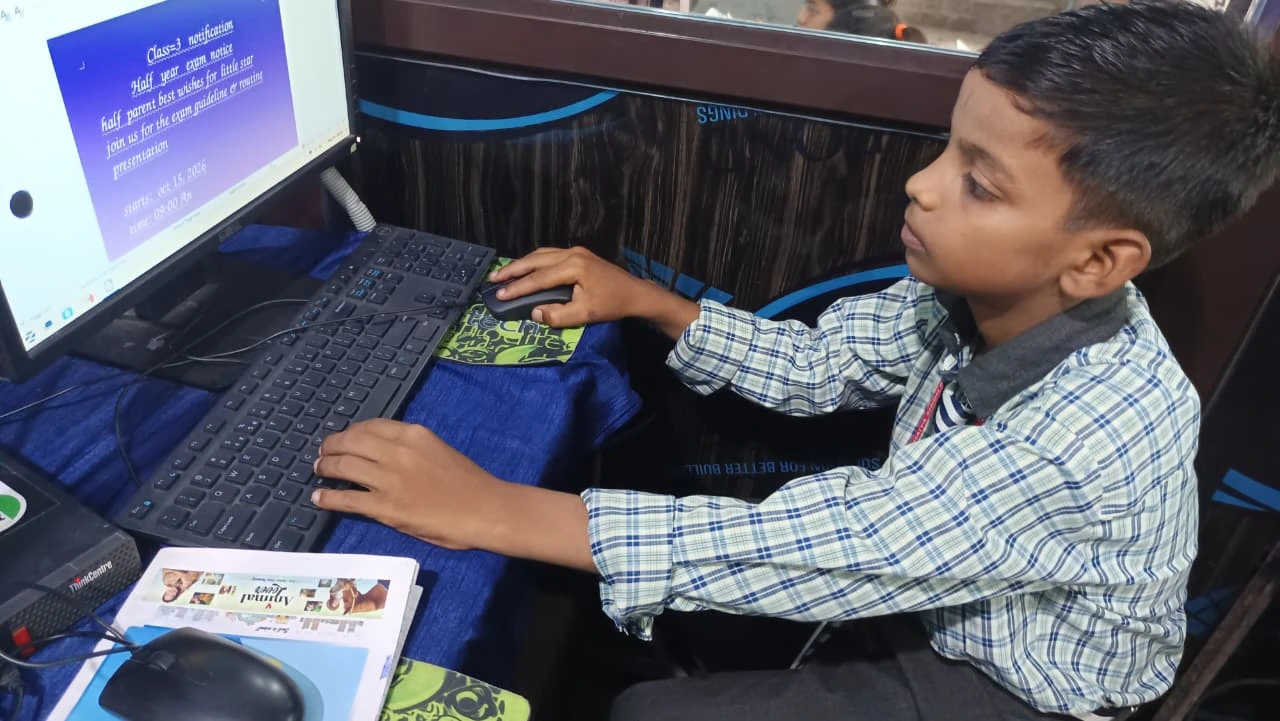
Creating a new user account on your computer is simple and takes just 5 minutes. Here’s how to do it on Windows or Linux systems.
On Windows 10 and 11: Click the Start button, go to Settings, then select Accounts. Choose “Family and other users” and click “Add someone else to this PC”. You can create a local account or use a Microsoft account. Enter the username (like “Rahul” or “Priya”) and set a password. Click Next, and your account is ready.
On Linux (like Zorin OS): Open Settings, go to Users and Groups. Click the lock icon to unlock settings, then click the plus button to add a new user. Enter the full name, username, and password. Select whether it’s a standard or administrator account. Linux systems are especially popular in schools and give you excellent control over who accesses what.
After creating accounts, restart your computer. You’ll see a login screen where each family member can select their profile. Each person logs in with their own password, keeping everything separate and secure.
Best Practices for Managing Multiple Accounts on Your Shared Computer
Once you’ve created your computer user accounts, follow these practices to keep everything organised and safe.
Use Strong Passwords: Don’t use simple passwords like “123456” or your name. Create passwords with uppercase letters, numbers, and symbols. This prevents siblings or friends from accessing your account.
Organise Your Files Properly: Create folders for different subjects like Math, Science, and English. Keep all your school projects in these folders. This makes it easy to find files when you need them for exams or assignments.
Enable Automatic Backups: Set your computer to back up your important files automatically. You can use cloud storage like Google Drive or OneDrive. This way, even if your computer crashes, your homework stays safe. Learn more about protecting important files on your device.
Set Parental Controls if Needed: Parents can use built-in monitoring tools to set screen time limits. This helps maintain healthy study habits without invading your privacy. Tools like Apni Prerna help parents track progress without accessing personal files.
Why Apna PC Makes Sharing Computers Easier for Students
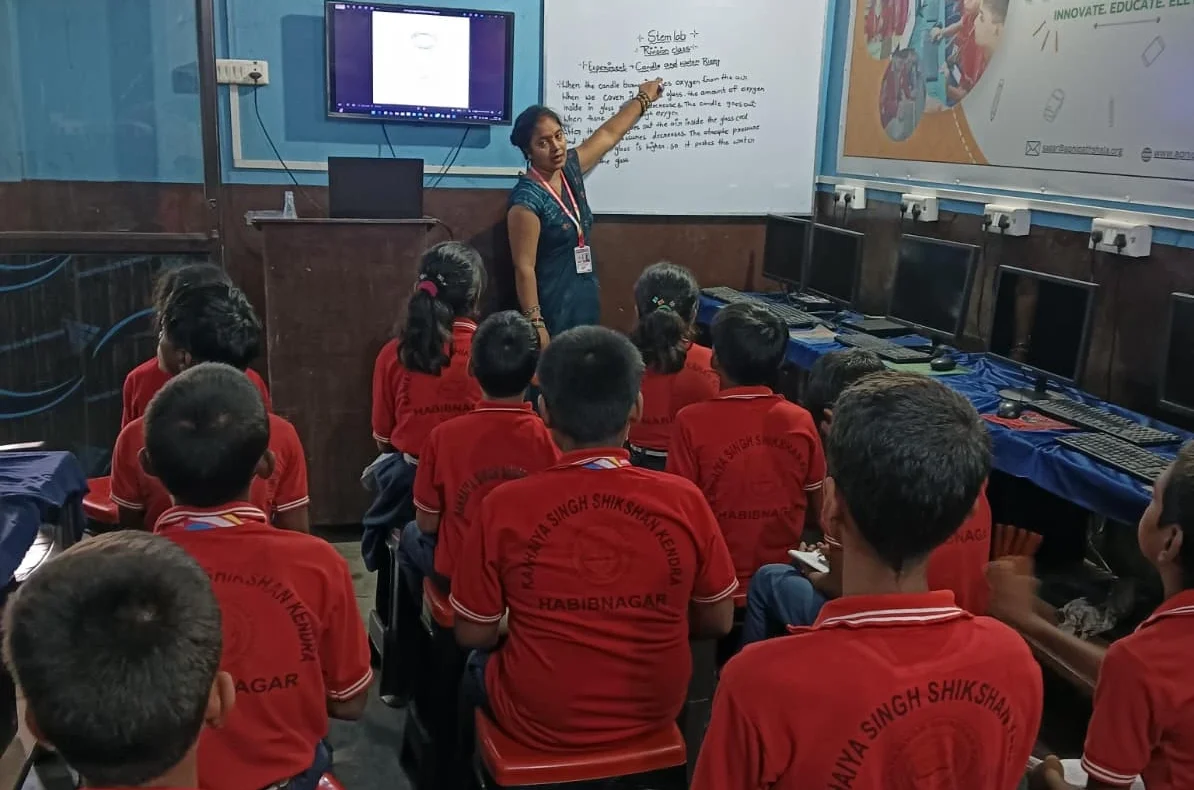
If your family is thinking about buying a dedicated computer for studies, Apna PC is designed for exactly that. Built by Apni Pathshala, this educational computer comes pre-loaded with Zorin OS, which makes creating and managing separate user accounts incredibly simple.
Apna PC costs just Rs.30,000 (shipping and GST excluded) and includes 8GB RAM and 128GB SSD storage. That’s enough space for all your schoolwork, projects, and learning materials. The computer comes with LibreOffice for documents, Scratch for coding practice, and Apni Prerna for monitoring. Multiple family members can have their own accounts without slowing down the system.
The best part is that Zorin OS is secure and lightweight. It runs smoothly even when multiple accounts are active. You don’t have to worry about viruses or complicated settings. Everything is ready to use right out of the box.
Government Support for Digital Learning in Schools
The Ministry of Education encourages students to use computers safely for learning. The Digital India initiative promotes access to technology in schools and homes nationwide. By setting up proper user accounts, you’re following best practices recommended by educational experts.
Many schools in Tier 2 and Tier 3 cities now require students to submit digital assignments. Having your own secure user account ensures you’re always ready to complete schoolwork without losing files to accidents or conflicts with other family members.
Common Mistakes to Avoid When Managing Shared Computers
Don’t share your password with anyone, even family members. If your sister needs to use the computer, she should log into her own account. This keeps your files safe and your privacy protected.
Don’t leave your account logged in when you’re not using the computer. Always log out or lock your screen when you step away. This prevents accidental changes to your files or unauthorised access.
Don’t store all your files on the desktop. Use organised folders instead. A messy desktop makes it hard to find files and easier to accidentally delete something important.
Creating separate computer user accounts on your shared computer is one of the smartest decisions you can make as a student. It protects your schoolwork, maintains your privacy, and keeps your digital life organised. Start today by following the simple steps above, and you’ll never lose important files to accidents again. Visit apnapc.com to learn more.