


Eye Comfort Settings to Adjust on Apna PC for Long Study Sessions
Long study hours on your Apna PC can leave your eyes tired and sore. Eye comfort settings are not just nice to have, they are essential for students who spend 6-8 hours daily on screens. The good news is that your computer has built-in tools to reduce strain and protect your vision.
Indian students preparing for board exams, competitive tests, or online classes need to understand how to use these settings. This guide shows you exactly which eye comfort settings to adjust on your Apna PC right now.
Why Eye Comfort Settings Matter for Students
Your eyes work harder when staring at bright screens for extended periods. Computer eye strain causes headaches, blurred vision, and reduced study efficiency.
Eye comfort settings reduce glare, lower brightness, and filter harmful blue light. When you adjust these settings correctly, you can study for longer without fatigue. Students using Apna PC systems with proper eye comfort settings report better focus and less discomfort.
Enable Blue Light Filter on Your Apna PC
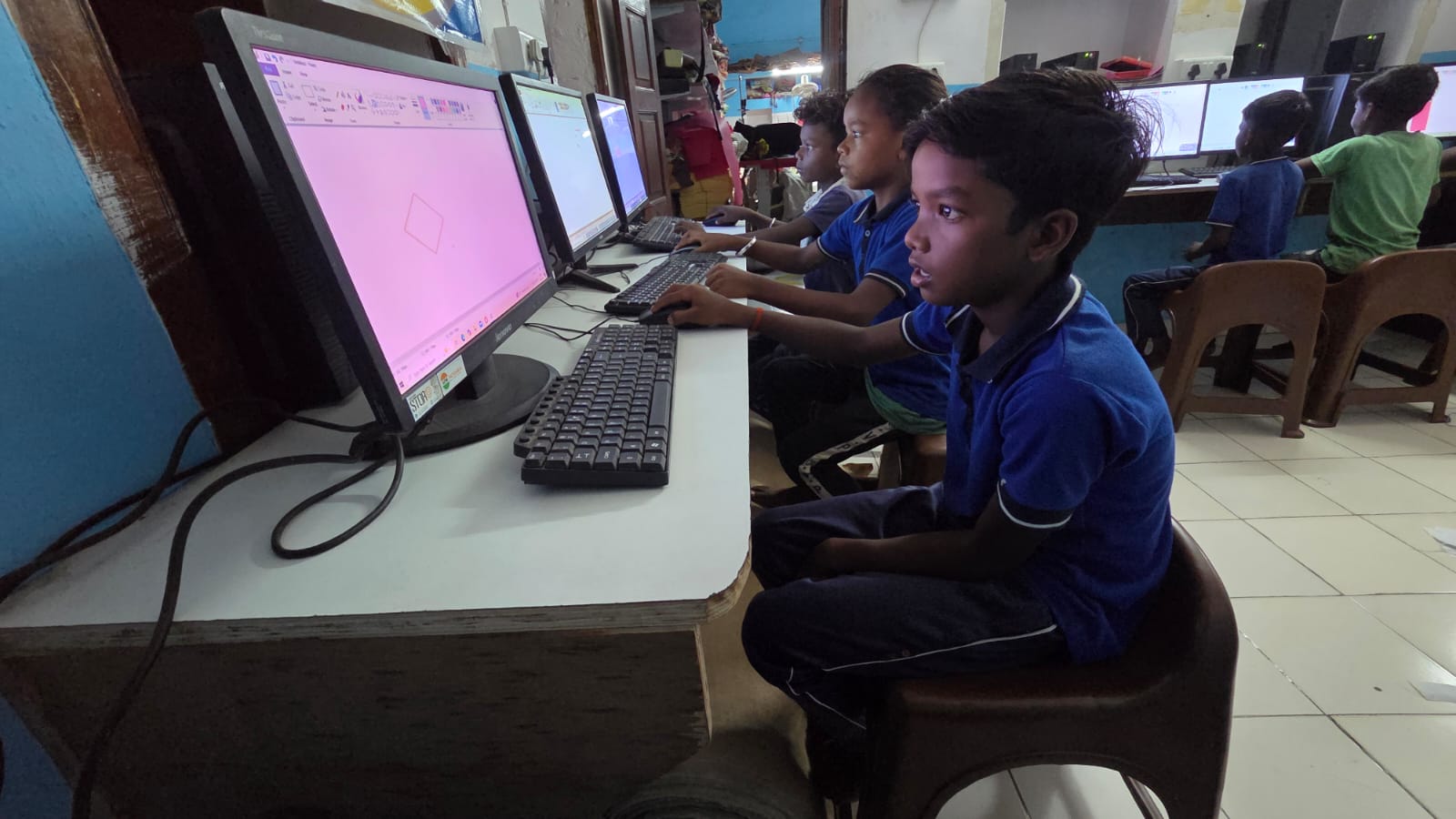
Blue light from screens disrupts sleep patterns and causes eye strain. Most modern systems, including Apna PC computers, have a built-in blue light filter feature.
On Windows, go to Settings, then System, then Display, then Night light. Turn it on and set it to activate automatically after sunset. For Apna PC users running Linux-based systems, use the display settings menu to enable color temperature adjustments.
Set the blue light filter to a warm tone during evening study sessions. This simple adjustment makes a huge difference when studying after 6 PM.
Adjust Screen Brightness and Contrast
Brightness that is too high causes immediate eye strain. The ideal brightness level depends on your room’s lighting conditions.
For daytime study, set brightness to 40-50%. For evening sessions, reduce it to 20-30%. Your Apna PC display should match your surrounding light levels. Use your keyboard’s brightness controls or access Display settings to make quick adjustments.
Increase contrast slightly to make text sharper and easier to read. This reduces the effort your eyes need to focus on study materials.
Optimize Eye Comfort Settings in Display Settings
Your Apna PC’s display settings hold several eye comfort options most students overlook. Right-click your desktop and select Display settings to access these controls.
Look for options like Color temperature, Gamma adjustment, and Refresh rate. Set your refresh rate to at least 60Hz to reduce flickering. Lower refresh rates cause visible screen flicker, which tires your eyes quickly.
Adjust color temperature toward the warmer end of the spectrum. Warmer colors are gentler on eyes during extended study sessions.
Apply the 20-20-20 Rule While Using Eye Comfort Settings
Even with perfect eye comfort settings, your eyes need breaks. Follow the 20-20-20 rule: every 20 minutes, look at something 20 feet away for 20 seconds.
This simple habit prevents eye fatigue from building up. Combine it with your Apna PC’s eye comfort settings for maximum protection. Students who follow this rule report significantly less eye strain.
Use Text Size and Font Adjustments
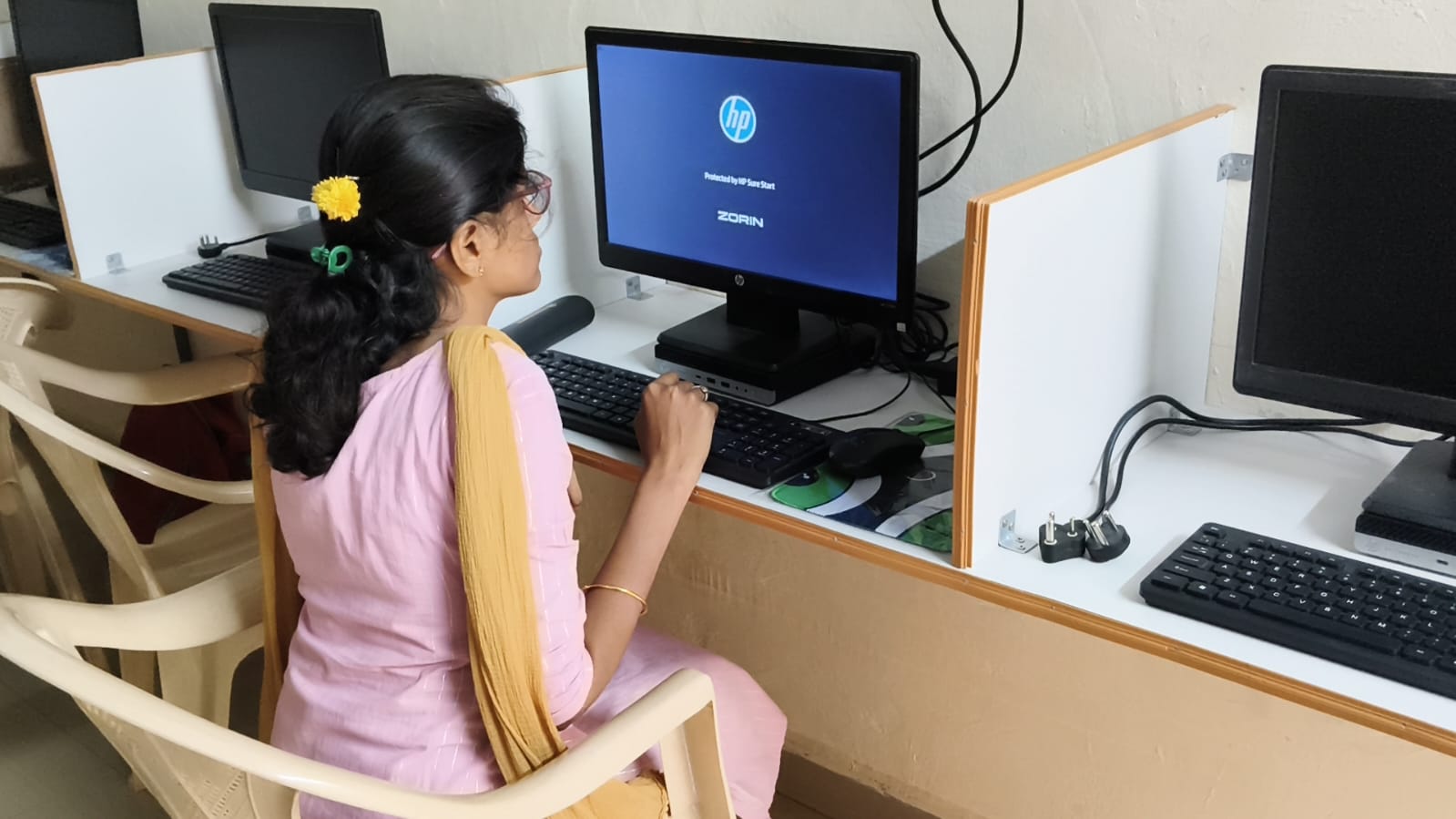
Straining to read small text forces your eyes to work harder. Increase font size in your browser, document editor, and study apps.
Most applications let you zoom in using Ctrl and Plus on your keyboard. Set your default zoom to 125% for comfortable reading without constant adjustment. Your Apna PC’s operating system also allows system-wide text scaling in accessibility settings.
Choose clear, sans-serif fonts like Arial or Calibri for study materials. These fonts are easier on the eyes than decorative typefaces.
Reduce Glare on Your Apna PC Monitor
Glare from windows or lights reflecting on your screen causes significant eye strain. Position your Apna PC monitor perpendicular to light sources when possible.
Use an anti-glare screen protector if your monitor is particularly reflective. Lower screen brightness to cut down on reflected light. Keep your monitor clean, dust and fingerprints increase glare and reduce image clarity.
Configure Accessibility Features for Eye Comfort
Your Apna PC includes accessibility features designed for eye comfort. Open Settings, then Ease of Access, then Display to find these options.
Enable High contrast mode if you prefer stronger text-to-background separation. This setting helps students with light sensitivity. Use Cursor size adjustment to make your mouse pointer more visible, reducing eye movement strain.
These features work alongside other eye comfort settings to create a personalized viewing experience.
Maintain Proper Distance and Posture
Eye comfort settings work best when combined with correct positioning. Sit about 20-26 inches from your Apna PC screen, roughly an arm’s length away.
Position the monitor so the top of the screen is at or slightly below eye level. This angle reduces strain on your eyes and neck. Poor posture forces your eyes to work harder to focus.
Regular Maintenance of Your Apna PC Display
A clean display produces clearer images with less eye strain. Wipe your Apna PC monitor weekly with a microfiber cloth.
Dust buildup reduces image quality and increases glare. Keep your study space well-lit with a desk lamp to reduce the contrast between your bright screen and dark surroundings.
Check that your monitor is set to its native resolution for sharpest text and images. Lower resolutions cause blurry text that strains your eyes.
Eye Comfort Settings for Different Study Scenarios
Online classes require different settings than reading e-books. For video lectures, use moderate brightness and enable blue light filter.
For reading long documents, increase text size and contrast. For coding or programming practice, use a dark theme with light text on dark background. Your Apna PC can save multiple display profiles for quick switching between study types.
Learn more about optimizing your study setup by visiting our complete computer setup guide on apnapc.com.
When to Seek Professional Help
If eye strain continues despite adjusting eye comfort settings, consult an eye specialist. Persistent discomfort may indicate underlying vision issues.
According to India’s Ministry of Education, proper study ergonomics are crucial for student health. Get your eyes checked annually, especially during exam season.
Many students benefit from computer glasses designed to reduce blue light. These glasses work with your Apna PC’s eye comfort settings for enhanced protection.
Investing in Your Eye Health with Apna PC
Your Apna PC, starting at Rs.30,000 (shipping and GST excluded), comes equipped with modern display technology supporting all these eye comfort settings.
Taking 5 minutes to configure these settings properly saves your vision and improves study performance. Your eyes are irreplaceable, protect them now.
Discover more productivity tips and study-focused configurations by exploring our Student Edition PC features on apnapc.com.
According to Digital India initiative guidelines, digital literacy includes understanding how to use technology responsibly for health.
Start adjusting your eye comfort settings today. Your future self will thank you for protecting your vision during these critical study years. Visit apnapc.com to learn more about creating the perfect study environment with the right hardware and software configurations.