


Sitting with your child during computer time helps them focus, answer questions in real time, and build healthy digital habits. Parents who guide screen-based learning transform it from an isolated activity into shared education.
This article explains why parental involvement during computer time matters, how to do it effectively, and what tools make family learning easier.
Why Parents Should Sit With Kids During Computer Time
Children learn faster and retain more when a trusted adult is nearby. Your presence during computer time does three things: it keeps distractions away, it lets you spot confusion before it becomes frustration, and it shows your child that learning on a computer is as important as learning from a book.
When you sit together, you also model good screen habits. If your child sees you using the computer purposefully, not scrolling or gaming, they understand that screens are tools for work and study, not just entertainment. This boundary is harder to teach if you enforce it only for them.
Many Indian parents worry that computers are isolating. The opposite is true when you are in the room. You create a shared learning space where questions flow naturally, and curiosity is welcome.
How to Sit With Your Child Without Taking Over
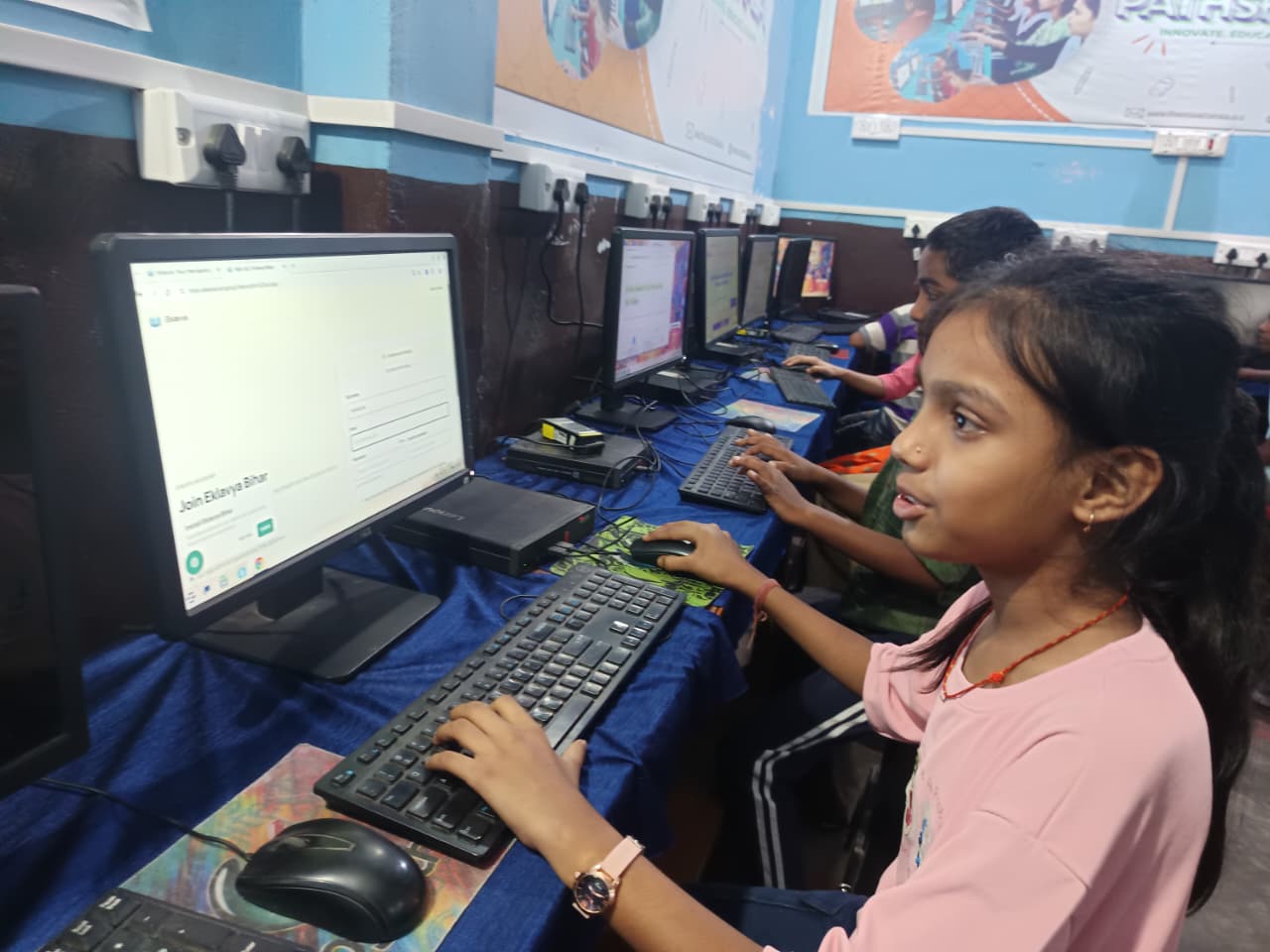
The goal is to guide, not to control. Start by letting your child lead. Ask what they are studying today, then sit nearby with a book or your own work so they know you are available but not hovering.
When your child gets stuck, resist the urge to type for them. Instead, ask questions: “What does the error message say?” or “What step comes next?” This teaches problem-solving, not just answers. If they need help, guide their hand to the keyboard rather than taking it over.
Set a routine. If computer study happens at 4 p.m. every weekday, your child’s brain prepares for focus at that time. Sit for at least 30 minutes, even if you are not actively teaching. Your quiet presence is powerful.
What to Watch For During Guided Computer Time
Watch how your child uses the mouse and keyboard. Poor posture now can cause neck and back pain later. Make sure the screen is at eye level, and the chair supports their back.
Notice if your child is actually learning or just clicking. Real learning looks like reading, thinking, trying, and sometimes struggling. Clicking fast through screens without pausing usually means they are not engaged. Pause and ask what they learned in the last five minutes.
Watch for signs of frustration: tight shoulders, frowning, or sudden silence. These are moments to step in with a break, a question, or a gentle redirect. A frustrated child stops learning.
How Apna PC Makes Family Learning Easier
Apna PC by Apni Pathshala is designed so that parents and children can learn together without confusion. The computer comes with preconfigured student software, including Apni Prerna, a tool that lets parents see what their child is doing and set healthy limits. You do not need to be a tech expert to use it.
The system runs on Linux (Zorin OS), which is stable and free from gaming distractions. With 8GB RAM and a 128GB SSD, it handles study apps smoothly. The pre-loaded tools, LibreOffice for documents and Scratch for coding, are built for learning, not entertainment. Apna PC costs Rs. 30,000 (shipping and GST excluded).
If you are new to computers, you can learn computer skills alongside your child. Many parents worry they will not understand what their child is doing. Learning together removes that barrier and deepens your connection to their education.
Setting Up a Routine for Family Digital Learning
Start small. One hour of guided computer time per day is enough for most school-age children. Family digital learning together works best when it fits your schedule, not the other way around.
Use the Student PC Roadmap 90 Days to plan what your child will learn each week. This removes the guesswork and helps you guide purposefully. If your child uses platforms like DIKSHA digital learning platform, you can follow along and discuss what they are learning.
Build a simple weekly schedule to track computer study time:
| Day | Time | Subject or Platform | Parent Role |
|---|---|---|---|
| Monday | 4:00 to 4:30 p.m. | Math (DIKSHA or school app) | Sit together, check understanding |
| Tuesday | 4:00 to 4:30 p.m. | Language or reading | Sit together, discuss new words |
| Wednesday | 4:00 to 4:30 p.m. | Coding (Scratch) or project work | Sit together, ask questions |
| Thursday | 4:00 to 4:30 p.m. | Science or social studies | Sit together, explore together |
| Friday | 4:00 to 4:30 p.m. | Review or free learning | Sit together, celebrate progress |
Keep a simple log. Write down what your child studied, how long they studied, and what they struggled with. This helps you spot patterns and focus your support.
How to Handle Resistance From Your Child
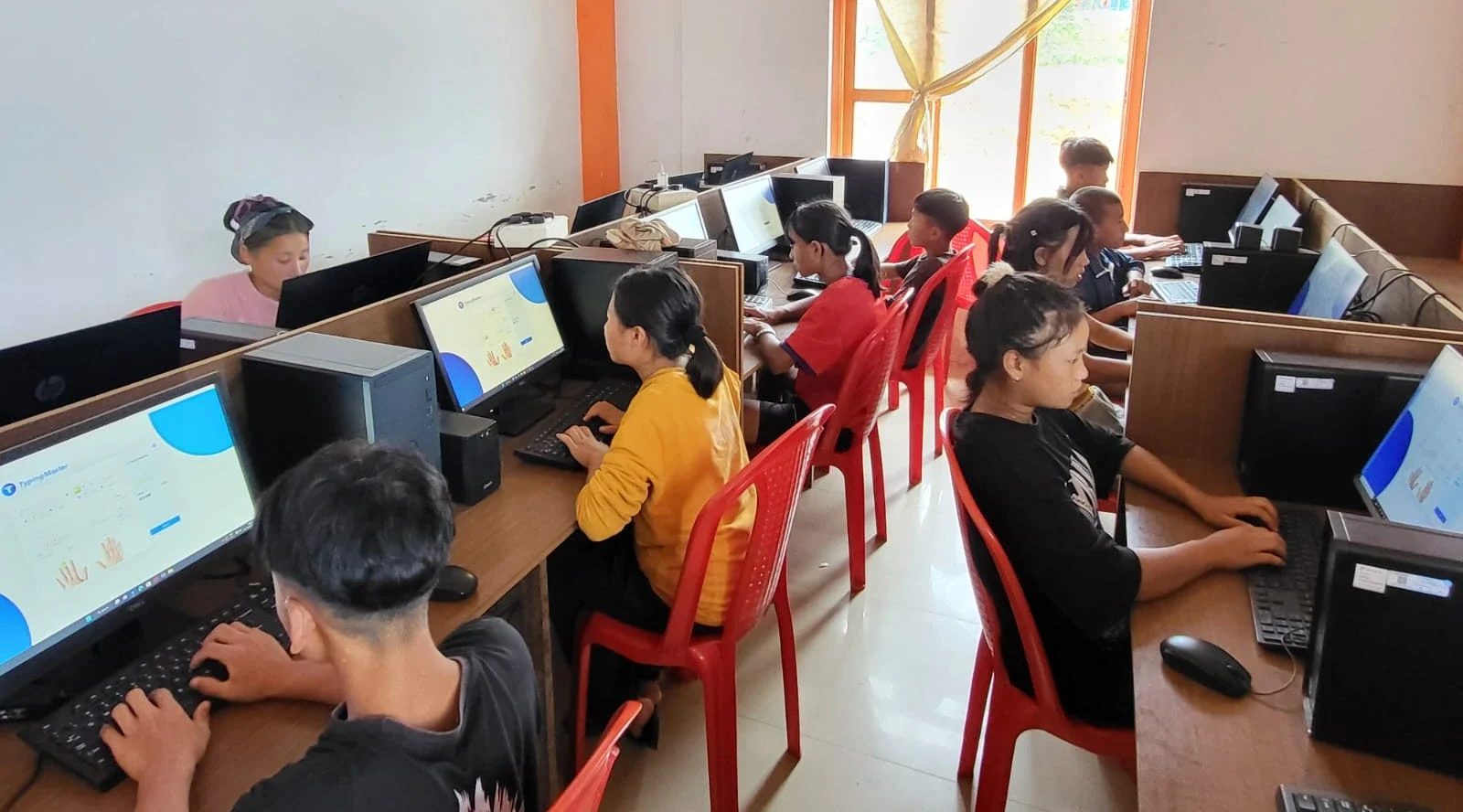
Some children push back when a parent sits nearby, especially older ones. Respect that. You do not need to watch every keystroke. Instead, agree on check-in times: “I will sit with you for the first 15 minutes, then you work alone, and I will check in at the end.”
Make it clear that you are there to help, not to spy. Ask permission to sit: “Can I sit here while you work?” gives your child a sense of control. Many children accept this better than a parent who appears without warning.
Praise effort, not just correct answers. When your child solves a problem or completes a lesson, say “You stuck with that” rather than “You are so smart.” This builds confidence and willingness to try harder things.
Common Mistakes Parents Make During Computer Time
Do not multitask by checking your phone constantly. Your child notices and learns that screens are more important than people. Put your phone away or use it only for genuine emergencies.
Do not interrupt to teach unrelated lessons. If your child is focused on math, don’t use that time to correct their grammar or ask about their day. Stay focused on their task.
Do not assume your child knows how to use the computer safely. Teach them to protect their eyes by looking away every 20 minutes, to sit with their feet flat, and to tell you if anything online makes them uncomfortable.
Building a Sustainable Family Computer Practice
Easy PC setup for parents means you can start guided learning without stress. The goal isn’t perfection, but consistency. Even 30 minutes a day of shared computer time, done regularly, shapes how your child thinks about learning and technology.
As your child grows, your role changes. In early years, you are an active guide. By Class 8 or 9, you become a resource they ask for help. By Class 10, they may work mostly alone, but you still set boundaries and check in. This shift is natural and healthy.
The investment you make now, sitting with your child, asking questions, staying patient, teaches them that learning is a partnership. That lesson lasts long after they leave home.
Frequently Asked Questions
How long should I sit with my child during computer study?
Start with 30 to 60 minutes per day, depending on your child’s age and attention span. Younger children (Class 1 to 5) need more active guidance. Older children (Class 6 and above) can work more independently, but check in at the start and end of each session.
What if I do not know how to use a computer?
Learning together is normal and valuable. Your child will teach you many things, and you will teach them how to learn. This shared discovery builds trust and shows that adults also learn new skills.
Can I sit with my child if I am busy with housework?
Partial presence is better than none. Sit in the same room while you do light tasks. Your child knows you are available if they need help, and that matters more than constant attention.
How do I know if my child is really learning on the computer?
Ask them to explain what they learned. If they can tell you in their own words, learning happened. If they cannot, they may have just been clicking. Pause and go back to what confused them.