


A student PC roadmap is a 90-day plan that guides your child’s learning on a home computer, building skills step by step from basic computer use to productive study habits. This roadmap helps you track progress, set realistic goals, and make the most of your investment in educational technology.
This article covers what should happen in the first three months after you set up a student computer, how to structure learning time, and how to measure your child’s growth in computer skills and academic confidence.
What is a student PC roadmap and why does your child need one?
A student PC roadmap is a structured 90-day plan that breaks down how your child will learn to use a computer for schoolwork, not entertainment. It moves from comfort with the basics (turning on, opening files, typing) to using software for assignments, research, and collaborative learning. Without a roadmap, children often spend time on distractions or get stuck on tasks they could do faster with the right guidance.
The roadmap ensures your child builds real computer literacy, the skills schools expect, and employers will value later. It also helps you, as a parent, know what to watch for and when to step in with help or encouragement.
How should you structure the first 30 days?
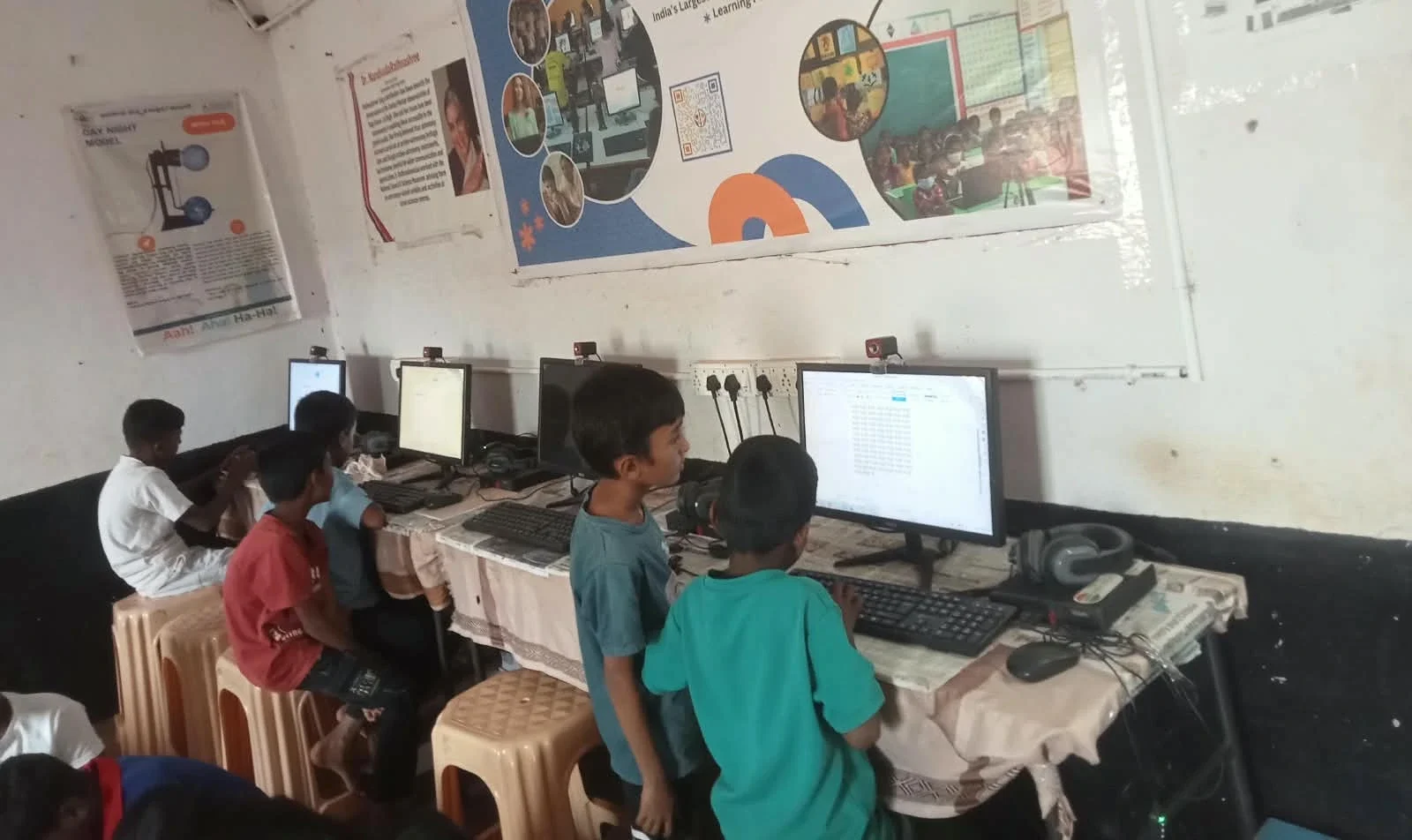
The first month focuses on comfort and confidence with the computer itself. Your child should learn to log in safely, navigate the desktop, use the keyboard and mouse smoothly, and open and close programs without help.
During this phase, introduce your child to the Apna PC as a starting point for learning, which comes ready to use with pre-loaded tools designed for students. Spend 20-30 minutes daily on these basics. Have your child practice typing simple sentences, saving files with clear names, and finding files they’ve saved. This builds muscle memory and removes the fear of “breaking” the computer.
What should happen in days 31 to 60?
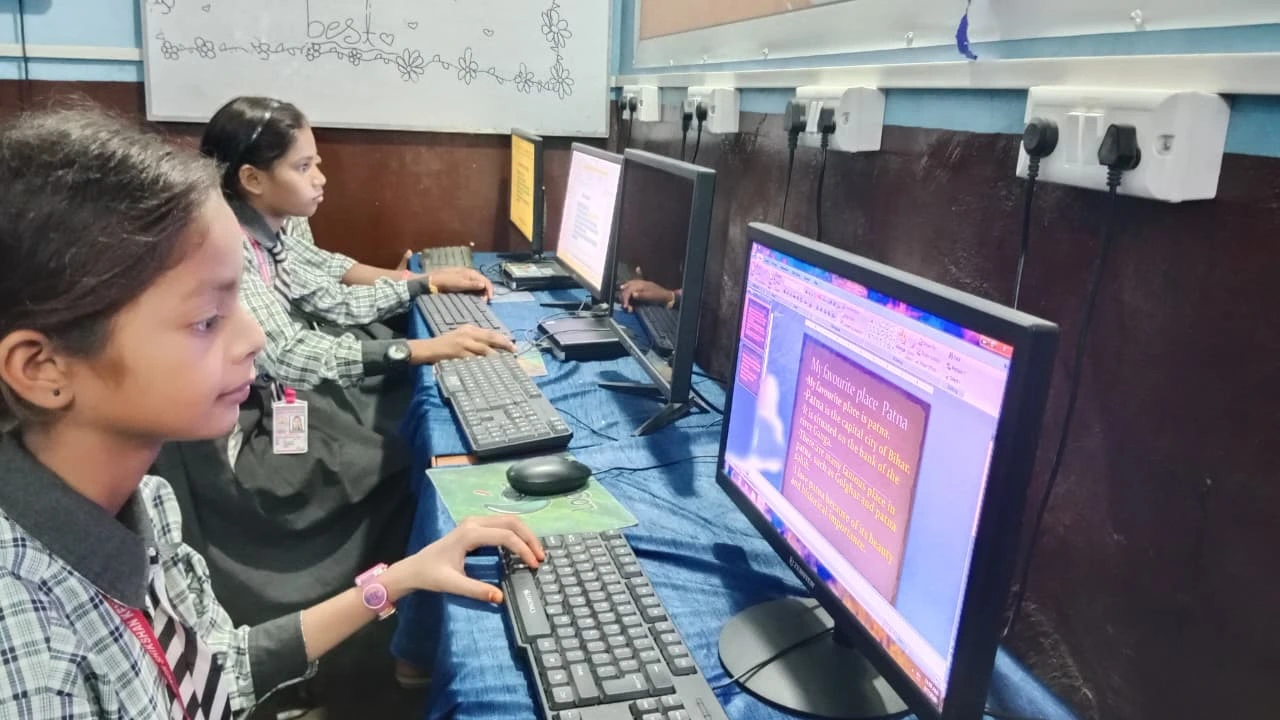
The second month introduces your child to the software tools they’ll use for schoolwork. The preconfigured software on student computers includes LibreOffice for writing and maths, and Scratch for creative problem-solving through coding basics.
In this phase, your child should learn to open LibreOffice, create a document, type and format text, and save it properly. They can start with simple tasks like typing a story or rewriting their school notes. If your child enjoys creative learning, introduce Scratch through simple projects, making a character move or respond to clicks. Spend 30-45 minutes daily, mixing different tools to keep learning fresh.
How do you build academic skills in the final 30 days?
Days 61 to 90 shift focus to using the computer for real schoolwork. Your child should now research topics online safely, use LibreOffice to write assignments, and organise digital files by subject. They can also explore educational platforms like DIKSHA digital learning platform, which offers free learning resources aligned with school curricula.
Encourage your child to complete at least one school assignment on the computer during this phase. Help them save it, print it, and reflect on what they did well and what was hard. By day 90, your child should feel confident opening the computer, finding what they need, and completing a task without constant help.
What role does parental monitoring play in the roadmap?
Your involvement is key to the roadmap’s success. Student PC guide for parents explains how to use built-in monitoring tools like Apni Prerna, which lets you see what your child is doing, set screen time limits, and get alerts if they try to access harmful content.
Monitoring helps keep your child safe and supported. Check in weekly on your child’s progress. Ask what they learned, what was confusing, and what they want to try next. This conversation keeps you involved and helps your child feel accountable in a positive way.
How should you measure progress in 90 days?
Progress shows up in real milestones across the three months. Use this table to track what your child should be able to do at each stage.
| Days 1-30 | Days 31-60 | Days 61-90 |
|---|---|---|
| Logs in independently Navigates desktop confidently Opens and closes programs Types short text |
Creates a document in LibreOffice Formats text (bold, size, colour) Saves files with clear names Tries Scratch projects |
Completes a school assignment on a computer Researches a topic online Organises files by subject Uses DIKSHA or similar platform |
Don’t expect perfection. If your child reaches most of these milestones by day 90, they’re on track. Every child learns at their own pace, and some will move faster or slower depending on age and prior experience.
Can a student PC serve as a complete learning station?
Yes. A desktop as a complete learning station combines hardware, software, and parental support to handle most school tasks. With a proper setup, a desk, chair, good lighting, and a quiet space, the computer becomes a dedicated study zone, not a distraction corner.
The 90-day roadmap helps your child and you build the habits that make this work. Once your child is comfortable with the basics and knows how to use the software, the computer becomes a tool they reach for for schoolwork naturally, just like a notebook or pencil. The Apni Pathshala blog also shares tips on making the most of your student’s computer setup.
Frequently Asked Questions
What if my child is younger than 8 or older than 15?
Adjust the pace. Younger children may need more hands-on help and shorter 15-20 minute sessions. Older students can move faster and tackle more complex tasks like spreadsheets or online research. The milestones stay the same; only the timeline changes.
Should my child use the computer every day?
Yes, but not for hours. Consistent daily use of 30-45 minutes builds skills faster than sporadic long sessions. Regular practice helps your child remember what they learned and builds confidence. Quality matters more than quantity.
What if my child gets frustrated with the roadmap?
Take a break and try a different tool or activity. If LibreOffice feels boring, try Scratch. If typing feels hard, practice with games or fun writing tasks. The roadmap serves as a guide, not a rigid rule. Keep it flexible and fun so your child stays motivated.
Can the roadmap work without internet access?
Mostly yes. LibreOffice and Scratch work offline. However, some learning resources like DIKSHA need internet. If you have limited connectivity, focus on offline tools first, then add online resources when possible. A clear student PC roadmap removes guesswork from home computer learning and gives your child a path to real digital skills. Visit apnapc.com to learn more.