


Priya’s Laptop Froze During Her Online Exam
Priya sat in her small room in Indore, staring at her frozen screen. The online exam was happening right now, and her three-year-old laptop had stopped responding. Her hands shook as she tried pressing keys. She didn’t know what to do, and her parents were downstairs, worried about her future. This isn’t just Priya’s story. Thousands of students across Tier 2 and Tier 3 Indian cities face computer problems that could derail their studies. Learning basic computer troubleshooting can save your grades and your sanity. This guide teaches you how to diagnose common computer problems before calling a repair shop.
Why Computer Troubleshooting Skills Matter for Students
Your computer is now your classroom, your library, and your exam hall. When it breaks down, everything stops. Many students lose marks because they dont know simple fixes. Parents spend thousands on repairs that cost just a few hundred rupees to fix yourself. The Indian Ministry of Education has pushed online learning hard, making computer reliability crucial for every student.
Learning PC problem diagnosis gives you independence. You won’t panic when your screen goes black. You won’t lose sleep before a test wondering if your laptop will work. You become the person your friends call for help. This skill takes just a few hours to learn but saves you years of stress.
Step 1: Restart Your Computer (The Magic Fix)
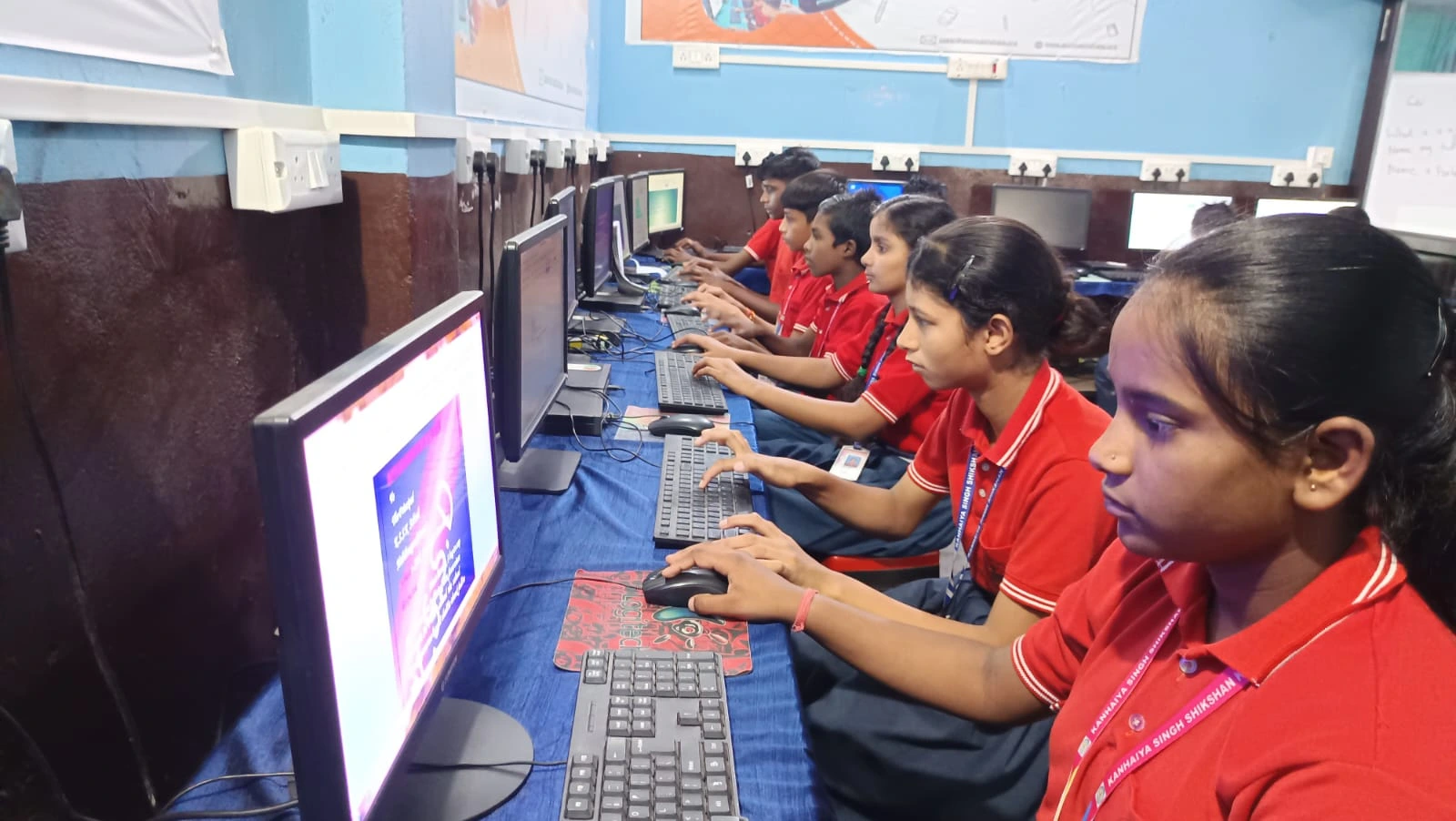
Before you panic, restart your computer. This sounds too simple, but it fixes 60% of all problems. Your RAM clears, temporary files are deleted, and stuck processes stop running. Hold the power button for 10 seconds until your computer shuts down completely. Wait 30 seconds. Then press the power button again.
Why does this work? Your computer runs thousands of small programs in the background. Sometimes they get stuck like traffic on Delhi roads. A restart clears everything and starts fresh. If your laptop was slow, freezing, or showing error messages, restart first. Always.
Step 2: Check Your Hard Drive Space
A full hard drive is like a backpack stuffed to bursting. Your computer can’t work properly when it has no room left. Open File Explorer (Windows) or Finder (Mac). Right-click on your main drive and select Properties. You’ll see how much space you’re using.
If you’re using more than 85% of your drive space, delete files. Start with your Downloads folder. Most students have gigabytes of old files they forgot about. Delete old videos, movies, and files you dont need. Move important files to an external hard drive or cloud storage like Google Drive.
- Warning signs: Your computer is very slow, programs won’t open, or you get “disk full” errors
- Quick fix: Delete files from Downloads, Desktop, and Videos folders
- Prevention: Clean your hard drive once a month
Step 3: Understand Your RAM and CPU Usage
RAM is your computer’s short-term memory. CPU is its brain. When both are overworked, your computer slows down or freezes. Open Task Manager (press Ctrl+Shift+Esc on Windows). Look at the Performance tab. You’ll see two key numbers: RAM usage and CPU usage.
If RAM is above 80% or CPU is constantly at 100%, too many programs are running. Close programs you’re not using. If you have 20 browser tabs open while watching YouTube and editing a document, your computer will suffer. Close unnecessary tabs. Close background apps you dont need. This single change fixes slowness for most students.
Step 4: Check Your Internet Connection
Your internet might be fine, but your computer might not be connecting properly. Right-click your WiFi icon in the system tray. Click Troubleshoot problems. Windows will run a diagnostic and often fix the issue automatically.
If that doesn’t work, restart your router. Unplug it for 30 seconds. Plug it back in. Wait two minutes for it to fully restart. Then try connecting again. If your connection is still slow, move closer to the router. Thick walls and distance weaken WiFi signals.
Step 5: Run a Virus and Malware Scan
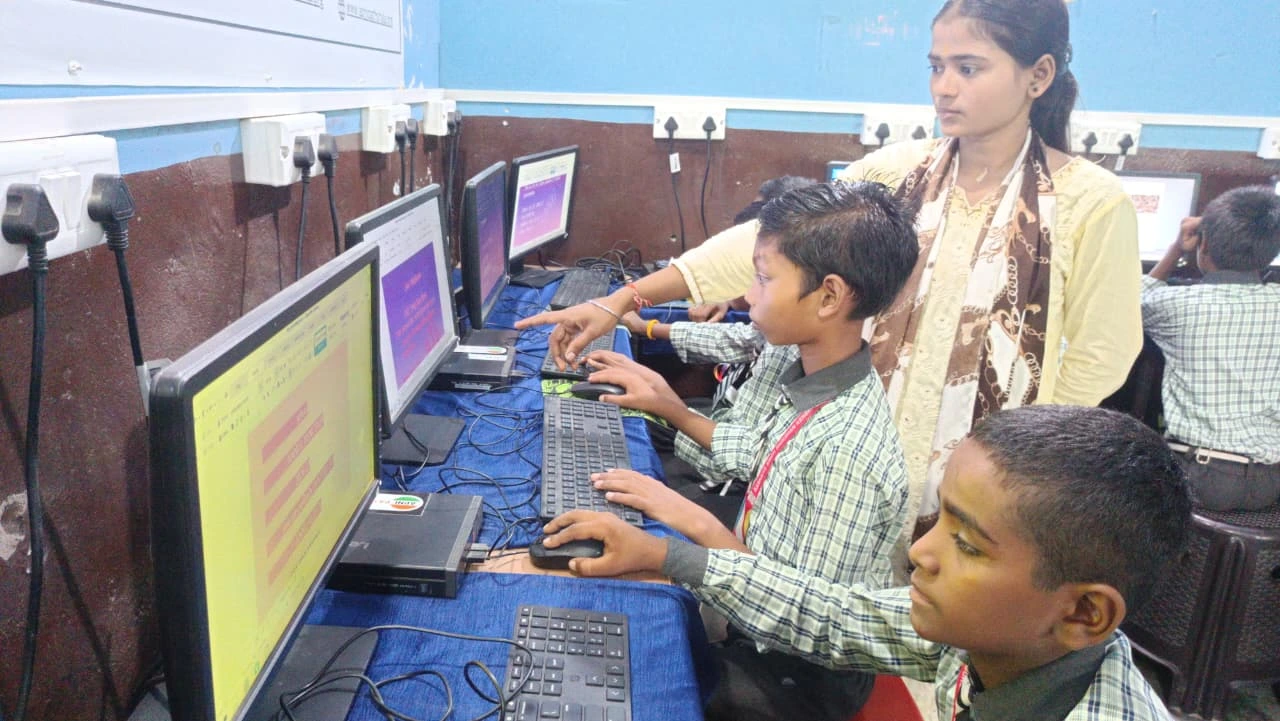
Viruses and malware slow your computer, steal your data, and cause crashes. Windows comes with built-in protection called Windows Defender. Open Windows Security and click Virus and threat protection. Click Scan options and choose Full scan. This takes 30 minutes but finds hidden threats.
Many students download files from unsafe websites. Avoid clicking suspicious links in emails or messages. Dont download movies or software from unknown sites. These are common ways viruses enter your computer. Prevention is easier than cure.
Step 6: Update Your Operating System and Drivers
Your computer runs on an operating system like Windows or macOS. This software needs updates to fix bugs and improve performance. Updates also patch security holes that hackers exploit. On Windows, go to Settings and click Update and Security. Click Check for updates. Let it download and install everything.
Drivers are software that help your computer talk to hardware like your keyboard, mouse, and printer. Outdated drivers cause problems. Windows updates drivers automatically, but you can also update them manually through Device Manager.
When to Call a Professional
Some problems need expert help. If your computer won’t turn on at all, if you hear strange noises from inside, or if the screen is physically cracked, take it to a repair shop. If you spilt liquid on it, dont try fixing it yourself. These situations need professional computer repair knowledge.
But before you spend money, try the steps above. You’ll be shocked how many problems you can solve yourself.
Building Your Computer Skills Now
Learning computer troubleshooting now prepares you for college and your career. Every job today requires computer skills. Companies want employees who can solve basic problems without calling IT support. This knowledge makes you valuable.
If you’re looking to upgrade your computer for college, consider a reliable system designed for students. The Apna PC is built for Indian students with 8GB RAM, 128GB SSD, and comes pre-loaded with educational software. It’s priced at Rs.30,000 (shipping and GST excluded) and includes tools for learning and productivity. Check out our guide on computer maintenance before college to keep your device running smoothly.
The Digital India initiative is expanding access to technology across the country. Your generation has the chance to master these skills in ways previous students never could. Dont waste that opportunity.
Your Action Plan This Week
Start today. Restart your computer right now. Check your hard drive space tomorrow. Run a malware scan this weekend. These three actions will make your computer faster and more reliable immediately. Share this knowledge with your friends and family. You’ll become the person everyone calls when their computer acts up.
Computer troubleshooting isn’t magic. It’s just learning how your machine works and following logical steps to find problems. You’re already solving complex math problems and writing essays. Diagnosing PC problems is simpler than you think. Learn about affordable student computers that come ready for learning without the frustration of constant problems. Visit apnapc.com to learn more.