

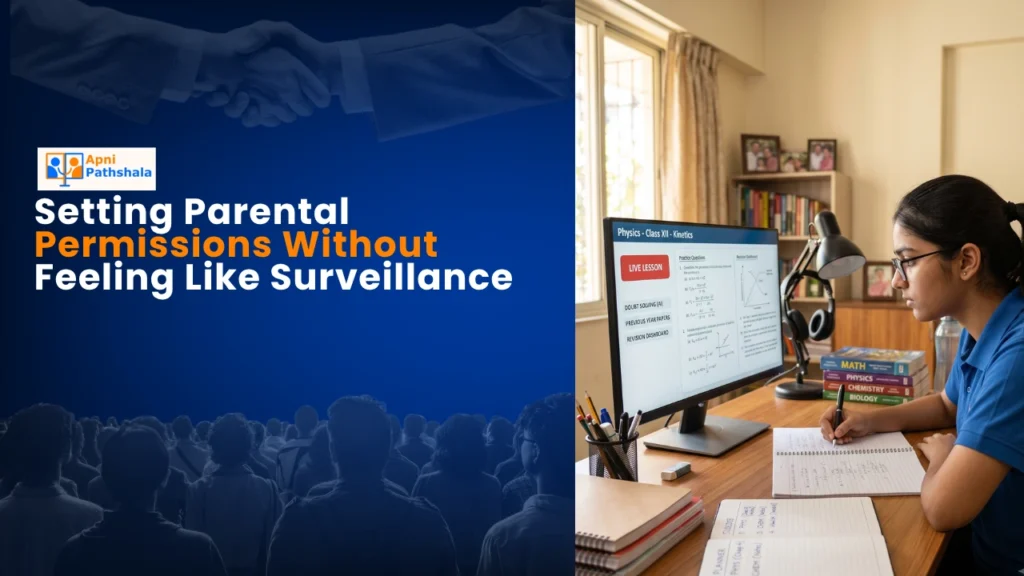
Meera’s Midnight Discovery
Meera from Indore sat at her kitchen table at 11 PM, scrolling through her 12-year-old son Aditya’s browsing history on his student computer. Her heart sank. He was supposed to be studying for his maths exam, but he’d been watching gaming videos for three hours straight. She felt torn between two feelings: anger at his distraction, and guilt about checking his screen like a detective. “I don’t want to be that parent,” she told her husband. “But I also can’t let him waste his future on the internet.”
You might feel exactly like Meera right now. Balancing your child’s freedom with their safety feels impossible. Screen time limits sound controlling, but no limits feel reckless. The good news? There’s a middle path that doesn’t require you to become the “surveillance parent.”
Why Your Student Computer Needs Smart Permissions, Not Spying?
Let’s be honest. Kids today grow up with screens. Blocking everything won’t work, and your child will resent you for it. But leaving them completely unsupervised on a student computer isn’t the answer either. You need permissions that work quietly in the background, protecting without preaching.
Think of smart parental controls like traffic signals on a road. They don’t stop cars from moving; they guide them safely. Your child still gets to explore, learn, and use technology. You ensure they’re not heading into dangerous territory.
The Apna PC comes with Apni Prerna, a built-in monitoring system designed specifically for Indian families. It’s not about spying on every keystroke. It’s about setting boundaries that your child understands and respects.
- You set the rules, not the restrictions. Decide when your child can use the computer, what sites they can visit, and how long they can stay online.
- Your child learns responsibility. When they see the automatic screen time lock kick in, they understand that limits are real and fair.
- You stay informed, not intrusive. Get reports on what your child is doing, but don’t hover over their shoulder every moment.
Setting Screen Time Limits on a Student Computer That Actually Work
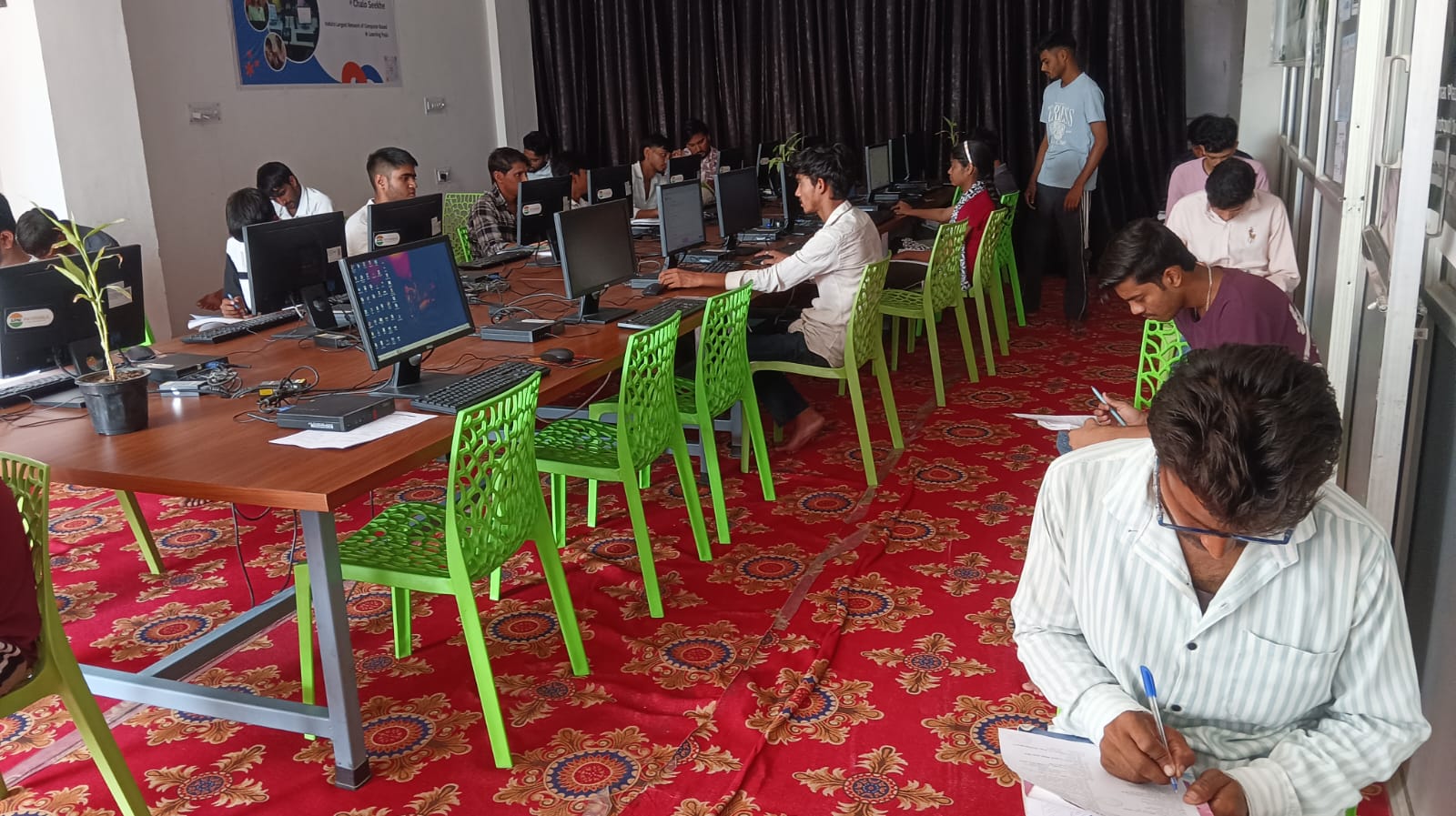
Here’s what Meera did after she got her son an Apna PC. Instead of yelling about the gaming videos, she sat down with Aditya and said: “Let’s decide together. How much time do you need for homework? How much for fun?”
Aditya said two hours for homework, one hour for breaks. Meera set the automatic screen time lock to shut down entertainment sites after homework time ended. The key? Aditya wasn’t surprised. He knew the rules because he helped make them.
Screen time limits work best when they’re transparent. Your child knows exactly when the computer will lock. They plan their day around it. They don’t feel ambushed or controlled.
With Apna PC’s Apni Prerna system, you can set different time limits for different activities. Study apps get unlimited access during study hours. Gaming sites get one hour after 6 PM. YouTube gets blocked during school days but allowed on weekends. You’re not saying “no” to everything. You’re saying “yes, but smartly.”
Keeping Your Student Computer Safe Without the Guilt
One of the biggest worries for parents in Tier 2 and Tier 3 cities is: what if my child stumbles onto something harmful while browsing the internet? You can’t watch them every second, and you shouldn’t have to.
Apna PC comes pre-loaded with Zorin OS, a safe operating system that’s designed for families. Combined with Apni Prerna’s filtering, you can block inappropriate websites automatically. Your child won’t even see them. No awkward conversations needed.
But here’s the thing: technology alone isn’t enough. Talk to your child about online safety. Explain why you’re setting these limits. Ask them what they’re interested in and help them find safe resources.
If your child has learning differences or special needs, the learning differences setup in Apna PC lets you customise the entire experience: larger fonts, simpler menus, customised app access. Your child gets the tools they need without feeling singled out.
Building Trust Through Transparency
The biggest mistake parents make is hiding their monitoring. Your child finds out, feels betrayed, and starts finding workarounds. That’s when real problems start.
Instead, be open. Show your child the Apni Prerna dashboard. Explain what you can see and why. Most importantly, tell them you’re not trying to catch them doing something wrong. You’re trying to keep them safe.
Aditya’s story ended well. After three months with the Apna PC and clear screen time limits, his maths exam score jumped from 62 to 78. His gaming time was still there, but it was earned and limited. He wasn’t sneaking around. His mom wasn’t stressed. They both trusted the system.
Your student computer should be a tool for learning, not a battleground for control. With Apna PC’s built-in permissions and Apni Prerna monitoring, you get both safety and trust. Your child gets freedom with guardrails. You get peace of mind without feeling like a surveillance parent.
The personal computer has changed how kids learn. India’s Digital India initiative is pushing technology into every classroom. Your job as a parent is to make sure that technology serves your child’s growth, not distracts from it.
Apna PC is built for this exact challenge, with 8GB RAM, 128GB SSD, and pre-loaded educational software like LibreOffice and Scratch. At Rs.30,000 (shipping and GST excluded), it’s an investment in your child’s digital future. More importantly, it’s an investment in your peace of mind. Visit apnapc.com to learn more.