


Rajesh’s Dilemma: When One Screen Isn’t Enough
Rajesh sat in his small apartment in Indore, watching his 16-year-old daughter Priya struggle with her online classes. She’d open her video call on one side of the screen, then try to scroll through her notes on the other, constantly switching between windows. Her frustration was visible. He wondered if adding a second monitor to her learning computer could solve this problem. Many parents in tier 2 and tier 3 cities face this exact situation. They want to give their children the best learning setup but don’t know whether a second monitor is practical or necessary.
The answer is yes, and it’s simpler than you might think. A dual monitor setup can transform how your child studies, especially with an educational computer like Apna PC. Let’s explore why this works and how you can set it up.
Why Your Student Needs a Second Monitor
Think about what your child does during online learning. They attend video classes, take notes, watch tutorials, and research topics all at the same time. With just one screen, they constantly minimise and maximise windows. This breaks their focus and wastes precious study time.
A dual monitor setup changes everything. Your student can keep their video class on one screen and their notes or research on the other. This is especially helpful for:
- Online classes: Video on the left, notes on the right
- Coding and programming: Tutorial on one screen, Scratch or code editor on the other
- Research projects: Reference material on one side, document writing on the other
- Exam preparation: Question paper on one screen, answers on the other
Students who use a dual monitor setup report better concentration and faster task completion. Your child won’t waste time switching between applications. They’ll stay in the flow of learning.
Can Apna PC Support a Second Monitor
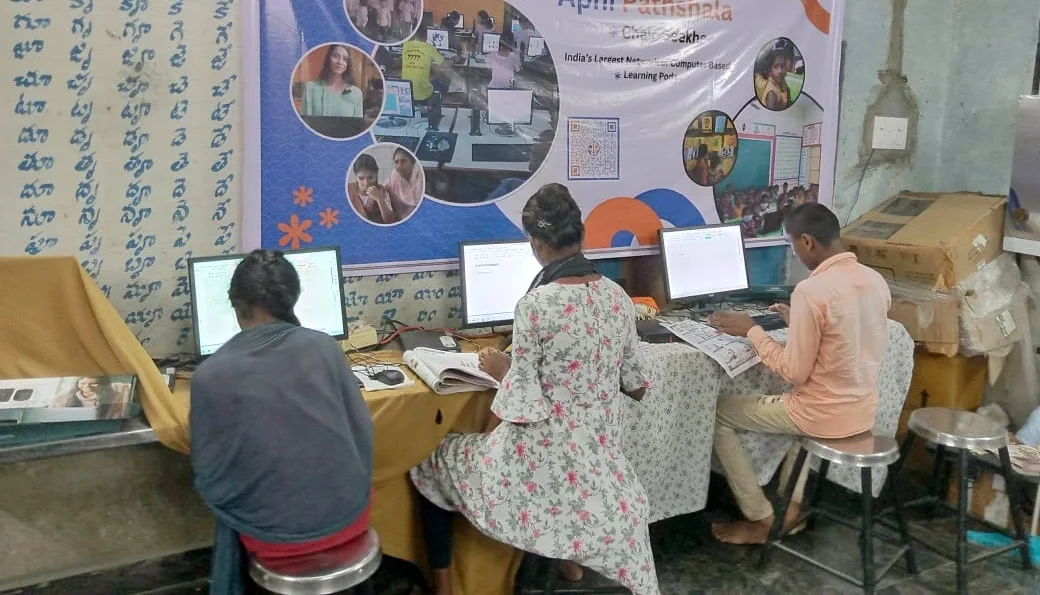
Yes, absolutely. Apna PC comes with the ports you need to connect a second monitor. The computer has HDMI and DisplayPort connections that support multiple displays. This means you don’t need to buy a new computer or any special equipment.
The Apna PC runs Zorin OS, which handles dual monitors beautifully. The operating system automatically detects your second screen and arranges your workspace. You can extend your display so both screens work together as one large workspace. This is exactly what students need for productive studying.
With 8GB RAM and a 128GB SSD, Apna PC handles multiple applications running simultaneously without slowing down. Your child can have video conferencing, document editing, and web browsers open at the same time without lag.
Setting Up Your Student’s Dual Monitor System
Setting up a second monitor is straightforward. First, choose a monitor that fits your budget. You don’t need an expensive gaming monitor. A basic 21- to 24-inch monitor works perfectly for students. Many affordable options are available in Indian markets.
Here’s what you need to do:
- Connect the monitor cable to the HDMI or DisplayPort on your Apna PC
- Power on the monitor
- Zorin OS will automatically recognise it
- Go to Settings > Display to arrange your screens
- Choose “Extended” mode to use both screens together
That’s it. Your child’s dual monitor setup is ready. No complicated software or technical knowledge needed.
Making the Most of Your Dual Monitor Setup
Once you have two screens, help your child organise their workspace smartly. They should keep distractions on one side and their main task on the other. For example, during an online class, the video should be on the secondary monitor while their notebook application is on the main screen.
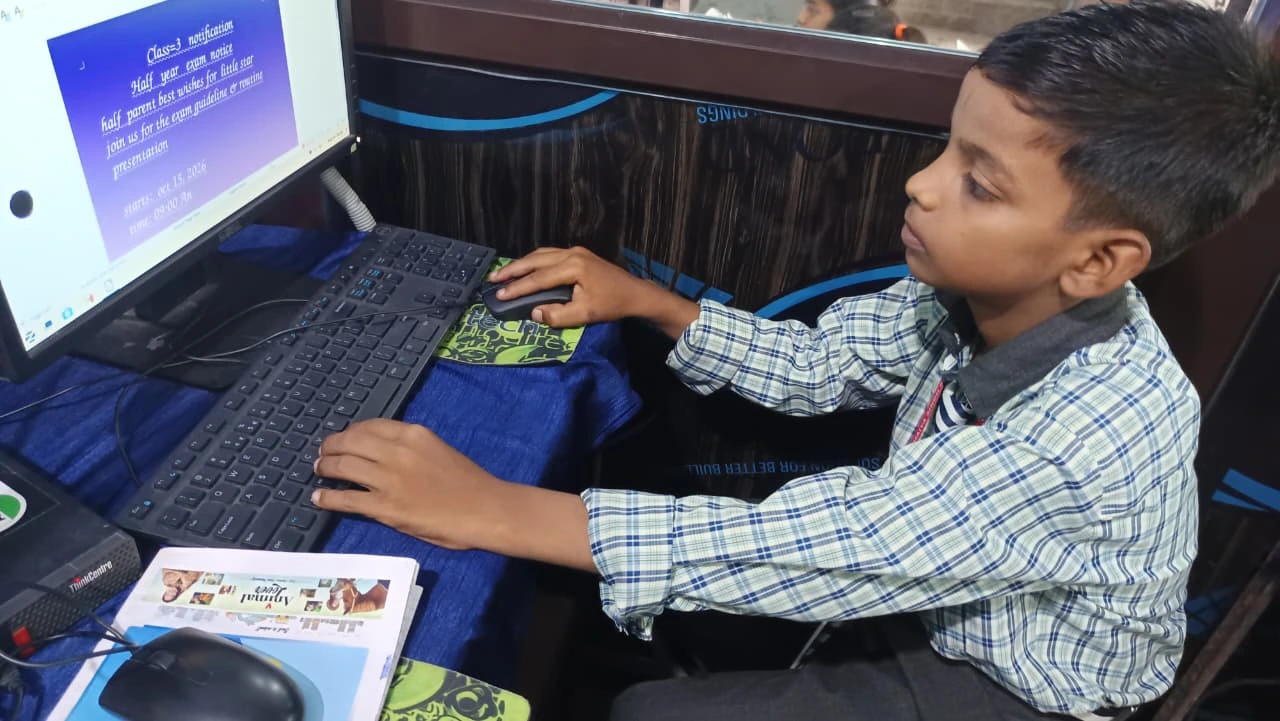
Apna PC comes preloaded with LibreOffice for document creation and Scratch for learning programming. Both applications work beautifully across multiple monitors. Your child can watch Scratch tutorials on one screen while coding on the other. This hands-on approach helps them learn faster.
The Apni Prerna monitoring feature also works well with dual monitors. Parents can track their child’s study progress without interfering with their learning. Visit Apni Pathshala to understand more about how this monitoring works.
What About Space and Budget
You might worry about desk space. A second monitor doesn’t take much room. You can place it beside your main monitor or stack them vertically. Many students use monitor stands that save desk space.
Budget is another concern. A decent 21-inch monitor costs between Rs. 7,000 and Rs. 12,000 in India. Combined with Apna PC at Rs.30,000, your total investment is around Rs.40,000 to Rs.45,000 (before shipping and GST). This is still affordable for most families in tier 2 and tier 3 cities. When you consider the improvement in your child’s learning efficiency, it’s worth every rupee.
If you want to explore other connection options, you can also check how Apna PC handles projector connection for classroom presentations.
The Government’s Push for Better Student Technology
The Ministry of Education recognises that proper technology infrastructure improves student learning outcomes. They encourage educational institutions and families to invest in quality computing devices. Apna PC aligns with this vision by providing affordable, purpose-built computers for Indian students.
By setting up a dual monitor system with Apna PC, you’re not just buying hardware. You’re creating an environment where your child can focus, learn faster, and achieve better results.
Your child deserves a learning setup that supports their potential. A second monitor for students is no longer a luxury but a practical tool for success. Start with Apna PC and add a second monitor to unlock your child’s full learning capability. Visit apnapc.com to learn more.