


Kavya’s First Computer: A Parent’s Journey with Computer Customisation
Last month, Priya sat across from her 10-year-old daughter Kavya in their Indore home. Kavya had just unboxed her new Apna PC, and her eyes lit up with wonder. Within minutes, she asked, “Mummy, can I change the wallpaper? Can I make it look like my room?” Priya froze. She didn’t know where to start. Like many parents in tier 2 and tier 3 cities, Priya worried that letting her daughter customise the computer might break something or lead her away from studies. But Kavya’s question was actually an opportunity, a chance to teach her about computer customisation while keeping learning at the centre.
Computer customisation isn’t just about making your desktop look pretty. It’s about giving your child ownership of their learning space. When kids personalise their computer, they feel more connected to it. They’re more likely to use it for homework, creative projects, and skill-building. The Apna PC comes pre-loaded with Zorin OS, LibreOffice, and Scratch, tools designed for students. Your child can learn while making the computer truly theirs.
Why Personalising the Desktop Matters for Your Child’s Learning
Think about your child’s study desk at home. If it’s just a plain table, they might not want to sit there. But if they’ve arranged it with their favourite books, a small plant, or a photo, they feel comfortable. The same logic applies to computers. A personalised desktop makes your child want to spend time on it, and that time can be used for learning.
When your child customises their Apna PC, they’re also learning basic computer skills. They’re understanding how operating systems work. They’re learning about file management, settings, and user preferences. These are foundational skills for anyone who’ll use computers in school and later in their careers. The Digital India initiative emphasises digital literacy for all children, and personalisation is part of that journey.
Your child also develops a sense of responsibility. When the computer feels like theirs, they’re more careful with it. They’re less likely to download random files or visit unsafe websites. They understand that this is their learning tool, and they need to protect it.
Safe Ways to Let Kids Personalise Their Desktop
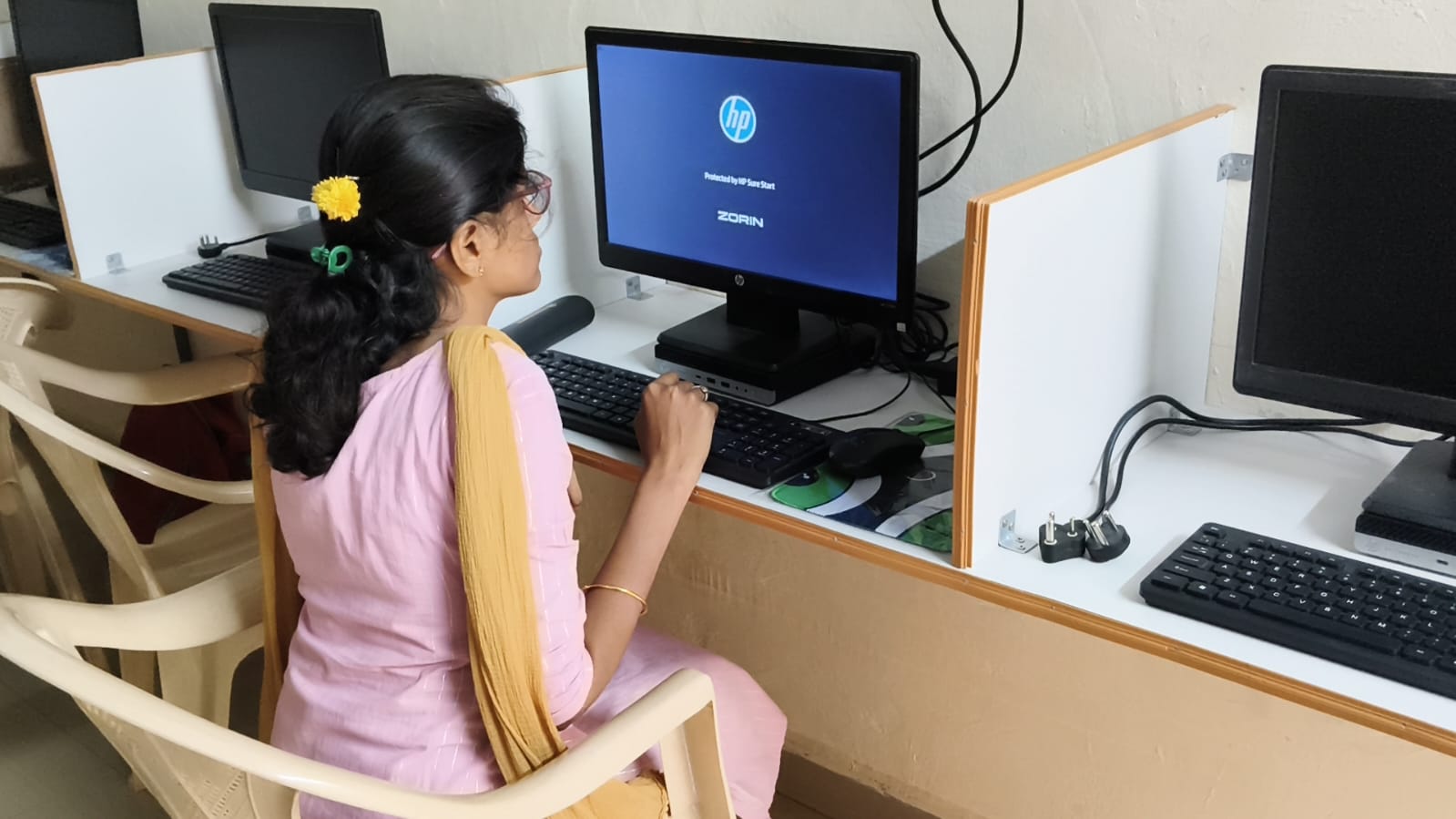
You don’t need to be a tech expert to help your child customise their Apna PC. Here’s what you can safely allow:
- Wallpapers and themes: Let your child choose a background image. Zorin OS has built-in themes that are kid-friendly and won’t affect performance.
- Desktop icons: Your child can organise shortcuts to apps they use for studies, like LibreOffice for writing assignments or Scratch for coding projects.
- Font sizes: If your child finds text too small, adjusting font sizes helps them read better during long study sessions.
- Screensaver settings: A fun screensaver can make study breaks more enjoyable.
- Keyboard shortcuts: Teaching your child to set up shortcuts for frequently used apps speeds up their workflow.
What shouldn’t your child change? System files, security settings, or the Apni Prerna monitoring software. These exist to keep your child safe and on track with their studies. Be clear about these boundaries from day one.
Start by sitting with your child and exploring the settings together. Show them where to find the personalisation options in Zorin OS. Make it a learning moment. Ask them why they want to change something. Is it because they spend a lot of time on that app? Does that wallpaper inspire them to focus? These conversations help your child think intentionally about their digital space.
Turning Customisation into a Teaching Moment
Your child’s desire to personalise their computer is actually a golden teaching opportunity. It shows curiosity and ownership. When Kavya asked her mother about changing the wallpaper, she was asking permission to make the computer her own. That’s healthy.
Use this moment to teach your child about digital responsibility. Explain that just like they wouldn’t write on their school desk, they shouldn’t download random files or visit unsafe websites. Show them that customisation is about making smart choices, not just having fun.
You can also use customisation to reinforce study habits. If your child sets up their desktop with only the apps they need for homework, they’re less likely to get distracted. LibreOffice, Scratch, and other pre-loaded apps are right there. They don’t need to search for them. This is computer customisation in service of learning.
Check out our student computer buying guide to understand more about how Apna PC supports personalised learning. You can also explore extracurricular learning on computer to see how customisation fits into your child’s broader educational journey.
Practical Steps to Get Started
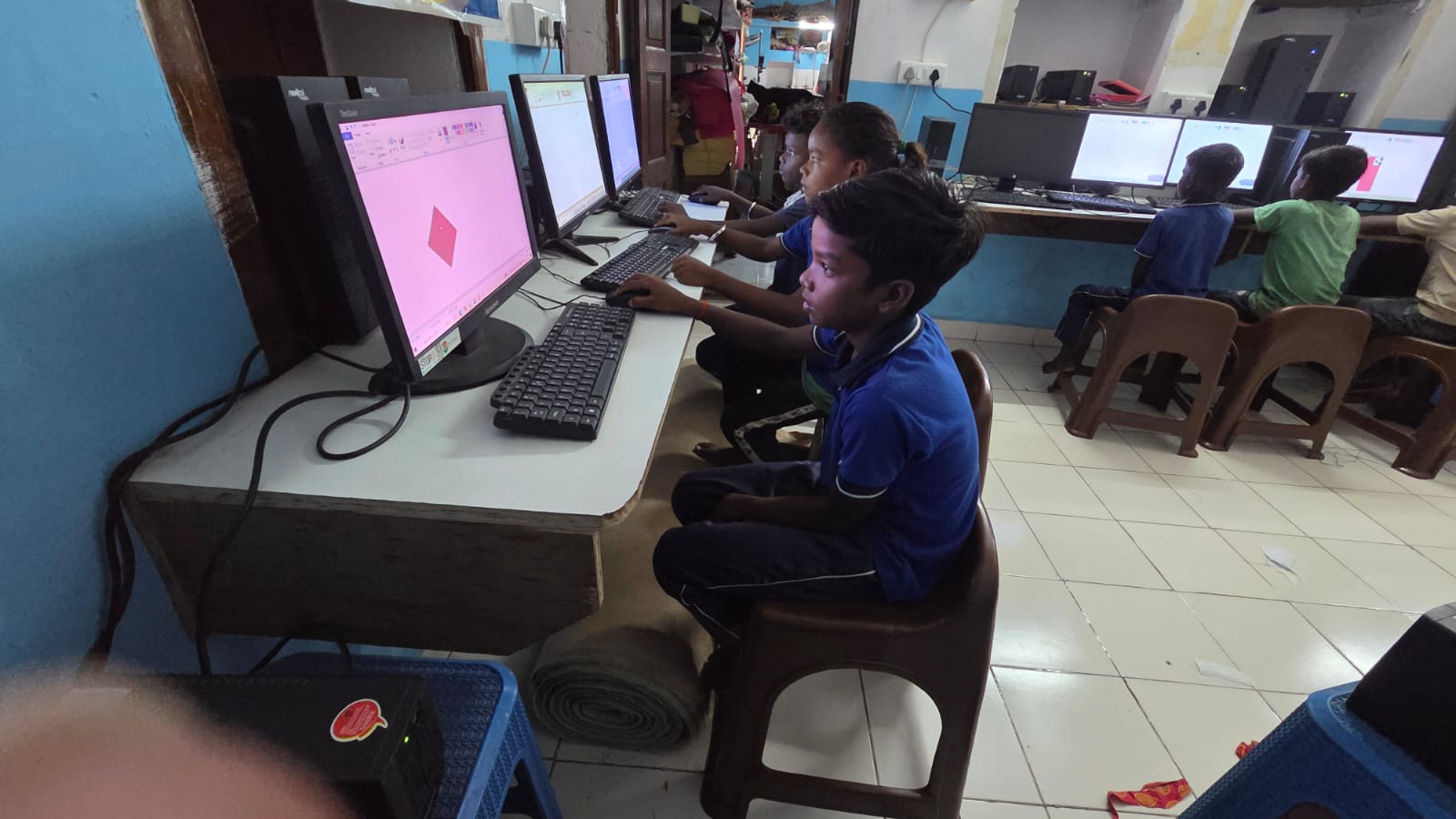
Here’s a simple roadmap for helping your child customise their Apna PC safely:
- Week 1: Let your child choose a wallpaper. Show them where to find it in settings. Make it a conversation about what they like and why.
- Week 2: Help them organise desktop icons. Put the apps they use most in easy-to-reach places.
- Week 3: Explore colour schemes and font sizes together. Ask them what makes it easier to study.
- Week 4: Review what they’ve done. Praise their choices. Remind them about the boundaries you’ve set.
The 8GB RAM and 128GB SSD in Apna PC mean your child’s customisations won’t slow the computer down. They can add wallpapers, organise files, and personalise settings without worrying about performance. This computer is built for students, so it handles personalisation smoothly.
Remember, a personal computer is called “personal” for a reason. Your child deserves to have a learning space that feels like theirs. Thoughtful computer customisation builds confidence and responsibility while keeping learning at the centre.
Help your child make their Apna PC a space where they want to learn, create, and grow. The investment in their computer is also an investment in teaching them digital citizenship. Your role as a parent is to guide them toward smart choices while letting them express themselves. Visit apnapc.com to learn more.