


Meera’s Tuition Class Gets a New Setup
Meera runs a small tuition centre in Nashik and coaches 15 students in Grades 6-8. Last month, her students complained they couldn’t see the math problems clearly on her old laptop screen. Her son suggested buying a projector, but Meera worried: would her new Apna PC work with it? She’d just ordered one for Rs.30,000 to replace her ageing computer. The answer surprised her. Yes, a projector for student computer setups works with Apna PC, and it’s simpler than you’d think.
Your Projector for Student Computer Setup Works With Apna PC
Apna PC isn’t just a regular desktop computer squeezed into a small box. It’s a full-featured educational mini PC with all the ports you need, including an HDMI output. HDMI is the standard cable used to connect computers to projectors, TVs, and displays worldwide. Your Apna PC comes with 8GB RAM and a 128GB SSD, enough power to run presentations, videos, and educational software smoothly while projecting to a classroom or living room.
Here’s what you need to know about projectors for student computer setups:
- HDMI cable: Most modern projectors have an HDMI input port. You’ll need an HDMI cable (usually 10-15 meters long, costs Rs.200-500) to connect your Apna PC directly to the projector.
- Older projectors: If your projector only has a VGA port (the older blue connector), you’ll need an HDMI-to-VGA adapter, available online for Rs.300-800.
- Cable length matters: In a classroom or tuition centre, measure the distance from where your Apna PC will sit to the projector. Buy a cable slightly longer than you need.
Setting Up Display on Zorin OS
Your Apna PC comes pre-loaded with Zorin OS, a beginner-friendly Linux system. Once you plug in the HDMI cable, Zorin OS usually detects the projector automatically. If it doesn’t, here’s what to do.
Click the system menu (top-right corner of your screen) and look for “Display Settings” or “Settings.” Open it, and you’ll see options for your monitor and the projector. Zorin OS will show both devices. You can choose between two modes: mirror your screen or extend it.
Mirror vs Extended Display for Learning
Mirror mode shows the exact same content on your Apna PC’s monitor and the projector. This is perfect for tuition classes because you see what students see. You won’t be fumbling around trying to figure out what’s on the big screen. Extended mode treats the projector as a second workspace, letting you keep notes on your monitor while showing slides on the projector. Most teachers prefer mirror mode for simplicity.
Mirror mode is easiest for student computer use. To switch between these modes in Zorin OS, go back to Display Settings and toggle the option. It takes 5 seconds. You don’t need any special software or technical skills.
Fixing Blurry Projector Images
Sometimes when you first connect your Apna PC to a projector, the image looks fuzzy or stretched. This usually means the resolution isn’t matching properly. Your projector might be 1024×768, but your Apna PC is trying to send 1920×1080. The fix is easy.
This is the most common projector problem for student computers. Open Display Settings again and look for “Resolution.” Try lowering it to match your projector’s native resolution. Most classroom projectors work best at 1024×768 or 1280×1024. Once you select the right resolution, the image becomes crisp and clear. You might need to try two or three settings to find the sweet spot.
Sound From Your Projector Setup
Here’s an honest caveat: many projectors have weak built-in speakers. If you’re teaching 20 students, they might not hear audio clearly. Your Apna PC includes a headset, but that’s for one person. For group learning sessions, you’ll want to add external speakers or a small amplifier (costs Rs.1,000-3,000).
Connect speakers to the headphone jack on your Apna PC or use a Bluetooth speaker. This way, when you play educational videos or audio lessons, everyone in the room can hear them clearly. It’s a small investment that makes a huge difference in classroom comfort.
Real Uses for Your Apna PC Projector Setup
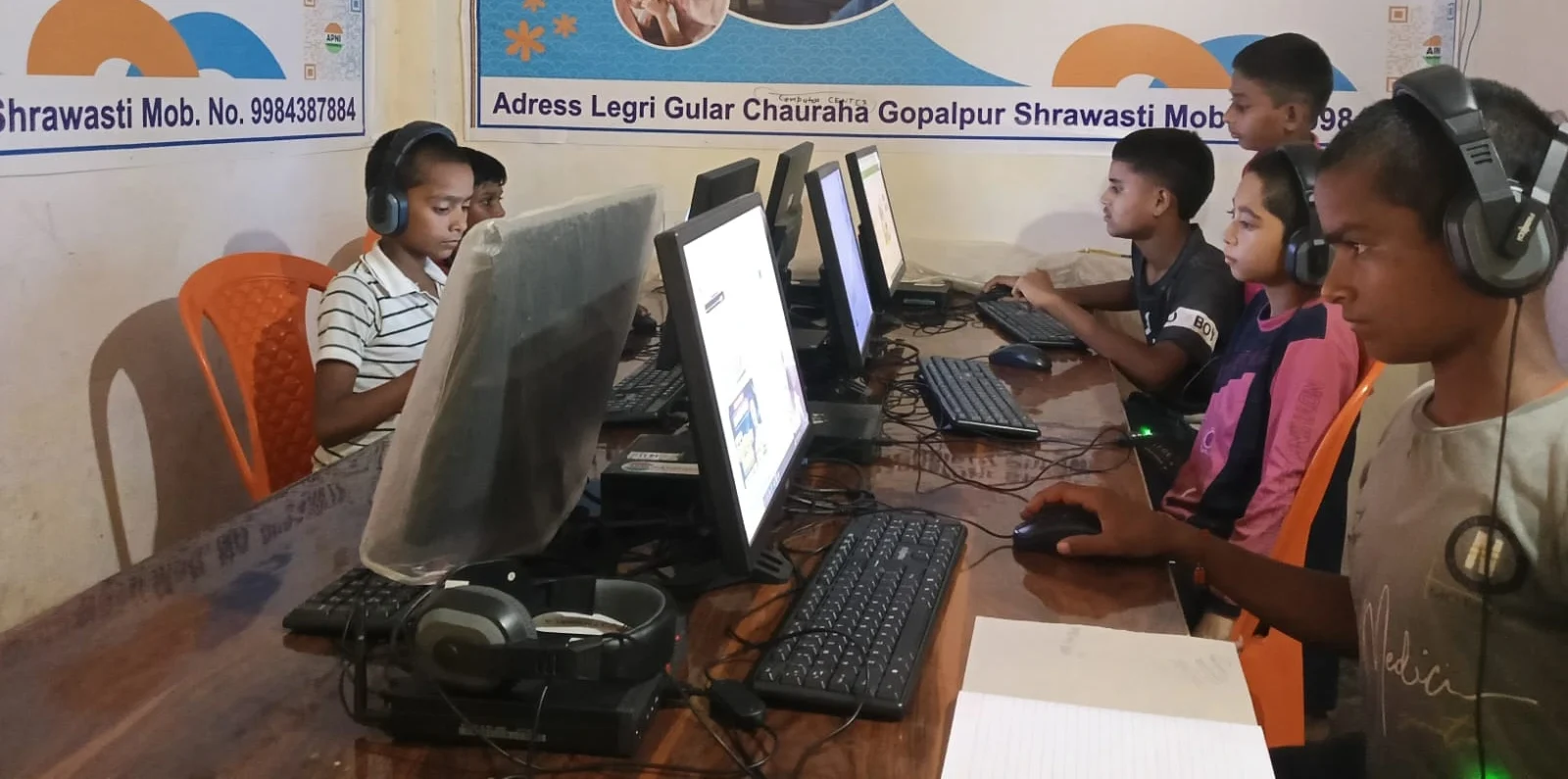
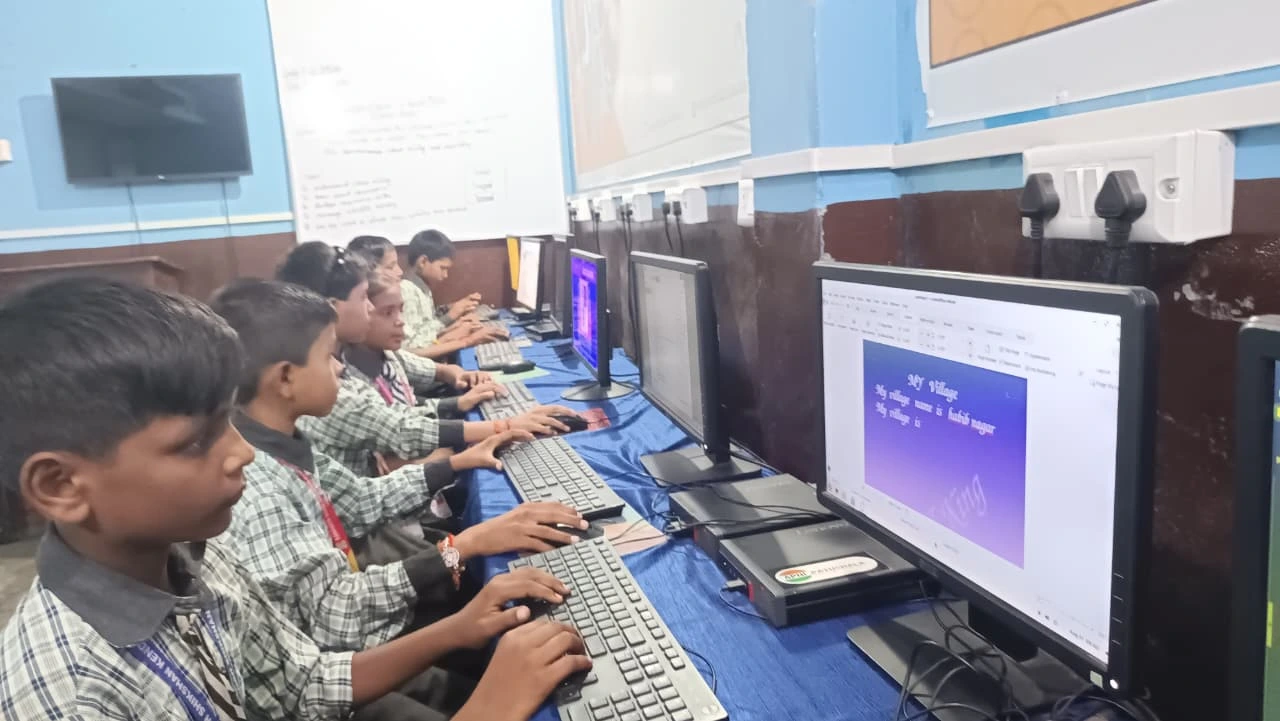
Meera now uses her Apna PC with a projector for three things. First, she displays math problems and solutions during lessons. Second, she shows educational videos from Apni Pathshala, which has excellent content for her students. Third, she conducts online classes using the projector so remote students can see what’s happening in the classroom.
Parents in Tier 2-3 cities are also using this setup for family learning sessions at home. Imagine your child studying with siblings, all seeing the same screen. Or grandparents watching along during online classes. The projector connection turns your Apna PC into a family learning tool.
You can also open the school portal on a student computer through your Apna PC and project that for group study sessions. Teachers find this especially useful for explaining online assignments to multiple students at once.
What a Projector for Student Computer Setup Costs
Your Apna PC costs Rs. 30,000 (shipping and GST excluded) and includes the mini PC, monitor, keyboard, mouse, webcam, headset, and a 3-year warranty. It’s ready to work with projectors out of the box. You’ll need to buy separately:
- HDMI cable (Rs.200-500)
- HDMI-to-VGA adapter if you have an older projector (Rs.300-800)
- External speakers if your projector’s audio is weak (Rs.1,000-3,000)
That’s it. No expensive adapters. No complicated setup. Your Apna PC connects to a video projector like any desktop computer.
Why a Projector for Student Computer Setups Matters in India
In smaller cities, not every tuition centre or school has fancy smart boards. A projector and a reliable computer like Apna PC give you professional-grade teaching tools at a fraction of the cost. Your investment works for years. Apna PC’s 3-year warranty protects you if anything goes wrong.
Students learn better when they can see content clearly. Teachers teach better when they’re not squinting at a small screen. Parents feel confident about their investment when it actually solves real problems. At Rs. 30,000 (shipping and GST excluded), it stays affordable for tuition teachers and families alike.
Your Apna PC is built for this. It’s built for learning, for growth, and for reaching more students. Connecting a projector for student computer learning is one of the smartest ways to use it. Visit apnapc.com to learn more.