


Aarav’s Wake-Up Call: When Privacy Matters Most
Aarav, a 16-year-old from Indore, thought his laptop was just for schoolwork and gaming. One afternoon, his younger sister clicked a link from what looked like a homework site, and suddenly strangers online could see their family’s photos. His parents panicked. His school counsellor shook her head. Nobody had taught Aarav about computer privacy settings, and now he understood why it matters so much. This isn’t just about Aarav; it’s about you and thousands of students like you who need to protect your digital life right now.
Computer privacy is no longer a luxury topic for tech experts. Every student needs to understand it, especially if you use a computer for online classes, assignments, or connecting with friends. Your personal data, school documents, and family information deserve protection. Learning basic computer privacy settings today can save you from serious problems tomorrow.
What Computer Privacy Really Means for Students
Computer privacy means controlling who can see your files, browsing habits, and personal information on your device. When you adjust privacy settings, you’re basically building walls around your digital space. Think of it like locking your diary or keeping your room door closed, except this happens in the digital world.
Many students in Tier 2 and Tier 3 cities don’t realise that their default computer settings are wide open. Websites track what you do. Files sit unencrypted on your hard drive. Browsers save passwords without protection. Every single day, your computer collects data about you, and without proper privacy settings, anyone with access to your device can see it all.
The good news is that you don’t need to be a tech genius to fix this. Most privacy settings are straightforward once someone shows you where to look.
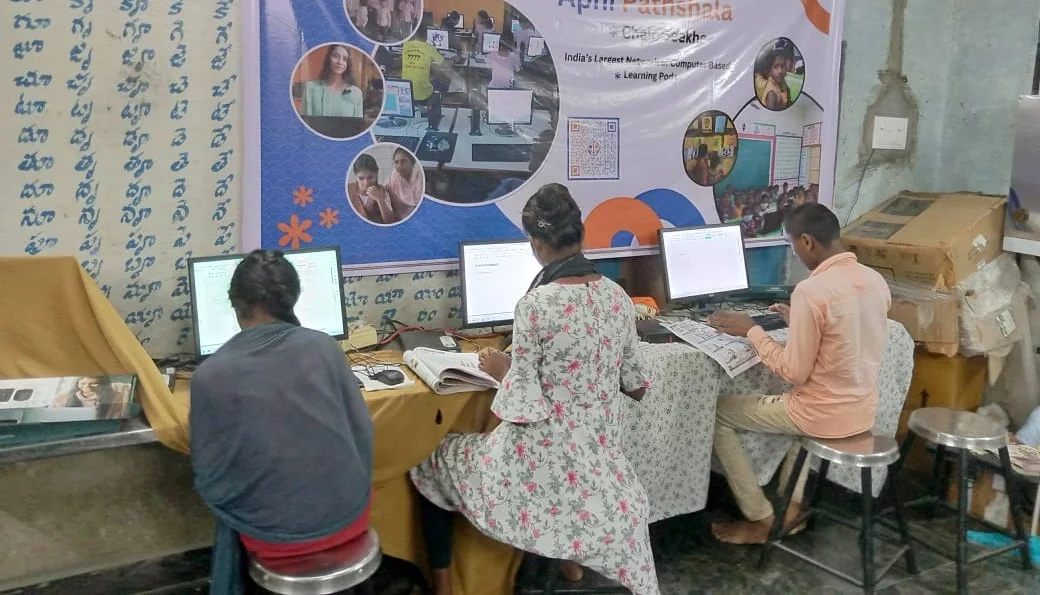
Five Computer Privacy Settings Every Student Should Know
- File and Folder Permissions: Learn to set passwords on folders containing sensitive documents. This keeps others from opening your school projects, personal writing, or family photos without your permission.
- Browser Privacy Mode: Use private or incognito browsing when you’re researching sensitive topics or accessing personal accounts. This stops your browser from saving your history and cookies.
- Account Password Security: Set strong, unique passwords for each online account you use. Don’t use your name or birthday. Mix uppercase, lowercase, numbers, and symbols.
- App Permissions: Check which apps have access to your camera, microphone, location, and contacts. Remove permissions for apps that don’t need them.
- Automatic Updates: Enable automatic updates for your operating system and software. Security patches close holes that hackers try to exploit.
Why Parents and Schools Should Care About Student Privacy Settings
Parents worry about their children online, but they often don’t know where to start. Teaching your child about privacy settings gives them real control over their digital safety. It’s not about spying or restricting freedom; it’s about giving them tools to protect themselves.
Schools are catching up too. Many institutions now include digital safety in their curriculum. When you understand privacy settings, you become a responsible digital citizen. You can also help your parents, younger siblings, and friends stay safe online.
The Digital India initiative pushes for digital literacy across the country. Part of that literacy means knowing how to protect your own data. Government agencies like CERT-In regularly warn students about cyber threats. Learning privacy settings now puts you ahead of those threats.
Practical Steps to Secure Your Computer Today
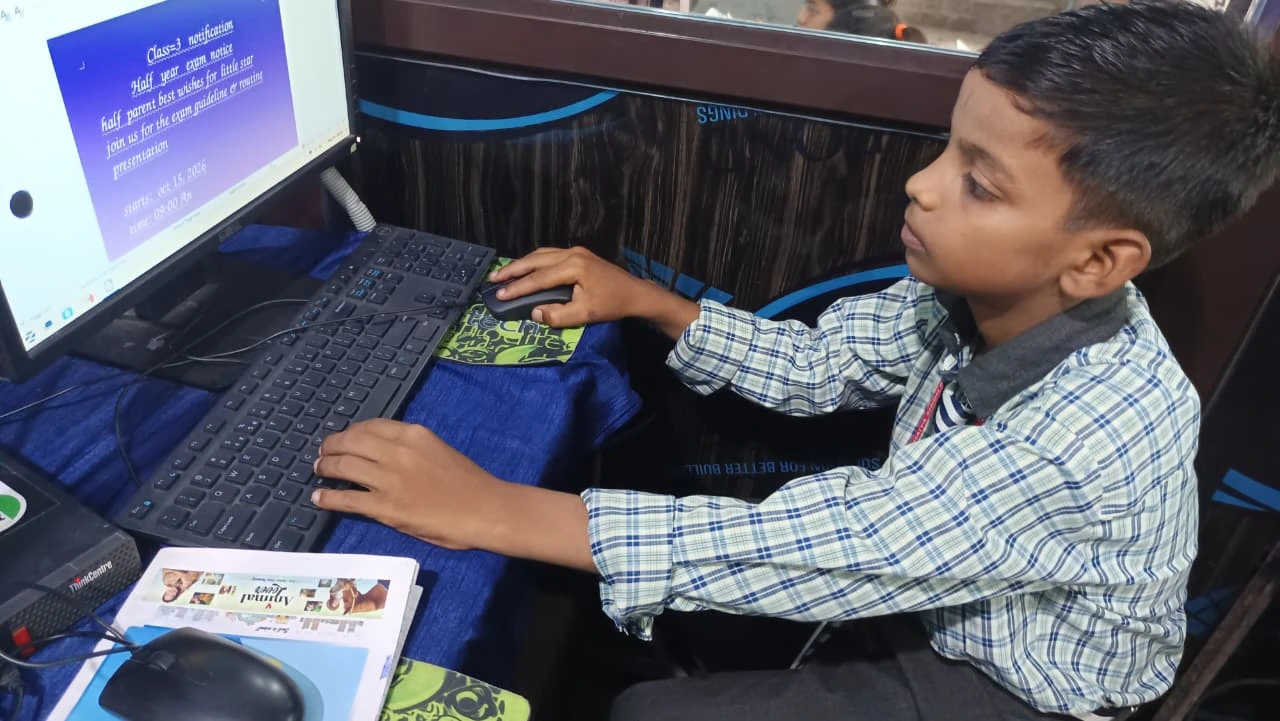
Start with your operating system. If you’re using Windows, go to Settings and look for Privacy and Security. If you’re on a Mac, check System Preferences. Most modern computers have built-in privacy controls that are easy to navigate. Spend 15 minutes exploring these menus. You’ll be surprised how much control you already have.
Next, review your browser settings. Chrome, Firefox, and Edge all have privacy sections. Disable tracking cookies if you want more anonymity. Clear your browsing history regularly. Before downloading anything, check a file before opening it to make sure it’s safe.
Finally, think about physical security. Lock your computer when you step away. Use a password or PIN to wake it up. Don’t leave your device unattended in public spaces. Digital privacy starts with physical control.
The Right Computer Makes Privacy Easier
Having a computer designed for students helps too. The Apna PC from Apni Pathshala comes preloaded with Zorin OS, a secure operating system that’s easy to understand. It includes built-in privacy features and student-friendly monitoring through Apni Prerna. With 8GB RAM and 128GB SSD, you’ve got plenty of space to organise your files safely. At Rs.30,000 (shipping and GST excluded), it’s an affordable way to get started with a secure, student-focused device.
The Apna PC also comes with LibreOffice and Scratch preinstalled, giving you everything you need for schoolwork and learning without cluttering your system with unnecessary apps that collect data.
Your Privacy, Your Responsibility
Learning about computer privacy settings isn’t something your school will always teach you, and your parents might not know where to start either. That responsibility falls on you. The good news is that once you understand the basics, you’ll feel more confident using your computer. You’ll know that your files are protected, your browsing is private, and your personal information stays where it belongs, with you.
Start today. Spend 20 minutes adjusting your privacy settings. Show your parents what you’ve done. Explain to your younger siblings why this matters. You’re not just protecting yourself; you’re building digital safety habits that will serve you for life. Visit apnapc.com to learn more.