


A student PC review after 90 days shows you whether your child is learning better, spending screen time wisely, and building computer skills for the future. Parents who track their child’s computer use over three months can see real progress in studies, typing speed, and digital confidence. This guide explains what to look for in a 90-day review, how to measure learning gains, and what changes to expect.
What Should You Check in a 90-Day Student PC Review?
After three months, a student PC review focuses on four areas: academic improvement, computer skill growth, healthy screen habits, and engagement with learning software. Start by asking your child about the subjects they studied on the computer, the projects they completed, and the skills they learned. Check their typing speed, ability to use office software like LibreOffice, and comfort with basic troubleshooting. A good review also includes your observations about whether they sit properly, take breaks, and balance computer time with outdoor play.
The student PC for parents guide explains how to monitor your child’s screen time and learning activities. Many parents find that after 90 days, children who started hesitant about computers become confident users who can open files, save documents, and navigate learning apps without asking for help every time.
How Do You Measure Learning Progress on a Student PC?
Learning progress appears in three ways: school grades, digital skills, and subject-specific gains. Check your child’s recent school report cards to see if marks in computer-related subjects or overall performance have improved since they started using a dedicated student PC. Ask their teacher whether homework quality has improved or whether they submit assignments on time more often.
Digital skills include typing speed, formatting a document, using a calculator app, and safely searching for information online. Subject-specific progress might mean your child can now create a presentation in LibreOffice Impress for a history project, or solve math problems using spreadsheet formulas. Purpose-built software on student computers like Scratch teaches coding logic that shows up in better problem-solving even in non-computer subjects. According to UNESCO global education research, digital skills and computer literacy are now core competencies for all learners.
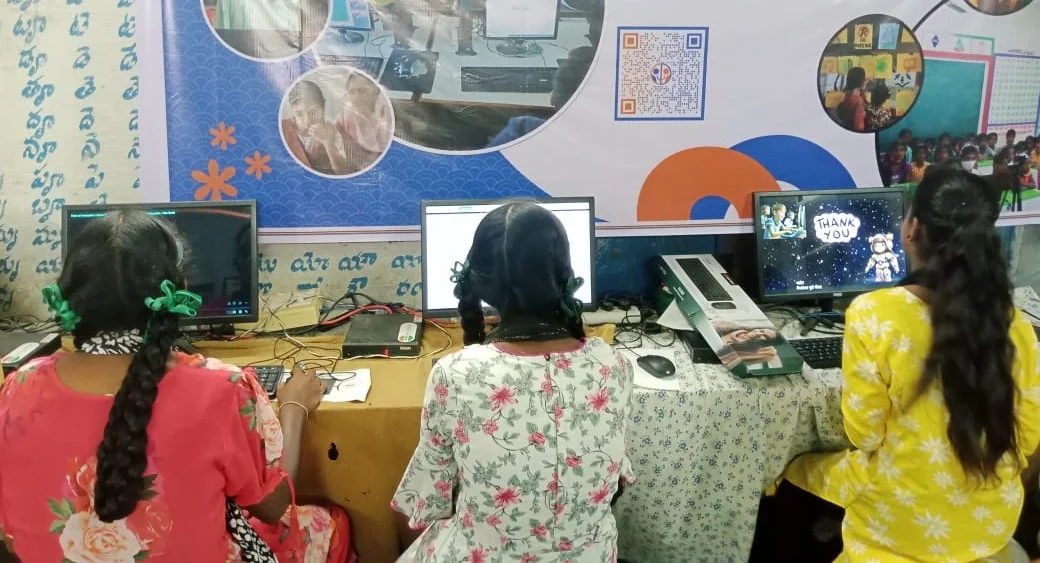
After three months, healthy screen time means your child uses the PC for study, homework, and one learning app or activity, with clear breaks every 20 to 30 minutes. They should not use the PC right before bed, and they should spend more time on focused study than on entertainment. A student PC built for learning, not gaming, naturally supports this pattern because it lacks high-demand games that pull children into long sessions.
You can track screen patterns using parental monitoring tools that come with family learning computers. After 90 days, you should see your child ask to use the PC for homework or a project they care about, rather than just asking to “play on the computer.” This shift shows the device is becoming a study tool in their mind, not a toy.
Should You Change Any Settings or Rules After 90 Days?
Yes. A 90-day review is the right time to adjust rules based on what you have learned about your child’s habits and maturity. If your child has shown responsibility, logging off on time, keeping the desk clean, and asking permission before installing anything, you might extend PC time or allow one new learning app they have requested. If screen time has drifted or homework quality has dropped, tighten rules: set a daily time limit, move the PC to a shared family space, or require you to approve which apps they use.
Some parents find that after 90 days, their child still needs reminders about posture or eye care. Others notice their child is ready to learn a new skill, like coding in Scratch or creating a video presentation. Use your observations to refine the setup, not to abandon it.
What If Your Child Shows Little Interest in the PC After 90 Days?
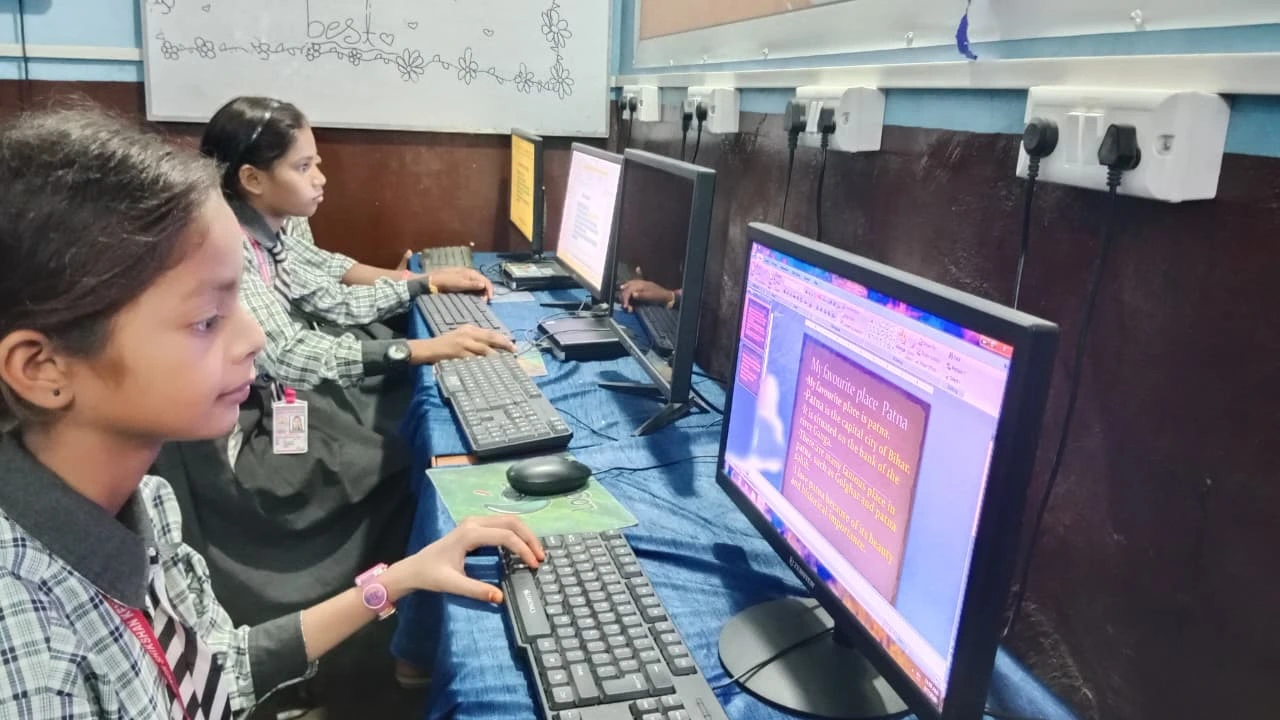
Low interest after three months often signals that the PC isn’t meeting your child’s needs, the learning software doesn’t match their age or learning style, or they need a more guided introduction to what the PC can do. Before concluding the device was a waste, try these steps: sit with your child and explore one new app together, ask their teacher for a specific homework task that uses the PC, or enrol them in a short online course on a topic they care about.
If your child remains uninterested despite these efforts, read what to do if your child is not interested in computers. Sometimes children need time, or they need a peer or mentor to show them what is possible. A 90-day review is not a final verdict; it is a checkpoint to adjust your approach.
How Does a Student PC Compare to a Regular Laptop for Learning?
A student PC differs from a regular laptop in three ways: it runs Linux (Zorin OS) instead of Windows, it comes with pre-loaded learning software, and it has no gaming software or distracting apps. The table below shows the key differences.
| Feature | Student PC | Regular Laptop |
|---|---|---|
| Operating System | Linux (Zorin OS) | Windows or Mac |
| Pre-loaded Apps | LibreOffice, Scratch, Apni Prerna monitoring | Varies; often bloatware |
| Gaming | Not designed for high-end games | Can run demanding games |
| Parental Monitoring | Built-in from day one | Requires separate software |
| Cost | Affordable entry-level option | Higher price point |
A student PC is designed to keep your child focused on learning. After 90 days, you will notice fewer distractions and more intentional use than on a general-purpose laptop. India’s Ministry of Education emphasises the importance of structured digital learning environments for school-age children.
What Should You Do After Your 90-Day Review?
After reviewing progress, create a plan for the next 90 days. Set one or two new learning goals, such as “complete a coding project in Scratch” or “improve typing speed.” Share these goals with your child so they feel ownership. Schedule another review in three months to track whether the goals were met and what new skills have emerged.
Read how education-ready computing supports Indian families to understand the bigger picture of how a student PC fits into your child’s overall learning. Many parents find that after six months, the PC becomes as normal a study tool as a textbook or notebook.
Frequently Asked Questions
How do I know if my child is actually learning on the PC?
Check school grades, ask your child to show you a project they completed, and observe whether they use the PC without constant help. Ask their teacher whether homework quality improved. If your child can now type, format a document, or explain a concept they researched online, they’re learning.
Is 90 days enough time to see real progress?
Yes. After 90 days, most children show measurable gains in typing speed, comfort with software, and ability to complete computer-based tasks. Academic impact may take longer to show in grades, but digital confidence and study habits shift within three months.
What if my child spends too much time on the PC after 90 days?
Use parental controls to set daily time limits. Move the PC to a shared family space. Require your child to finish homework and outdoor play before PC time. Review the rules together and agree on changes so your child feels part of the decision.
Can I use a regular laptop instead of a student PC?
You can, but a student PC is designed for learning with built-in parental monitoring, no gaming software, and pre-loaded educational apps. A regular laptop requires more setup and offers more distractions. For a focused learning environment, a student PC is a better choice.