


Rahul’s Confusion About Computer Specifications
Rahul sits in his small room in Indore, staring at his laptop screen. His parents just bought him a computer for his engineering entrance exams, but he doesn’t understand what the shopkeeper meant by “8GB RAM” and “128GB SSD.” He opens YouTube, scrolls through confusing tech videos, and feels even more lost. His friend Priya from Delhi seems to know everything about processors and storage, but Rahul feels embarrassed to ask her basic questions. This is the story of thousands of students across India who struggle to understand computer specifications, yet they’re expected to know them.
You’re not alone if computer specifications feel like a foreign language. Whether you’re choosing a laptop for your studies or trying to understand why your computer runs slowly, knowing about computer specifications is essential. Let’s break down these technical terms into simple, digestible pieces that any student can understand.
What Are Computer Specifications and Why Should You Care
Computer specifications are the technical details that describe what your computer can do. Think of it like knowing a car’s engine size, fuel capacity, and comfort features before you buy it. Your computer’s specifications determine how fast it runs, how much work it can handle, and whether it’ll freeze when you’re studying for your final exams.
When you’re selecting a student computer, understanding these specs helps you make smart choices. You won’t waste money on features you don’t need, and you won’t buy something too weak for your studies. Most importantly, you’ll know exactly what you’re getting before you hand over your money.
Understanding RAM: Your Computer’s Working Memory

RAM stands for Random Access Memory, and it’s like your computer’s short-term memory. When you open multiple browser tabs, run Microsoft Word, and play a YouTube video at the same time, all that information sits in your RAM. More RAM means your computer can juggle more tasks without getting confused or slowing down.
For students, here’s what you need to know about RAM:
- 8GB RAM is perfect for most students. It handles online classes, document editing, browsing, and even some coding without any problems.
- 4GB RAM is the bare minimum. It works, but your computer might struggle if you open too many tabs.
- 16GB RAM is for students doing heavy work like video editing or 3D design.
Think of RAM as the number of notebooks you can write in at once. With 8GB, you can comfortably work on several subjects at once. With 4GB, you’re limited to fewer tasks.
Processor: The Brain of Your Computer
Your processor is like your computer’s brain. It makes decisions and does calculations. When you click a button, the processor figures out what to do. When you type, the processor registers each keystroke. A faster processor means your computer responds more quickly to your commands.
Students often see names like Intel i3, i5, or AMD Ryzen 5. Don’t get intimidated by these names. Generally, higher numbers mean better performance. For studying, coding, and online classes, an Intel i3 or AMD Ryzen 3 works perfectly fine. You don’t need the most expensive processor unless you’re doing professional video editing or complex programming.
Storage: Where Your Files Live
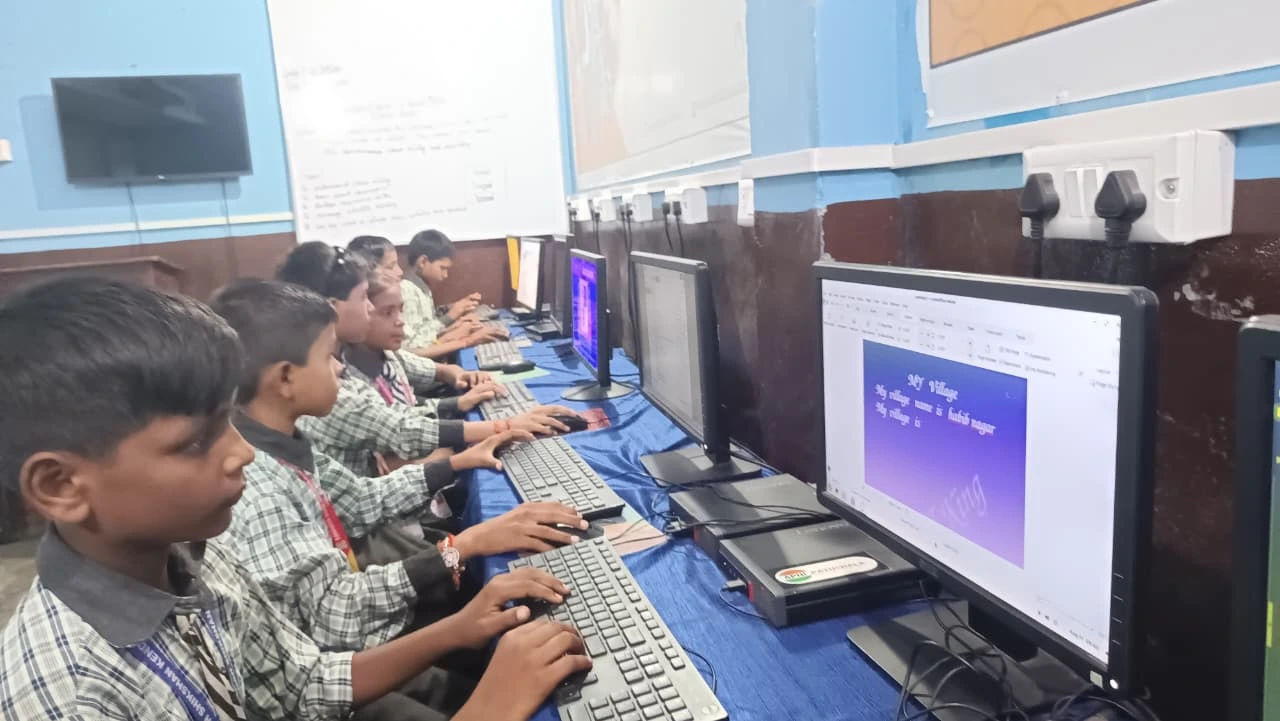
Storage is the space where your computer keeps all your files permanently. Your documents, photos, videos, and software all live in your storage. When you turn off your computer, the files stay there. This is different from RAM, which clears when you shut down your computer.
There are two main types of storage you should know about:
- SSD (Solid State Drive) is much faster and more reliable. A 128GB SSD is excellent for students because it boots quickly and loads files instantly.
- HDD (Hard Disk Drive) is older and slower. It’s cheaper, but it can make your computer feel sluggish.
For your student computer, always choose an SSD if you can. It’s like the difference between walking and running to school. An SSD-based computer feels snappy and responsive, while an HDD feels like it’s always thinking.
Putting It All Together: Choosing Your Student Computer
Now that you understand RAM, processors, and storage, you can make sense of computer specifications. A good student computer needs balance. You don’t need the most expensive components, but you also can’t go with the cheapest options.
The Apna PC, designed by Apni Pathshala, comes with 8GB RAM and a 128GB SSD for just Rs. 30,000 (shipping and GST excluded). It comes pre-loaded with Zorin OS, LibreOffice for documents, and Scratch for learning coding. These specs are well-suited for students in Tier 2 and 3 cities who want reliable performance without breaking the bank.
Before you buy any computer, check these three things: RAM (aim for 8GB), Processor (Intel i3 or AMD equivalent), and Storage (128GB SSD minimum). If your computer has these, you’re good to go. To learn more about how these components work together, read about computer hardware basics.
Resources to Learn More About Computer Specifications
The Ministry of Education and the DIKSHA digital platform offer excellent resources about technology and digital literacy for students. These platforms help you understand not just specifications, but how to use computers effectively for your studies.
Understanding computer specifications doesn’t require an engineering degree. With this simple guide, you now know what RAM, processors, and storage mean. Visit apnapc.com to learn more.