


Rajesh’s Struggle: When a Good Computer Goes Bad
Rajesh sits in his small room in Indore, staring at his laptop screen. It’s been three years since his parents bought him this computer for engineering college. Back then, it opened applications in seconds. Today, even opening Chrome takes a full minute. His mother asks from outside: “Beta, why does your computer take so long? We spent good money on it.” Rajesh doesn’t have an answer. He just knows his computer performance has become unbearable, and he’s worried his parents will think he wasted their money.
This is the story of thousands of students across India. You buy a computer with high hopes. You use it for studies, projects, and yes, a bit of gaming too. Then one day, you realise your PC optimisation needs serious work. Your computer speed has dropped. Applications freeze. Downloads crawl. You wonder: “What happened to my machine?”
The good news? Most of this can be fixed. You dont need to buy a new computer. You need to understand computer performance and how to maintain it. Let’s talk about practical PC optimisation tips that actually work for students like you.
Why Your Computer Performance Drops Over Time
Your computer isn’t broken. It’s just tired. Every file you download, every application you install, every browser tab you keep open takes up space and processing power. Your hard drive fills up. Your RAM gets stretched thin. Background programs run without you knowing. This is why computer speed suffers.
Think of your PC like your study room. When you first set it up, everything has its place. But after months, papers pile up, books scatter around, and you can barely find space to sit. Your computer works the same way. It needs cleaning and organising.
Understanding computer hardware matters helps you see why this happens. Your storage fills up. Your RAM gets used up. Your processor gets overloaded. These are physical limits, not software problems.
- Storage Space: When your hard drive is 90% full, your computer slows down trying to find free space
- RAM Usage: Too many programs running at once means your computer can’t process everything smoothly
- Background Programs: Apps running in the background consume your computer’s resources without you realising
- Malware and Junk Files: Unwanted software clogs your system like dust in a fan
Practical PC Optimisation Steps You Can Do Today
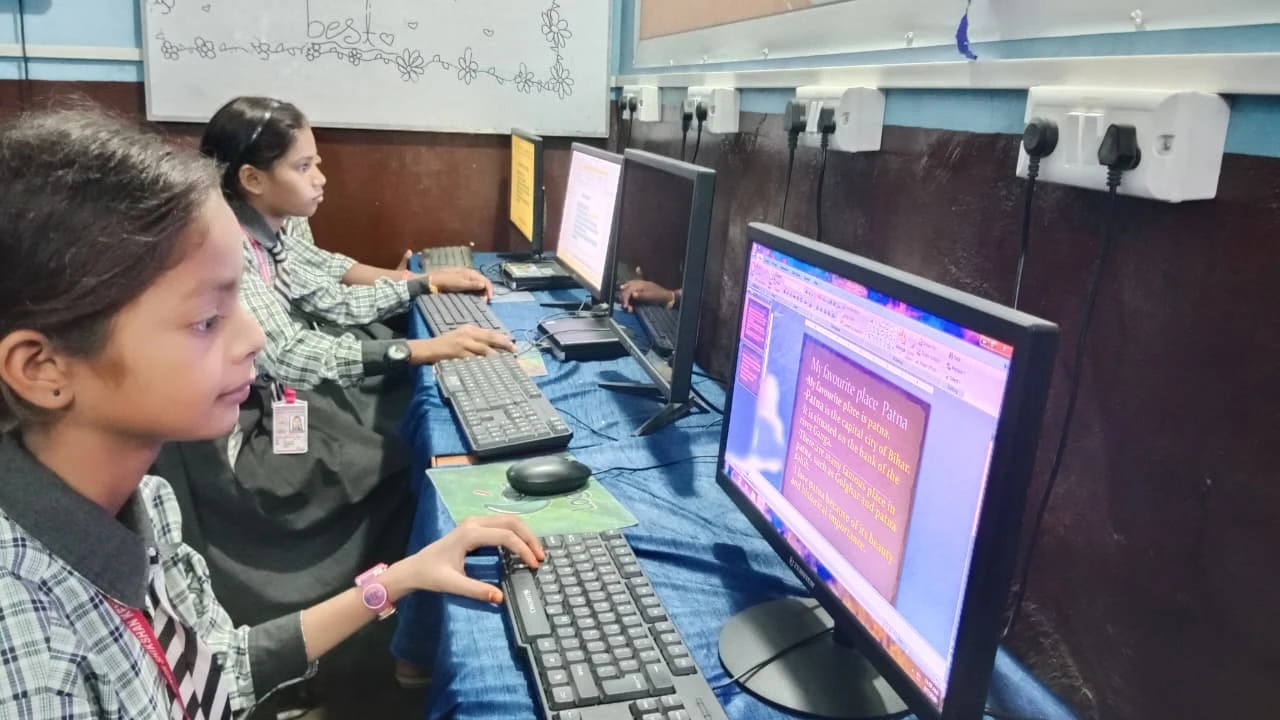
Start with the basics. You dont need technical knowledge to improve your computer performance. These steps take 30 minutes to an hour, and you’ll see real results.
Clean Your Hard Drive
Open File Explorer and check how much space you’re using. On Windows, go to Settings, then System, then Storage. You’ll see exactly what’s taking up space. Delete old project files you don’t need. Move large files like movies or downloaded videos to an external drive. Aim to keep at least 15-20% of your hard drive empty. This alone can significantly boost your computer’s speed.
Uninstall Programs You Don’t Use
Go to Control Panel and look at your installed programs. How many of them do you actually use? That gaming software from last year? The photo editor you tried once? Uninstall them. Each program takes up space, and some run in the background automatically. Removing them frees up resources and instantly improves PC optimisation.
Disable Startup Programs
When you start your computer, dozens of programs try to launch automatically. This is why your boot time is slow. Open Task Manager (press Ctrl + Shift + Esc), go to the Startup tab, and disable programs you don’t need running when you start your PC. Keep only essential programs like antivirus software.
Clear Your Browser Cache and Cookies
Your browser stores temporary files from every website you visit. Over time, this slows down browsing. Clear your cache and cookies monthly. In Chrome, go to Settings, Privacy and Security, Clear Browsing Data. Your computer performance will feel snappier immediately.
Run Disk Cleanup and Defragmentation
Windows has built-in tools for this. Search for “Disk Cleanup” and run it. This removes temporary files your computer no longer needs. If you’re using a traditional hard drive (not an SSD), defragmentation helps too. Search for “Defragment” in Windows. This reorganises your files so your computer can access them faster.
Update Your Operating System and Drivers
Updates aren’t just about new features. They fix performance issues and security problems. Check for Windows updates regularly. Also update your graphics drivers and chipset drivers from your computer manufacturer’s website. These updates directly impact your computer speed.
For detailed guidance on maintaining your system, check out our article on computer maintenance skills every student should know.
The Smart Student’s Solution: Start Fresh
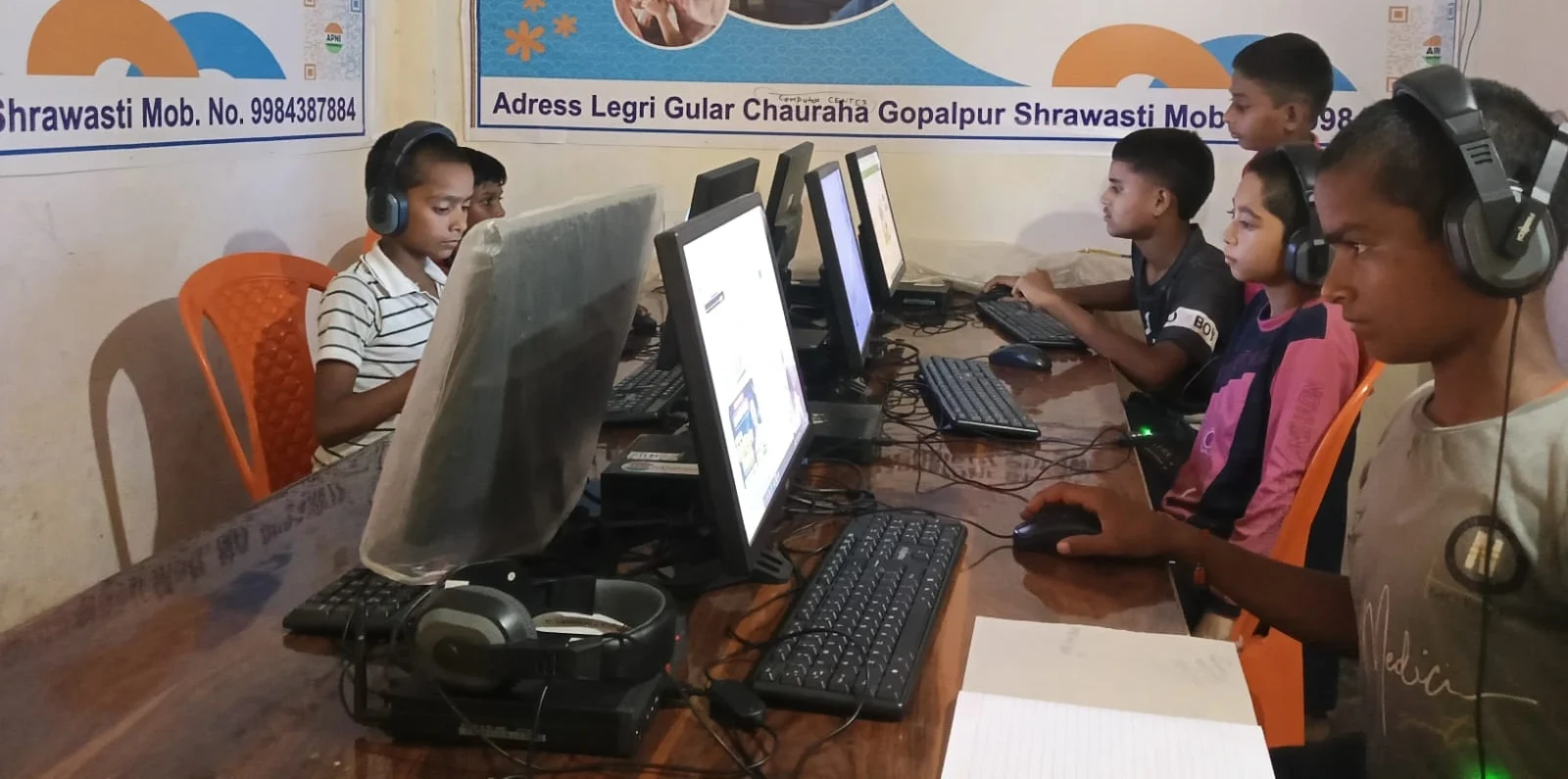
Sometimes, even after cleaning, older computers struggle. This is where many students feel stuck. They’ve invested in a computer, but it can’t handle their coursework anymore. They need something reliable for studies, projects, and research.
This is exactly why Apna PC was created. Built specifically for Indian students, Apna PC comes pre-loaded with everything you need. No bloatware. No unnecessary programs slowing you down. It runs on Zorin OS, which is lightweight and fast. It has 8GB RAM and 128GB SSD storage. Your computer performance stays smooth, even when you’re running multiple applications for your assignments.
Apna PC includes LibreOffice for your documents, Scratch for coding projects, and Apni Prerna for study tracking. At just Rs.30,000 (excluding shipping and GST), it’s designed for students who want a computer that works, not one that frustrates them.
Whether you’re optimising your current computer or starting fresh, the goal is the same: you need a machine that supports your studies without slowdowns and crashes.
The Indian Ministry of Education recognises the importance of reliable technology for students. The Digital India initiative pushes for better computer access across the country. Your computer should be a tool that helps you learn, not something that holds you back.
Take action today. Clean your computer this weekend. Uninstall what you don’t need. Clear your cache. See how much faster your computer performance becomes. If you’ve done all this and your computer still feels slow, maybe it’s time for an upgrade designed for students.
Don’t let computer speed issues derail your studies. Visit apnapc.com to learn more.