


Priya’s First Assignment on Her New Desktop
Using Google Docs for students’ work felt impossible to Priya when she unboxed her first desktop computer last month. Her mother, a teacher in Indore, had saved for two years to buy it. The screen glowed. The keyboard felt new. But one thought made her nervous: could she really write her English essay on this machine? Her school used Google Docs. She’d never owned a computer before. What if it didn’t work?
Three weeks later, Priya submitted five assignments. All on time. All formatted perfectly. Her teacher gave her 9 out of 10 on her last essay. Priya’s story isn’t unique among students in Tier 2 and Tier 3 cities across India who’re buying their first home computer. Many ask the same question: can I use Google Docs for students on a desktop? The answer is a solid yes.
Why Students Need Google Docs for Student Work
Google Docs is a free online document editor. You don’t install anything. You open your web browser, sign in with your Google account, and start typing. Schools across India now ask students to submit work in Google Docs because teachers can see your work in real time, leave comments, and track changes. It’s become the standard for school assignments.
The beauty is that Google Docs works on any device with a browser and an internet connection. Your desktop doesn’t need to be expensive or powerful. A student computer with 8GB RAM and a basic processor handles it without any lag. You’re not running heavy software. You’re just using your browser.
Getting Started with Google Docs for Students
First, you need a Google account. You can use your school email if your school provides one, or create a personal Gmail account. Open any web browser on your desktop, such as Chrome, Firefox, Safari or Edge. Go to Google.com. Click the profile icon in the top-right corner. Select “Sign in” and enter your email and password.
Once you’re signed in, go to Google Drive. You’ll see a button that says “Create” or a plus icon. Click it. Select “Google Doc.” A blank document opens. You’re ready to write. No software to buy. No installation. Just your browser and your ideas.
Writing and Formatting Your Assignments
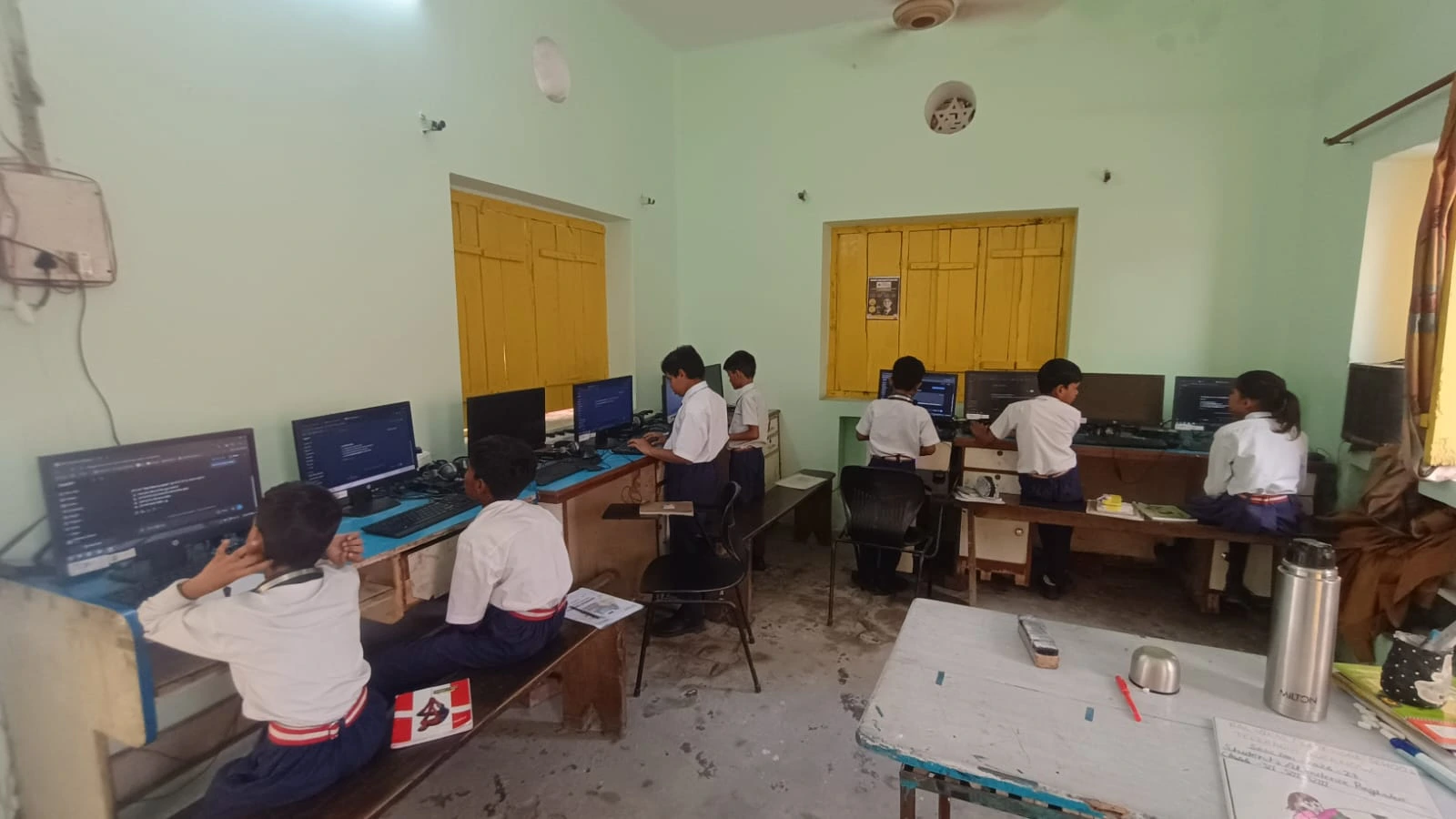
Google Docs for students includes all the tools you need to write and format assignments. You can change fonts, sizes, colours, and alignment just like you would in Microsoft Word. You can add bullet points, numbered lists, headers, and bold or italic text. The toolbar at the top has everything you need.
Your document auto-saves every few seconds. You’ll see a small notification that says “Saving” and then “All changes saved to Drive.” This means you don’t have to click save. Your work is safe in the cloud. If your internet drops for a second, the document still exists on Google’s servers. You won’t lose anything.
You can also insert images, tables, and links. Many students use these features for project reports and presentations. The formatting stays clean and professional. Teachers can read it on any device.
Smart Features That Save You Time
Google Docs has features designed to help you work better. Voice typing lets you dictate your essay instead of typing it all out. Just click on “Voice typing” in the Tools menu. Your computer’s microphone picks up what you say and converts it to text. It’s helpful when you’re tired of typing or want to get your thoughts down quickly.
Spelling and grammar check is built in. As you type, Google underlines spelling mistakes in red and grammar issues in blue. You can click on them to see suggestions. This helps you catch errors before you submit. Comments are another powerful feature. Your teacher can highlight a sentence and leave feedback without changing your text. You can see exactly what they’re asking you to fix.
Offline Mode for Google Docs for Students
What if your internet goes down? Priya was worried about this in her first week. The answer is offline mode. You can enable it so Google Docs works even without internet. Go to Settings. Turn on “Offline.” Now, when you open a document you’ve already used, it’ll load even if you’re not connected. You can keep writing. When your internet comes back, your changes sync automatically.
This is crucial for students in areas where internet isn’t always stable. Set up offline mode before you start a big project. Don’t wait until the last minute. That way, a power cut or network issue won’t derail your homework.
Sharing Your Work with Teachers
When your assignment is done, share it with your teacher. Click the blue “Share” button in the top right. Enter your teacher’s email address. Choose whether they can view, comment, or edit. Most teachers prefer “Viewer” or “Commenter” access so they can read your work and leave feedback without accidentally changing it.
You can also generate a link and send it via WhatsApp, email, or your school portal. Your teacher opens the link and sees your document instantly. No need to email files back and forth. No version confusion. Everyone’s always looking at the latest version.
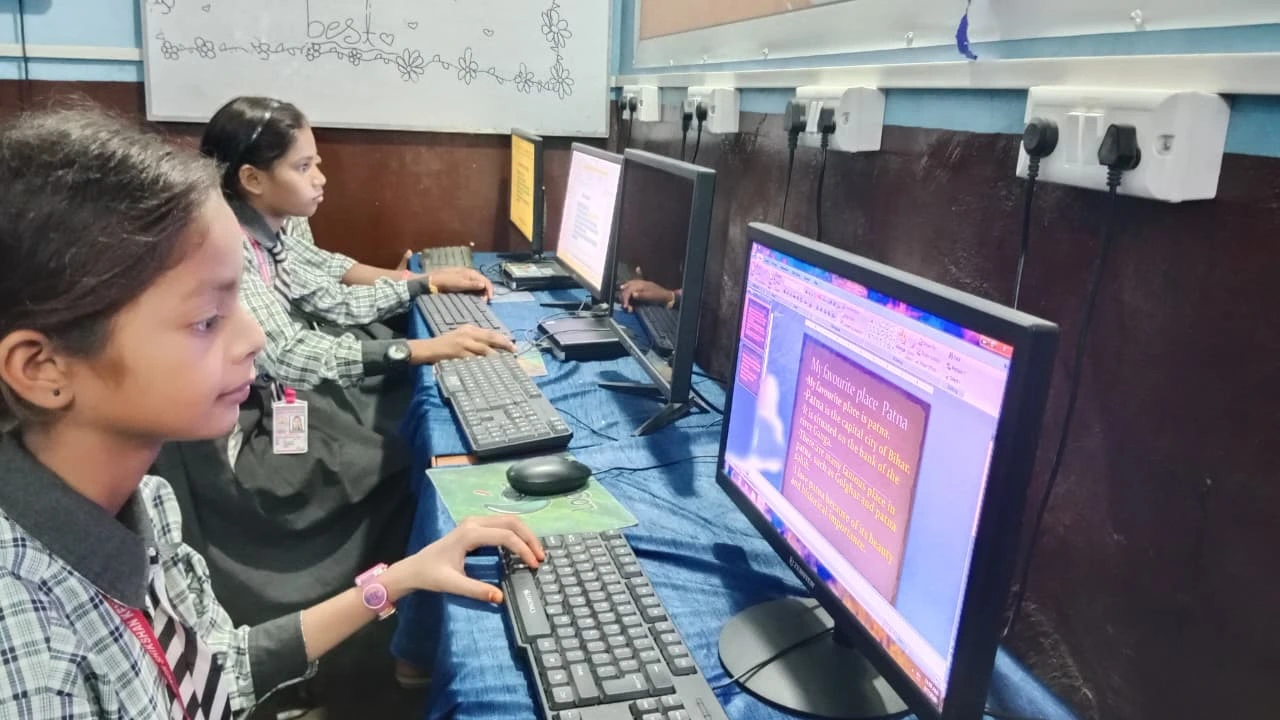
Why a Student Computer Works Perfectly
You don’t need an expensive laptop or gaming desktop to use Google Docs. A student computer with 8GB RAM, 128GB SSD storage, and a basic processor handles it beautifully. The Apna PC, designed by Apni Pathshala for Indian students, comes with exactly these specs. It runs Zorin OS, a Linux-based system, and includes LibreOffice (an offline alternative) and other learning tools.
Google Docs runs in your browser on Linux just as well as it does on Windows or Mac. You open Firefox or Chrome, sign in, and go. No lag. No crashes. Your assignments get done on time. You can also use a school portal to submit work directly to your school’s learning management system.
At Rs. 30,000 (excluding shipping and GST), it’s affordable for families in Tier 2 and Tier 3 cities. It’s built for students like Priya who’re using technology for schoolwork for the first time.
Getting Help When You’re Stuck
Google provides free support. If you run into trouble, visit the Google Docs help centre. You’ll find tutorials, answers to common questions, and step-by-step guides. Apni Pathshala also publishes resources to help students get the most out of their computers and software. Check their blog for tips.
Your school’s IT support team can also help. Most schools have someone who helps students with Google Workspace, including Google Docs. Don’t hesitate to ask. You can also read how the school portal on a student computer connects to your Google account.
You’re Ready to Submit
Google Docs for students is reliable, free, and works on any desktop with a browser. You can write, format, collaborate, and submit assignments without buying expensive software. Millions of Indian students use it every day. Your desktop doesn’t need to be fancy. 8GB RAM and a stable internet connection, or offline mode, are enough.
Priya now submits all her work in Google Docs. She’s not nervous anymore. She knows her computer can handle it. Your first desktop computer can too. Visit apnapc.com to learn more.