


Why Karan Dropped Out of His Online Class
Karan is 14 and lives in Indore. When his school moved classes online, his family bought a second-hand laptop. The problem was not the internet or the laptop. Karan has weak eyesight, and the small grey text on the screen gave him headaches within a week. He stopped attending lectures. Nobody at home knew his computer already had a magnifier, a screen reader and adjustable text sizes built in. These computer accessibility features are already installed, and most students in India have never opened them.
Accessibility settings are not only for students with disabilities. They make a computer easier to see, hear, type on, or control. Every student benefits from it at some point, whether it is tired eyes during exam season or a damaged speaker on a shared machine.
What Is Computer Accessibility?
Computer accessibility means the built-in settings and tools that adjust how a computer behaves so different learners can use it comfortably. Speech recognition lets you dictate instead of typing. The magnifier enlarges parts of the screen. The narrator reads text aloud. High contrast modes make letters sharper. Input assistance features like sticky keys help when pressing multiple keys together is difficult.
These tools are already installed on Windows and on free systems like Zorin OS, which comes pre-loaded on Apna PC. You do not need to buy anything. You only need to know where the settings are.
Why Accessibility Features Matter for Every Student
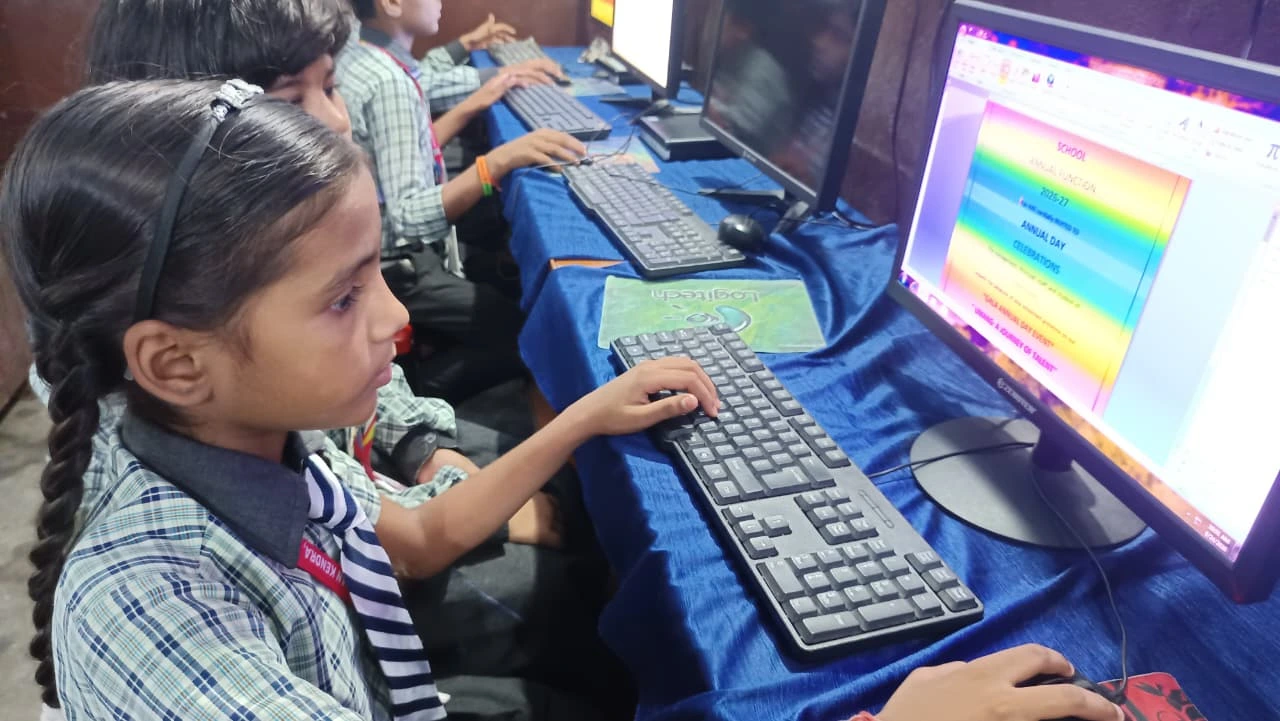
They reduce strain. Students spend hours reading from screens. Larger text, warmer colours and higher contrast cut down headaches and eye fatigue, especially during board exam revision.
They support different learning styles. Some students remember better when they hear a lesson. Others need to read it three times. Audio options and visual aids let each student learn in the way that works for them.
They prevent students from falling behind. Karan’s story is common. A student who cannot see the board or hear the teacher quietly loses a term of learning. Accessibility settings close that gap before it becomes a bigger problem.
They build confidence. A student who struggles with typing can use voice typing and participate in assignments like everyone else. That small change keeps them engaged instead of embarrassed.
Speech Recognition: Talk Instead of Type
Windows has a voice typing tool. Press the Windows key and H, speak into the microphone, and your words appear in a document. For students who type slowly, or whose hands get tired during long answers, this is a genuine shortcut. It also helps younger students in junior classes who are still learning to spell. Apna PC ships with a microphone-ready setup, so the tool works out of the box once you switch it on.
Audio Options: Hear the Lesson, Not Just Read It
Some students absorb more when they listen. Screen readers can read chapters aloud while the student follows along or does something else. You can adjust volume levels, left/right balance, and mono audio for students with hearing in one ear. If you share a computer with a sibling, a good headphones and speakers setup guide makes a big difference during online classes.
Visual Aids: Computer Accessibility for Tired Eyes
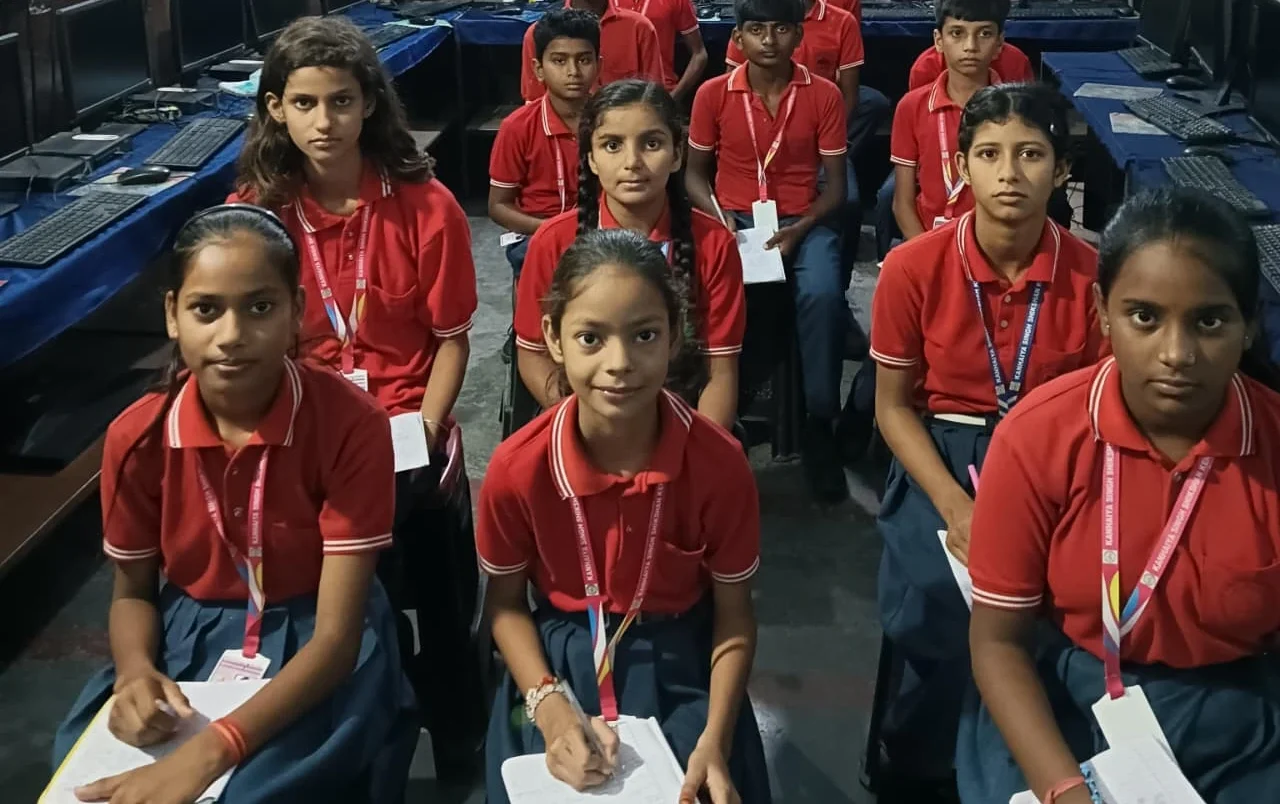
Three settings matter here. The magnifier zooms into any part of the screen. Text size can be increased system-wide without zooming everything. High-contrast modes also change the colour scheme, so text stands out clearly. Students who squint at paragraphs or study at night with the lights off should try these first. On Apna PC, computer accessibility settings are easy to reach because the interface stays simple and uncluttered.
Input Assistance: When Typing Is the Hard Part
Sticky keys let you press Shift, Ctrl and Alt one at a time instead of together. Filter keys ignore brief or repeated keystrokes, which helps students who press keys nervously. On-screen keyboard lets you type with the mouse. Mouse keys move the pointer using number keys. Input assistance features matter for students with motor difficulties, but they also help anyone typing on a worn-out keyboard where some keys do not respond properly.
What Parents Should Check This Weekend
- Open the accessibility settings on your child’s computer and look through each section together.
- Raise the text size if your child sits close to the screen or complains of headaches.
- Turn on voice typing and let them try dictating one homework answer.
- Check that the narrator or screen reader works, even if you don’t need it daily.
- Ask your child’s teacher if classes use captions or audio materials.
Ten minutes of setup can save months of lost learning. If the computer at home is old and slow, none of these computer accessibility tools run properly, which is another reason families choose an educational machine like Apna PC for students. You can also read more from Apni Pathshala on setting up computers for learning.
Accessibility Is a Learning Advantage, Not a Fix
The schools that take digital learning seriously are already paying attention to this. India’s DIKSHA digital learning platform and guidelines from the India Ministry of Education both push for inclusive learning resources, and UNESCO education research shows that accessible materials improve outcomes for all students, not only those with disabilities.
Check the accessibility settings on your child’s computer this weekend. Visit apnapc.com to learn more.