


A computer for student internships needs reliable performance, essential software and affordability, not gaming power or flashy specs. The right device helps you complete work tasks, learn professional tools and build your portfolio without draining your family’s budget.
This guide covers what matters when choosing a computer for internship work, how to prepare your device, and which affordable option fits a student’s needs.
What specs does a computer for student internships actually need?
Most internships require a computer that runs office software, handles video calls and manages email reliably. You don’t need the latest processor or gaming graphics; you need stability, enough memory to run multiple programs, and storage for your work files.
Look for at least 8GB of RAM so your computer doesn’t slow down when you have LibreOffice, a browser and communication tools open at the same time. A 128GB solid-state drive (SSD) gives you space for documents, presentations and project files without constant cleanup. A processor that handles everyday tasks smoothly matters more than raw speed.
Why does your operating system choice matter for internship work?
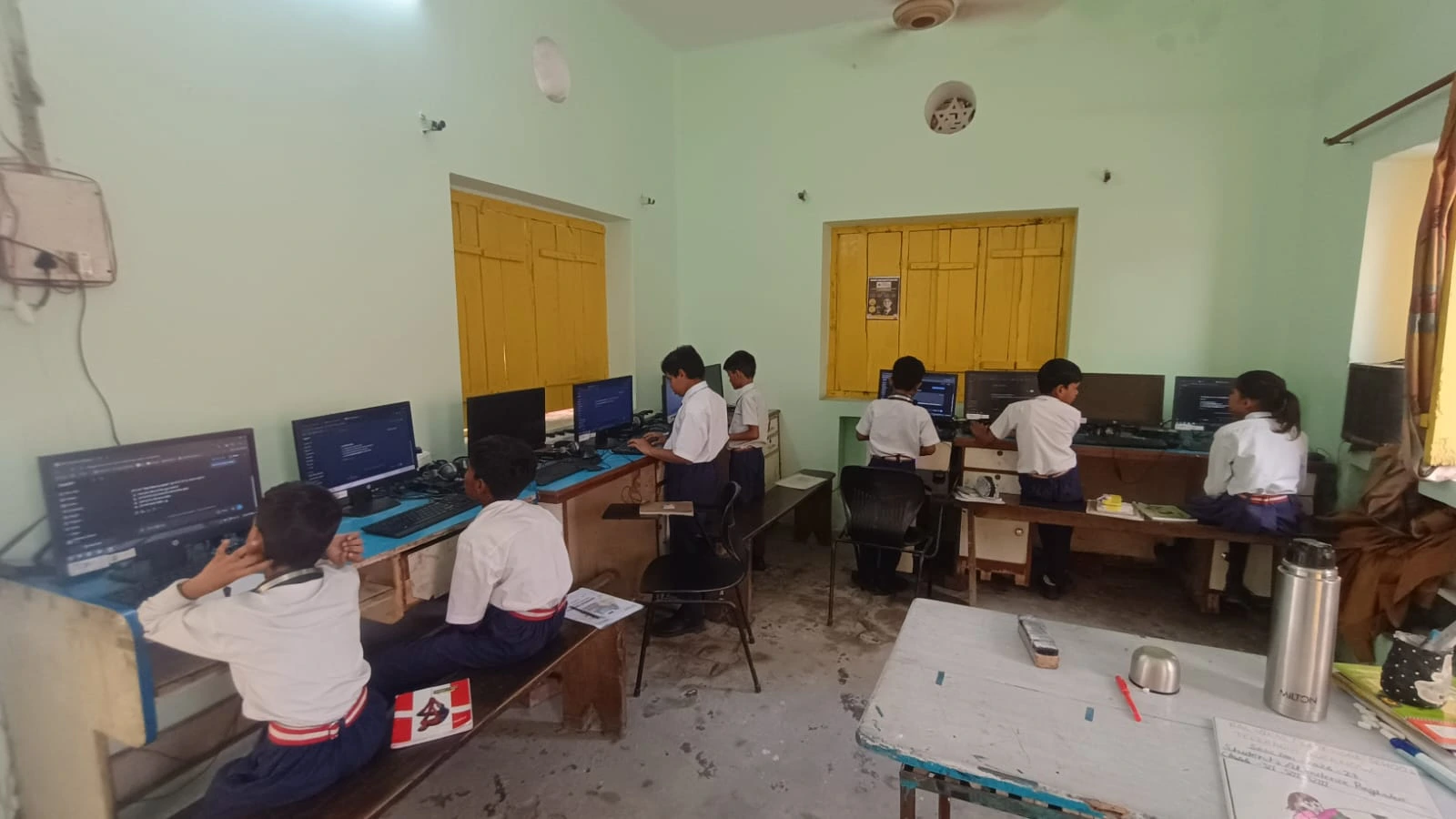
Your operating system determines which software you can use and how easily you can collaborate with colleagues. Linux-based systems like Zorin OS are lightweight, secure, and cost-effective, but check whether your internship company uses Windows-specific tools before committing.
Many internships use cloud-based platforms like Google Workspace or Microsoft 365, which work on any operating system through a web browser. Check with your internship coordinator about required software before you buy. If your company uses specialised Windows programs, you may need a Windows computer instead.
How should you prepare your computer for internship tasks?
Before your internship starts, install the software your company uses and practice with it. Most internships involve document creation, spreadsheets, presentations and email, all of which you can do with free, open-source tools like LibreOffice.
Set up a separate folder structure for your internship work so files stay organised. Test your internet connection, webcam and microphone for video calls. Create a professional email signature and familiarise yourself with any project management tools your team uses. These steps take an hour but save you stress on your first day.
Which free software should you learn before your internship?
LibreOffice is a powerful alternative to Microsoft Office and handles Word documents, Excel spreadsheets and PowerPoint presentations. Learning LibreOffice now means you can work confidently on any project that uses these formats.
Scratch is useful if your internship involves coding, design or digital projects. Many companies also use cloud tools like Google Drive, Figma or Canva, which you can access through any web browser. Spend a few hours practising these tools, so you’re productive from day one.
| Task Type | Software You’ll Use | Free Option |
|---|---|---|
| Documents and reports | Microsoft Word | LibreOffice Writer |
| Data and analysis | Microsoft Excel | LibreOffice Calc |
| Presentations | Microsoft PowerPoint | LibreOffice Impress |
| Coding projects | Python, JavaScript IDEs | Scratch, VS Code (free) |
| Collaboration | Microsoft Teams, Slack | Google Meet, Jitsi (free) |
Can an affordable computer handle professional internship work?
Yes. An affordable computer with 8GB RAM and an SSD handles internship tasks as well as expensive models. Most internship work is not graphics-intensive or computationally heavy; it’s about reliability, software compatibility and getting the job done.
Apna PC, priced at Rs. 30,000 (shipping and GST excluded), includes 8GB RAM, 128GB SSD storage and comes with LibreOffice and Scratch pre-loaded. It runs Zorin OS, a Linux system designed for students and everyday work. For internships that use cloud-based tools or web applications, this computer performs as well as machines costing significantly more.
How does your computer choice affect your internship performance?
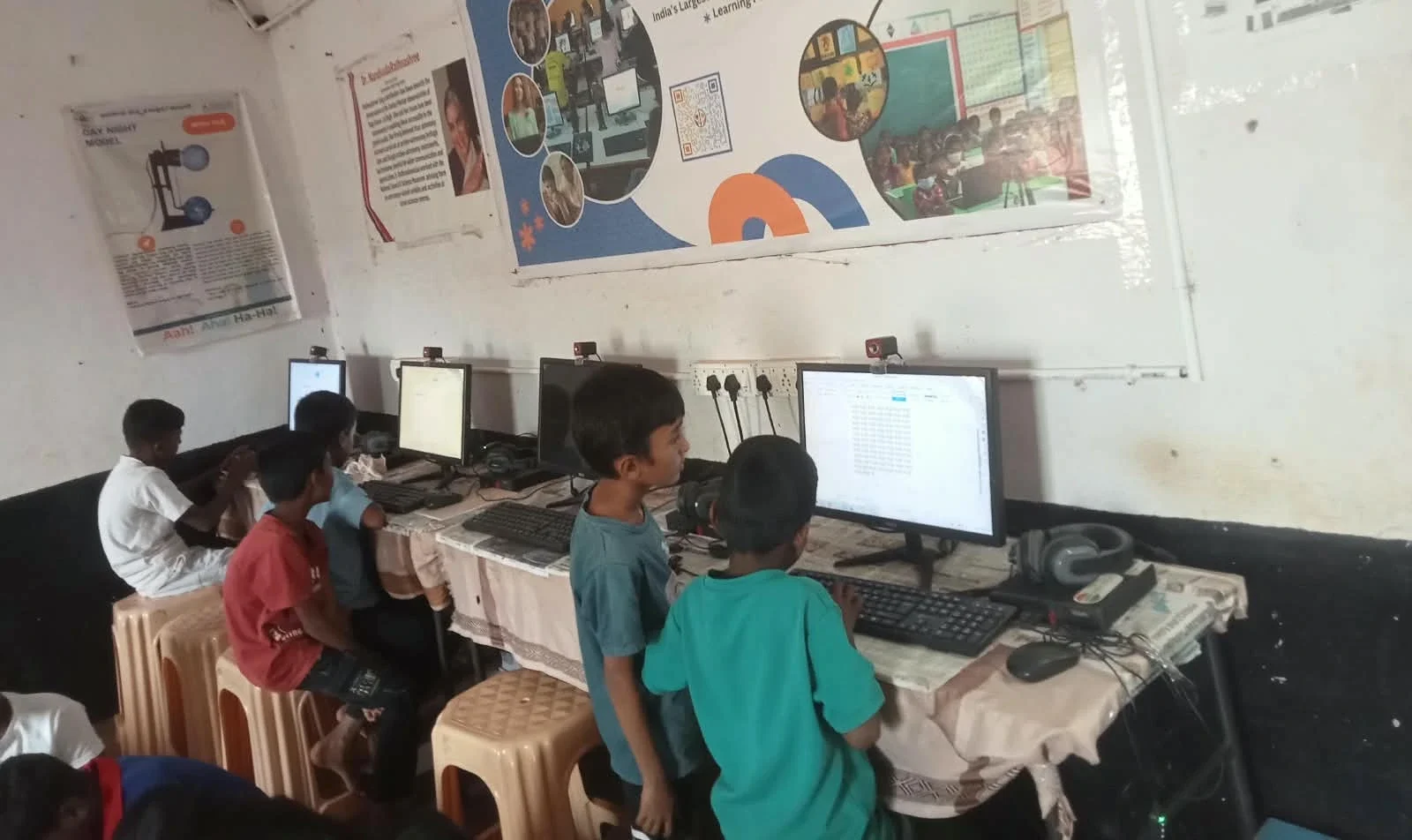
A reliable computer means you can focus on learning and delivering work instead of troubleshooting technical problems. When your device doesn’t crash during important tasks, you build confidence and a stronger professional reputation.
An affordable option removes the stress of protecting an expensive investment, so you can concentrate on your internship goals. You can use your savings for other career development like courses, certifications or travel to internship locations. A desktop PC for easy learning also gives you a dedicated workspace that improves focus and productivity.
What skills should you develop alongside your computer setup?
Technical skills matter, but so do soft skills like communication, time management and problem-solving. Your computer is a tool; employers notice how well you use it.
Practice typing quickly and accurately. Learn keyboard shortcuts to work faster. Understand basic cybersecurity, like using strong passwords and not opening suspicious emails. Take a DIKSHA digital learning platform course on office productivity or your industry’s specific tools. These skills make you valuable to any internship team.
How does the Digital India initiative support student internships?
The Digital India initiative promotes digital literacy and access to technology for all Indians, including students preparing for internships. Government programs support affordable devices and digital learning resources so cost doesn’t block your career path.
Many schools and colleges now partner with digital learning platforms to provide free training in professional software. Check if your institution offers these programs; they can boost your internship readiness at no extra cost. A desktop for kids home use can serve both your school projects and internship preparation.
Frequently Asked Questions
Do I need Windows or can I use Linux for my internship?
It depends on your internship company. Most use cloud-based tools that work on any operating system. Check with your employer before you start. If they require Windows-specific software, you’ll need Windows. For general office work, email and video calls, Linux systems like Zorin OS work perfectly.
What if my internship requires software I don’t have?
Ask your internship coordinator for a list of required software before day one. Many companies provide free licenses to interns or use cloud versions you can access from any computer. If you need a specific tool, your company usually helps you install it or provides an alternative.
Is 8GB RAM enough for internship multitasking?
Yes. 8GB RAM handles multiple browser tabs, office software and communication tools simultaneously. Most internship work doesn’t require the higher RAM that gamers or video editors need. You’ll work smoothly without lag or crashes.
How much storage do I need for internship files?
128GB SSD storage is sufficient for most internships. You can store documents, presentations, code files and project materials with room to spare. Use cloud storage like Google Drive for backup and easy access from any device.